
You're reading this because something feels off — and you want to know if there's a dating app hiding on an iPhone. Here's the direct answer: iPhones have at least 10 places where hidden apps leave traces, and we're going to walk you through every single one.
The numbers back up your concern. A HighSpeedInternet.com survey found that 1 in 4 Americans admitted to using dating apps to cheat, and 27% said they've used dating apps while in a committed relationship. Meanwhile, iOS 18 introduced a built-in feature that lets users hide apps behind Face ID — making it easier than ever to keep a dating profile out of sight.
This guide covers 10 specific methods to find hidden dating apps on an iPhone, from the obvious (App Library) to the overlooked (battery usage data and subscription receipts). Every method includes exact steps, what you'll find, and what each method can't catch. No guesswork. No fluff.
If you'd rather skip the phone inspection entirely, CheatScanX scans 15+ dating apps by name, email, or phone number — no device access needed. Results come back in minutes.
Why Dating Apps Get Hidden on iPhones
Before you start checking, it helps to understand how iPhone hiding works — and why the people doing it think they're covered.
iOS 18's Built-In Hiding Feature
Apple introduced a dedicated hiding feature in iOS 18 that goes beyond simply removing an app from the Home Screen. When someone hides an app through the official Apple process, three things happen:
- The app icon disappears from the Home Screen and App Library search.
- The app name no longer shows up in Spotlight Search or Siri Suggestions.
- Notifications from the app stop appearing entirely.
The app moves to a "Hidden" folder at the bottom of the App Library, which requires Face ID, Touch ID, or a passcode to open. From the outside, the phone looks clean. No icon. No notifications. No search results.
This feature was designed for legitimate privacy — hiding health apps, personal finance tools, or anything someone doesn't want visible during screen sharing. But the same feature works just as well for hiding Tinder, Bumble, Hinge, or any other dating app.
Why Partners Hide Dating Apps
The reasons vary, but the data is consistent. According to Pew Research Center (2023), 30% of U.S. adults have used a dating site or app. Among those in committed relationships, HighSpeedInternet.com found that 27% admitted to keeping dating apps active while partnered.
The most common hiding behaviors we see fall into these patterns:
- Downloading, using, then deleting the app repeatedly (leaving traces in purchase history)
- Using iOS 18's hidden folder to keep the app installed but invisible
- Installing disguised apps — vault apps or calculator clones that hide dating features behind fake interfaces
- Accessing dating sites through Safari instead of dedicated apps
If you've noticed signs your husband is cheating on his phone or signs your wife is cheating on her phone, these hiding methods explain why you might not see anything obvious at first glance.
If you've been noticing signs your boyfriend is on dating apps alongside increased phone secrecy, these hiding methods explain the gap between what you sense and what you see.
Understanding these methods tells you where to look. The rest of this guide gives you the exact steps.
Want to skip straight to answers? CheatScanX scans Tinder, Bumble, Hinge, and 12+ other apps in minutes. Completely anonymous.
Start a confidential search ->Method 1: Check the App Library's Hidden Folder
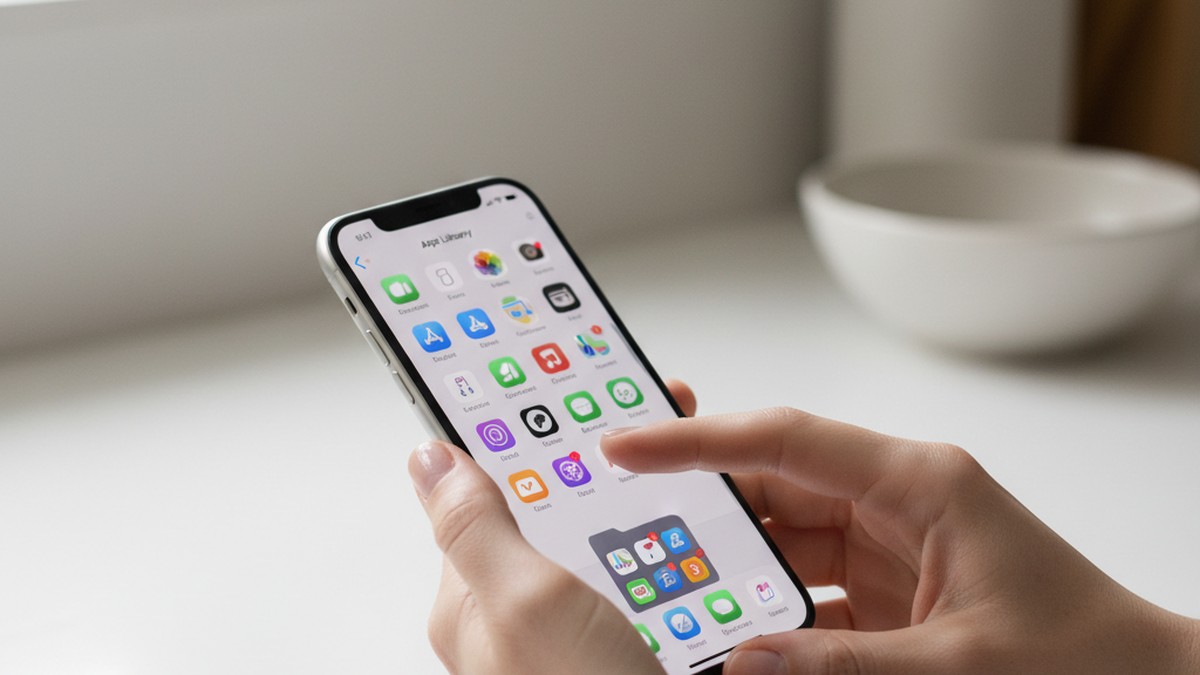
This is the most direct method if the iPhone runs iOS 18 or later. Apple created a dedicated Hidden folder specifically for apps users want to conceal.
Where to Find It
- Unlock the iPhone and go to the Home Screen.
- Swipe left past all Home Screen pages until you reach the App Library (the screen with apps organized into automatic categories).
- Scroll to the very bottom of the App Library.
- Look for a folder labeled Hidden.
If the folder exists, it means at least one app has been deliberately hidden using Apple's built-in feature.
What You'll See (and What You Won't)
Here's the catch: opening the Hidden folder requires authentication. The iPhone will prompt for Face ID, Touch ID, or the device passcode before showing the contents.
If you have authorized access to the device (you know the passcode), you'll see every app that's been hidden. Each app displays its real icon and name — there's no way to disguise an app inside this folder. If Tinder, Bumble, Hinge, or any other dating app is there, you'll see it clearly.
What this method misses:
- Apps that were hidden by other methods (moved into folders, disguised, or restricted via Screen Time)
- Apps that were deleted after use (they won't appear in the Hidden folder)
- Dating apps accessed through a web browser instead of a native app
- Phones running iOS 17 or earlier (this folder doesn't exist)
If the Hidden folder is empty or doesn't appear, it doesn't mean the phone is clean. It just means this particular method wasn't used. Move on to Method 2.
Method 2: Search iPhone Storage in Settings
This is the single most reliable method on this entire list. iPhone Storage in Settings shows every installed app regardless of whether it's hidden, restricted, or removed from the Home Screen.
Step-by-Step Instructions
- Open Settings.
- Tap General.
- Tap iPhone Storage.
- Wait for the list to fully load (this can take 10-30 seconds on phones with lots of apps).
- Scroll through the complete list of installed apps.
The list is sorted by storage size by default. You can scroll through and look for dating app names: Tinder, Bumble, Hinge, Grindr, OkCupid, Plenty of Fish, Match, Coffee Meets Bagel, Feeld, Ashley Madison, or any other dating platform.
Why This Works Even When Apps Are Hidden
Apple's hiding feature in iOS 18 removes apps from the Home Screen, App Library search, and Spotlight. But it does not remove them from the iPhone Storage list. This is a system-level inventory of everything installed on the device, and Apple has never provided a way to exclude apps from it.
This means even if someone:
- Hid the app using iOS 18's Hidden folder
- Disabled the app in Spotlight Search
- Removed it from Siri Suggestions
- Turned off all notifications
The app still appears right here in iPhone Storage, listed by name with its storage size and last-used date.
Pro tip: If you're looking for hidden dating apps on a phone and you only have time for one method, this is the one to use. It catches everything except apps that have been fully deleted from the device.
What this method misses:
- Apps that have been completely uninstalled (deleted, not just hidden)
- Web-based dating access through Safari or Chrome
- Dating apps on a second device
Method 3: Use Spotlight Search
Spotlight Search is the iPhone's universal search tool. It can find apps, files, messages, and web results from a single search bar.
How to Run a Spotlight Search
- From the Home Screen, swipe down from the middle of the screen (not the top — that opens Control Center or Notification Center).
- A search bar appears at the top.
- Type the name of a dating app: "Tinder," "Bumble," "Hinge," "Grindr," "OkCupid," "Match," etc.
- If the app is installed and not hidden from search, it will appear in the results.
You can also try broader terms like "dating" or "meet" to catch apps you might not know by name.
Limitations: When Spotlight Won't Show an App
Spotlight has a significant blind spot. If someone uses iOS 18's hiding feature, the hidden app is automatically excluded from Spotlight Search results. The same applies if someone manually goes to Settings > Siri & Search, selects an app, and turns off "Show App in Search."
This makes Spotlight useful as a quick first check but unreliable as your only method. An app that doesn't appear in Spotlight might still be installed — it's just been excluded from search.
When Spotlight is most useful: Catching apps that have been casually hidden (shoved into a folder, moved off the main screen) but not formally hidden through iOS 18's feature. Many people don't bother with the full hiding process and just move the app to a back page. Spotlight catches those instantly.
For a broader view of apps cheaters use — including ones that aren't traditional dating apps — Spotlight search for messaging apps like Signal, Telegram, or WhatsApp is also worth running.
Method 4: Review Screen Time Data
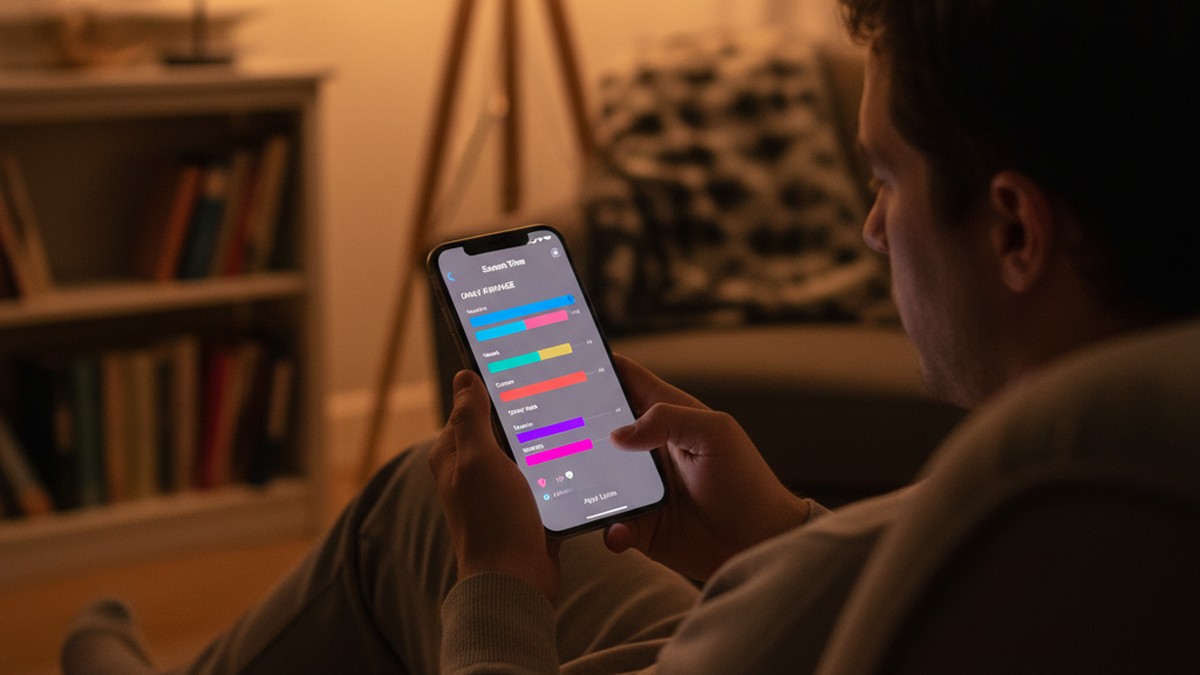
Screen Time is one of the most overlooked tools for finding hidden dating apps. Even apps hidden from the Home Screen and Spotlight still generate Screen Time data. Apple has confirmed this: hiding an app does not hide its usage tracking.
Finding App Usage by Category
- Open Settings.
- Tap Screen Time.
- Tap See All App & Website Activity (or "See All Activity" depending on iOS version).
- You'll see a daily and weekly breakdown of all app usage.
Screen Time organizes apps into categories. Dating apps typically appear under "Social Networking" or "Entertainment" or sometimes "Lifestyle." Tap into each category to see individual app usage times.
What Dating App Usage Looks Like in Screen Time
Here's what to look for:
- Unfamiliar app names under Social Networking or Lifestyle categories
- Late-night usage spikes on social apps (10 PM to 2 AM is peak dating app usage)
- Consistent daily usage of an app you've never heard of (5-20 minutes per day is typical for someone actively swiping on a dating app)
- Apps with very short sessions (1-3 minutes, multiple times per day) — this pattern often matches quick profile checks and message replies
If you see an app name you don't recognize, write it down and search for it in the App Store or Google. Some dating apps have names that don't immediately give away their purpose. Feeld, Hinge, Thursday, The League, and Raya are all dating apps that might not be obvious from the name alone.
How to Read Screen Time's Weekly Report
Screen Time generates a weekly report every Sunday. This report summarizes total usage, most-used apps, and changes from the previous week. Even if you only have brief access to a device, pulling up the weekly report gives you a seven-day snapshot in seconds.
To find it: Settings > Screen Time > See All App & Website Activity > tap "Week" at the top. The report breaks down usage by day, which means you can spot patterns like increased social app usage on specific evenings or weekdays — times that might correspond with a partner being away from home.
One pattern we frequently see flagged: a social networking app with 5-15 minutes of usage per day, spread across 3-6 separate sessions. That pattern — short, repeated visits throughout the day — is characteristic of someone checking matches and replying to messages on a dating app, rather than passively scrolling a social media feed.
The Battery Usage Backup Method
If Screen Time is disabled or has been reset, there's a backup: battery usage data.
- Go to Settings > Battery.
- Scroll down to see battery usage by app over the last 24 hours or 10 days.
- Look for unfamiliar apps, especially ones with "Background Activity" listed.
Dating apps that run in the background (to deliver notifications or update location data) will show up in battery usage even if they've been hidden from everywhere else. An app running persistent background activity that you don't recognize is worth investigating.
Battery data also shows the "Last 10 Days" view, which catches apps used recently but not today. Tap "Show Activity" under the battery chart to switch between percentage and on-screen time views. The on-screen time view tells you exactly how many minutes each app was actively in the foreground — not just background processes.
What if Screen Time has been reset? Someone who is aware of Screen Time tracking can reset all data by turning Screen Time off and back on. If you check Screen Time and it shows no historical data despite the phone being used daily, that reset itself is a red flag. A phone with weeks of usage but a blank Screen Time history has likely been deliberately wiped.
Our dating app cheating statistics page breaks down how common this kind of hidden usage really is, with data from multiple national surveys.
Method 5: Check the App Store Purchase History
Every app ever downloaded through the App Store is logged in the purchase history — including free apps. This history cannot be deleted. It can be hidden from the main purchase list, but it still exists in a separate "Hidden Purchases" section.
Viewing Past Downloads
- Open the App Store.
- Tap your profile icon (top right corner).
- Tap Purchased (or "My Purchases" if using Family Sharing).
- Browse through the list, or use the search bar to search for specific app names.
This list shows every app the Apple ID has ever downloaded. If Tinder was downloaded six months ago and then deleted, it still appears here. The list is sorted by download date, with the most recent at the top.
The Hidden Purchases Section
Someone who's trying to cover their tracks might use the App Store's "Hide Purchase" feature. This removes an app from the main Purchased list. But it doesn't delete the record — it just moves it.
To find hidden purchases:
- Open Settings.
- Tap your Apple ID name at the top.
- Tap Media & Purchases (or "iTunes & App Store" on older iOS versions).
- Tap Hidden Purchases.
Every app that was deliberately hidden from the purchase list appears here. This section exists specifically for apps someone didn't want visible in their download history. If you find dating apps in the Hidden Purchases section, that's a strong signal — someone specifically took steps to hide that download.
What this method misses:
- Apps downloaded using a different Apple ID
- Web-based dating site access (no app download needed)
- Apps from third-party sources (rare on iPhone but possible with sideloading)
If your concern is broader than one phone, our guide on how to check if your partner is on dating sites covers methods that don't depend on device access at all.
Method 6: Look for Disguised and Vault Apps
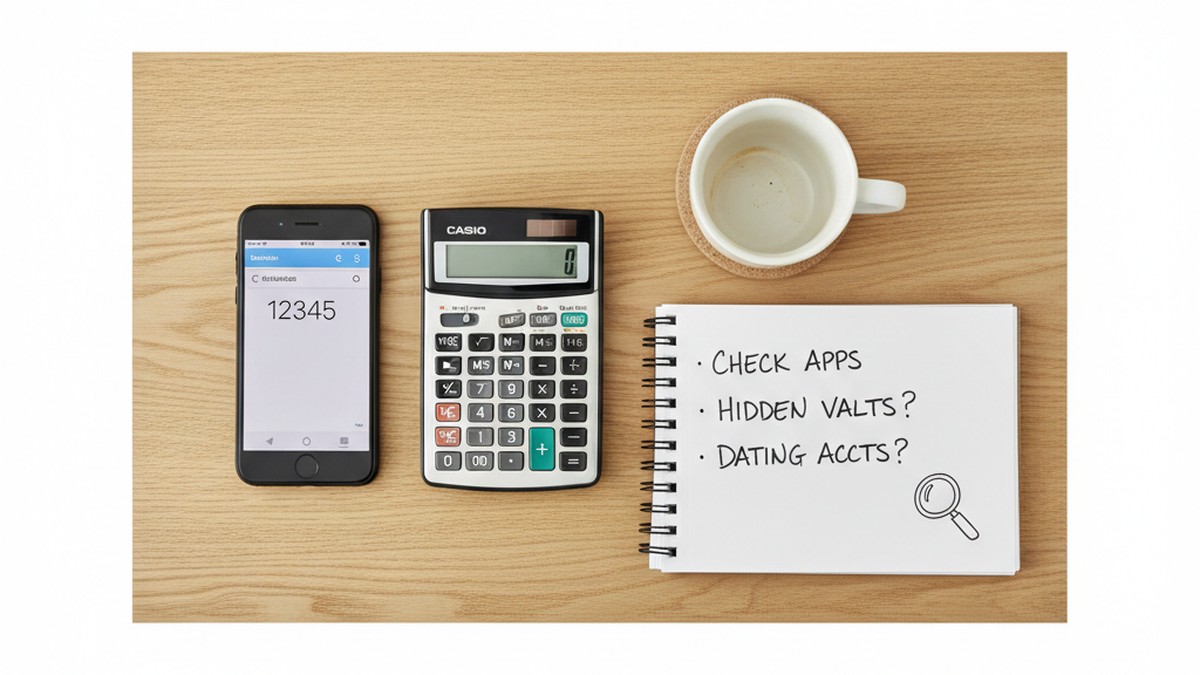
Not all hidden dating apps look like dating apps. Some are deliberately designed to look like everyday utilities — calculators, weather apps, note-taking tools — while hiding dating features, secret messaging, or photo vaults behind a password.
Calculator Vault Apps and Other Decoys
The most common disguised apps include:
| App Name | What It Looks Like | What It Actually Does |
|---|---|---|
| Calculator Pro+ | Standard calculator | Hides a secret messaging and dating app behind the calculator interface |
| Private Photo Vault | Photo organizer | Stores hidden photos and has built-in browser for dating sites |
| Hide App (App Hider) | Utility icon | Conceals any app behind a PIN-protected fake interface |
| CoverMe | Phone utility | Provides a second phone number for secret calls and texts |
| Secret Calculator | Calculator | Photo vault and private browser behind calculator functions |
| Poof | Invisible (blank icon) | Hides other apps by making their icons invisible on the Home Screen |
| Vaulty | Photo gallery | Photo and video vault with a decoy password that shows fake content |
These apps are specifically designed for secrecy. They pass a casual glance because they look like boring utilities. But they appear in iPhone Storage (Method 2) and Screen Time (Method 4) under their real names.
How to Spot a Fake App
Look for these red flags:
- A calculator or utility app that requires a password to open. Real calculators don't need passwords.
- Duplicate apps. If the phone already has Apple's built-in Calculator and there's a second calculator app, ask why.
- Utility apps with surprisingly large storage sizes. A real calculator takes a few megabytes. A vault app storing hidden photos might take hundreds of MB or more (visible in iPhone Storage).
- Apps with vague, generic names in Screen Time that show regular daily usage.
For a full breakdown of cheating apps that look like games and other disguised tools, we've published a dedicated guide with screenshots and identification tips.
The decoy password trick: Some vault apps have a dual-password system. One password opens the real hidden content. A second "decoy" password opens a fake, clean version of the app — showing innocent photos or empty folders. If someone demonstrates that their calculator app "just opens to a normal calculator," they may be entering the decoy password. The actual content sits behind a different PIN.
How to verify a suspicious app: Open the App Store, search for the exact app name, and read the description. If the App Store listing mentions words like "private," "vault," "secret," "hidden," or "secure," the app's true purpose is likely concealment — regardless of what its icon looks like on the Home Screen.
If you find any of these decoy apps on an iPhone, they're worth a closer look. Someone installed them for a reason, and "I needed a second calculator" isn't a convincing explanation.
Method 7: Review Notification Settings and Settings Search
The iPhone Settings app has its own search function that can reveal installed apps hidden from everywhere else. Notification settings also hold clues.
Using the Settings Search Bar
- Open Settings.
- Pull down on the Settings screen to reveal the search bar at the top.
- Type the name of a dating app (Tinder, Bumble, Hinge, etc.).
- If the app is installed, its settings page will appear in the results — even if the app is hidden from the Home Screen and Spotlight.
This method works because Settings search operates at the system level, separate from Spotlight. While iOS 18's hiding feature blocks Spotlight results, the Settings search bar may still surface the app's notification, location, or privacy settings.
Checking Notification History
Even if notifications are currently turned off for a dating app, the notification settings page shows whether the app was ever configured for notifications:
- Go to Settings > Notifications.
- Scroll through the list of apps.
- Look for dating app names or unfamiliar apps.
If you see a dating app listed here with notifications turned off, it tells you the app was installed and then had its notifications deliberately disabled — a common step when someone wants to use a dating app without alerts popping up on the lock screen.
Also check: Settings > Privacy & Security > Location Services. Dating apps typically request location access. If you see a dating app listed here — even with location access set to "Never" — it confirms the app was installed at some point.
Location settings are particularly telling. An app like Tinder set to "While Using" under Location Services means someone has been actively using it recently enough that the permission hasn't been revoked.
Method 8: Check iCloud and Apple ID Data
iCloud and the Apple ID contain records that outlast app deletion. Even if someone uninstalls a dating app, these areas can still hold evidence.
iCloud Backup App List
If iCloud backup is enabled (it's on by default for most iPhones), the backup includes a list of all apps installed at the time of the last backup.
- Go to Settings > [Your Name] > iCloud.
- Tap Manage Account Storage (or "Manage Storage").
- Tap Backups.
- Select the device backup.
- You'll see a list of apps included in the backup.
This list can include apps that have since been deleted. If someone installed a dating app, backed up their phone (automatically, overnight), and then deleted the app, the backup log may still reference it.
Apple ID Subscriptions
This is one of the most revealing checks. Many dating apps require paid subscriptions for full features — Tinder Gold, Bumble Premium, Hinge Preferred, Match.com subscriptions.
- Go to Settings > [Your Name].
- Tap Subscriptions.
- Review all active and expired subscriptions.
Active subscriptions show recurring charges. Expired subscriptions show past payments. If you see a subscription to a dating service — active or expired — it's direct evidence that someone was paying for premium features on a dating platform.
Subscription records are tied to the Apple ID and cannot be deleted by the user. Even canceling a subscription leaves a record in the expired section. This makes the Subscriptions page one of the hardest places to scrub clean.
If you've had a gut feeling he's cheating but haven't found anything on the Home Screen, subscriptions are one of the first places we'd recommend checking.
Method 9: Inspect Safari and Browser History
Some people avoid installing dating apps entirely and access dating platforms through the mobile browser instead. This sidesteps every app-based detection method listed above. But it leaves browser traces.
Safari History and Bookmarks
- Open Safari.
- Tap the book icon (bottom toolbar) to open Bookmarks.
- Tap the clock icon to view browsing history.
- Search for dating site URLs: tinder.com, bumble.com, match.com, okcupid.com, pof.com, ashleymadison.com, hinge.co, etc.
You can also check for:
- Bookmarked dating sites saved for quick access
- Open Safari tabs — tap and hold the tab icon to see all open tabs, including any in Tab Groups
- Autofill data — Settings > Safari > AutoFill may contain login credentials for dating sites saved in the browser
Check Saved Passwords
This method is separate from browsing history and survives history deletion. If someone logged into a dating site through Safari and allowed the browser to save the password, that credential is stored in the Passwords app.
- Open the Passwords app (or go to Settings > Passwords on older iOS versions).
- Authenticate with Face ID, Touch ID, or the passcode.
- Scroll through saved entries or use the search bar to search for dating site names.
Each saved entry shows the website URL, username, and password. If you find an entry for tinder.com, bumble.com, match.com, or any other dating platform, it means someone logged in through the browser and saved their credentials — even if they later cleared the browsing history.
Saved passwords persist until manually deleted. Clearing Safari history does not remove saved passwords. This makes the Passwords app one of the most durable sources of browser-based evidence.
Private Browsing Limitations
If someone uses Safari's Private Browsing mode, their history won't be saved. That's a significant limitation of this method. Private Browsing also won't save cookies, autofill data, or search history from that session.
Private Browsing does have its own tell. In iOS 18, Private Browsing requires Face ID authentication to access. If you notice someone switches to Private Browsing tabs frequently (the interface turns dark/black with a distinctive toolbar), that itself is a behavioral pattern worth examining. Regular Safari use mixed with Private Browsing sessions suggests someone is deliberately separating their browsing into "visible" and "hidden" categories.
Cross-browser check: Don't forget to check Chrome, Firefox, DuckDuckGo, or any other installed browsers. Each browser maintains its own separate history, bookmarks, and saved passwords. A common pattern: someone uses Safari for everyday browsing and installs a secondary browser exclusively for dating sites. If you find a browser in iPhone Storage (Method 2) that seems unnecessary — the phone already has Safari — check what that second browser has been used for.
Web app shortcuts: Some dating sites offer the option to "Add to Home Screen," which creates a shortcut that looks like an app icon but is actually a link to the website. These shortcuts can be moved, hidden in folders, or placed on back pages just like regular apps. They won't appear in iPhone Storage or Screen Time because they're not apps — they're bookmarks. But they will appear on the Home Screen or in the App Library if you scroll through carefully.
Browser history is where web-based dating shows up. If the other methods haven't found an installed app but you still have concerns, the browser is the next place to look. Our guide on how to catch a cheater online covers additional digital trail methods beyond app-based detection.
Method 10: Use a Dating Profile Search Tool
Every method above requires physical access to the iPhone. That isn't always available or practical. A dating profile search tool works differently — it searches dating platforms directly, using a name, email address, or phone number.
How Profile Search Works
Dating profile search tools query the databases of multiple dating apps simultaneously. You enter identifying information (a name, email, or phone number), and the tool searches across platforms like Tinder, Bumble, Hinge, Match, OkCupid, Plenty of Fish, and others for matching profiles.
This approach catches scenarios that phone inspection can't:
- Profiles on a second device (work phone, tablet, old phone)
- Dating apps that were deleted from the primary iPhone after use
- Web-based dating through browsers with cleared history
- Apps that don't leave local traces because they were used on another platform entirely
What a Scan Can Find That Phone Checks Can't
Phone inspection tells you what's installed on one device. A profile search tells you whether an active dating profile exists — regardless of which device was used to create it.
This distinction matters because many people who hide dating apps are also savvy about digital cleanup. They might delete apps after each session, use private browsing, and clear their history regularly. A phone inspection of their device would look clean. But their dating profile still exists on the platform's servers, and a profile search tool can find it.
CheatScanX runs this kind of search across 15+ dating platforms. You enter a name, email, or phone number and get results in minutes. It's the most practical option when you don't have regular access to the device or when you want confirmation without touching their phone.
For a broader comparison of available tools, our best cheater finder apps guide reviews the top options, including what each one covers and how they compare.
Common Mistakes That Tip Off Your Partner
If you're checking a partner's iPhone, how you go about it matters. Certain actions leave traces that alert the phone's owner that someone was looking.
Mistakes That Alert Them
Opening hidden apps directly. If you find an app in iPhone Storage or the Hidden folder and open it, the app may log your activity. Dating apps track login times and locations. If your partner sees a login from a time they weren't using their phone, they'll know.
Changing settings. Turning on Screen Time, enabling notifications for hidden apps, or changing Location Services permissions all create visible changes. The phone owner will notice a setting they turned off is now turned on.
Leaving evidence in the search bar. Spotlight Search and Safari both keep recent search queries. If you search for "Tinder" in Spotlight and then hand the phone back, that search term may appear the next time they swipe down.
Taking too long. Screen Time itself tracks how long the Settings app was open. A 30-minute Settings session when the phone owner wasn't using their device can raise questions.
How to Approach a Phone Check
If you're going to check, work methodically and quickly:
- Start with iPhone Storage (Method 2) — it gives you the most complete picture in one place
- Check Subscriptions (Method 8) — takes 30 seconds and can't be erased
- Review Screen Time briefly (Method 4) — look at category totals, not individual apps
- Don't open any apps you find — just document the names
The goal is to gather information, not to confront in the moment. If you do find something, our guide on what to do if your partner is on a dating app covers next steps, from documentation to confrontation.
What to Do If You Find a Hidden Dating App
Finding a hidden dating app on a partner's iPhone is a charged moment. What you do next determines whether you get clarity or chaos.
Document What You Find
Before saying anything, document the evidence:
- Screenshot the iPhone Storage list showing the app installed
- Note the Screen Time data (dates, usage duration, times of day)
- Record the subscription status if there's a paid dating app subscription
- Check the App Store purchase history and note when the app was first downloaded
Date-stamped evidence is harder to explain away. If your partner says "I deleted that months ago," but Screen Time shows usage from yesterday, the data speaks for itself.
Store documentation somewhere the phone owner can't access — your own device, a personal email, or a secure cloud account.
Decide Your Next Steps
Finding an installed app is not the same as finding proof of physical infidelity. There's a range of possibilities:
- Active profile with recent activity — strong indicator of current use
- Installed app with no recent Screen Time usage — may be inactive or forgotten
- App in purchase history but not currently installed — was used at some point, then removed
- Disguised vault app with no clear content — suspicious but not conclusive
Each scenario calls for a different response. If you're struggling with what a discovery means, our how to catch a cheater guide walks through the full process from suspicion to confirmation, including when the evidence is ambiguous.
If you want additional confirmation beyond what the phone shows, a dating profile search by name through a tool like CheatScanX can verify whether an active profile actually exists on dating platforms. This adds a layer of certainty that phone inspection alone can't provide.
What Comes Next
You now have 10 concrete methods to find hidden dating apps on an iPhone — from the App Library's Hidden folder to Apple ID subscription records to full dating profile searches. Each method catches something the others miss. Used together, they leave very few places for a dating app to hide.
Here's a quick reference for which methods to prioritize:
| Method | What It Catches | Requires |
|---|---|---|
| App Library Hidden Folder | Apps hidden with iOS 18 feature | Device access + passcode |
| iPhone Storage | All installed apps, no exceptions | Device access |
| Spotlight Search | Casually hidden apps (not formally hidden) | Device access |
| Screen Time | Usage patterns, even for hidden apps | Device access |
| App Store Purchases | Every app ever downloaded | Device access + Apple ID |
| Disguised App Check | Vault apps, calculator clones | Device access + knowledge of decoy apps |
| Settings Search & Notifications | Installed apps with system-level settings | Device access |
| iCloud & Subscriptions | Backup records and payment trails | Device access + Apple ID |
| Safari & Browser History | Web-based dating site access | Device access |
| Dating Profile Search | Active profiles across 15+ platforms | Name, email, or phone number only |
If you've gone through these methods and still have suspicions — or if you never had device access to begin with — a dating profile search fills the gap. CheatScanX searches across Tinder, Bumble, Hinge, Match, and 10+ other platforms using just a name, email address, or phone number. No app to install, no phone to access. You get results in minutes, and you'll know for certain whether an active profile exists.
Your suspicions brought you here. The methods above give you the tools to get answers.
Frequently Asked Questions
Yes. Screen Time records usage data for all apps, including those hidden from the Home Screen and App Library. Go to Settings > Screen Time > See All App & Website Activity to view a complete usage breakdown. Hidden apps still appear here sorted by time spent.
Yes. Settings > General > iPhone Storage lists every installed app regardless of visibility. Apps hidden from the Home Screen, App Library, or Spotlight still appear here sorted by storage size. Look for unfamiliar app names or apps taking up unexpected storage.
Some disguised dating apps look like calculators, weather apps, or note-taking tools. Calculator Pro+, Private Photo Vault, and Hide App hide messaging and dating features behind ordinary-looking icons. Check any utility app that requires a separate password to open.
iOS 18 and later lets users hide apps behind Face ID in a Hidden folder. The app icon, name, and notifications disappear. But the app still appears in iPhone Storage, Screen Time data, battery usage reports, and App Store purchase history. No app is truly invisible.
If you have authorized access to the device, check Settings > General > iPhone Storage for a full list of installed apps. Also review Screen Time data and App Store purchase history. For a non-device method, use a dating profile search tool like CheatScanX that scans by name or email.