# How Cheaters Hide Dating Apps on Android
How cheaters hide dating apps on Android comes down to 7 specific methods — and Android's open architecture makes every one of them more accessible than on any iPhone. The most common: vault apps disguised as calculators, Samsung's built-in Secure Folder, Android's own Private Space feature introduced in Android 15, and app cloning tools that run two simultaneous copies of Tinder or Bumble under separate accounts.
If you've noticed that your partner's Android phone behavior has changed — sudden protectiveness, screens that go dark when you walk in, apps that don't seem to match what you'd expect — there's a structural reason this feels harder to track than on iPhone. Google's open ecosystem allows manufacturers and third-party developers to build concealment tools that Apple's controlled environment simply doesn't permit.
A 2026 study published in Frontiers in Psychology (N=495) found that 52% of dating app users who arranged sexual encounters via apps were in committed relationships at the time — with partnered users reporting more app-facilitated encounters than single users. The scale of this is real. This guide covers all 7 concealment methods used on Android devices, how each one works from the outside, what it looks like in practice, and what digital traces remain even after the app is hidden.
Why Is Android Easier to Hide Apps On Than iPhone?
Android's open architecture gives users and manufacturers far more control over app visibility than iOS allows. Manufacturers like Samsung, OnePlus, and Xiaomi build proprietary hidden spaces directly into their software. Third-party launchers can remove icons entirely. This openness — Android's greatest strength as a platform — is precisely what makes concealment straightforward.
The difference comes down to philosophy. Apple maintains strict control over what apps can do and how they behave at a system level. An app on iOS cannot hide another app, intercept notifications across the system, or create a fully sandboxed second environment without jailbreaking the device. Android gives developers and manufacturers significant latitude — and that latitude is exploited.
Four structural features of Android create hiding opportunities that simply don't exist on iPhone:
Manufacturer customization. Samsung, OnePlus, Xiaomi, and other brands ship phones with built-in privacy vaults as standard features. These aren't third-party apps someone has to download and install — they're part of the operating system. Samsung's Secure Folder uses government-grade Knox encryption and can hide its own icon from the launcher entirely.
Third-party launcher support. Android allows users to replace the entire home screen and app drawer with a third-party launcher. Nova Launcher (50 million+ downloads), Action Launcher, and similar tools include explicit "hide apps" features that remove icons from the drawer without uninstalling the application. The app continues to run, receive notifications, and stay signed in — it just has no visible home screen presence.
App cloning. Android allows multiple simultaneous instances of the same app through both native features and third-party tools. On Samsung devices, a feature called Dual Messenger lets users run two separate copies of WhatsApp, Telegram, or any supported messaging app — each with its own account, notification settings, and contact list. One copy is visible; the other stays hidden.
Sideloading. Android permits installing apps from outside the Google Play Store entirely, using APK files. A dating app can be installed with no Play Store purchase history, no store icon, and no evidence of the download in the typical places a partner would check. The Play Store purchase history remains clean.
None of these features exist for deceptive purposes — they serve legitimate privacy and workflow needs. But they are the tools cheaters use, and understanding them is the foundation for understanding how app hiding actually works on Android specifically.
Understanding apps cheaters use gives you the full picture of which platforms are involved — but the question of how those apps are concealed is a separate, Android-specific problem.
CheatScanX scans all of these platforms — and more — in a single search. Enter a name, email, or phone number and get results in minutes.
Try a multi-platform search →What Is the 4-Layer Android Hiding Stack?
The 4-Layer Android Hiding Stack classifies hiding methods by detection difficulty: Layer 1 uses basic native controls (easiest to find), Layer 2 uses manufacturer-built spaces like Samsung Secure Folder (moderate), Layer 3 uses third-party vault and clone apps (harder), and Layer 4 uses behavioral obfuscation like icon renaming and notification silencing (hardest when combined).
This framework matters because the method of hiding tells you more than the app itself. Most guides focus on naming specific apps to look for — but the same Tinder account can be concealed five different ways depending on the person's technical familiarity and how long the situation has been ongoing.
Layer 1: Native Android Visibility Controls
These are features built into every Android phone. They require no downloads, no purchases, and no technical background. Anyone can set them up in a few minutes.
- App drawer removal: Most Android launchers allow any app to be hidden from the app drawer while remaining fully installed and functional. The app still receives notifications, runs in the background, and stays signed in — it just has no visible icon anywhere on the home screen.
- Notification silencing: Android allows per-app notification control down to individual channels. A dating app can be set to deliver zero visual or audio alerts without disabling the account. The app is actively used; it simply never announces itself.
- Android 15 Private Space: Introduced in late 2024, Private Space creates a locked, secondary partition on the device. Apps installed inside it are completely invisible from the main app drawer, search results, and recent apps list when the space is locked — and there's no icon unless the user explicitly enables one.
Layer 1 methods are common at the beginning of a concealment attempt — they work until someone opens Settings > Apps and looks at the full installed list.
Layer 2: Manufacturer-Built Private Spaces
These exist on specific Android brands and are significantly more secure than Layer 1 methods.
- Samsung Secure Folder: Uses Samsung Knox encryption — the same technology deployed by government and military clients (Samsung Knox, 2026). Apps inside are isolated from the main device, with separate accounts, storage, and notifications. The icon can be hidden from the launcher, becoming completely invisible without knowing to look for it in Settings.
- OnePlus Hidden Space: Accessible by swiping right in the app drawer, then authenticating. Apps in Hidden Space don't appear anywhere else on the phone — no icon, no search result.
- Xiaomi Second Space: Creates an entirely separate user environment requiring a code to enter. From the outside, the phone has two distinct personalities. Neither space shows the other's content.
Layer 2 methods are harder to identify because they rely on legitimate, trusted security features. Accusing someone of using their Secure Folder for cheating is harder to argue than finding a suspicious calculator app.
Layer 3: Third-Party Apps
These require a deliberate download but leave the least visually obvious trace because the apps themselves are disguised.
- Vault apps: Look like everyday utilities (typically a calculator). Entering a PIN reveals hidden apps, photos, and messages stored inside. The icon is innocent by design.
- App cloners: Tools like Parallel Space or App Cloner create a duplicate of any installed app running under a separate account. The cloned version lives inside the cloner container, which can itself be hidden.
- Alternative launchers with hiding: Nova Launcher and similar tools hide apps at the launcher level — no visible entry point from the normal home screen interface.
Layer 4: Behavioral Obfuscation
This layer doesn't rely on software — it relies on misdirection and secondary infrastructure.
- Fake contact names: The affair partner's contact is saved under a coworker or family member's name. No app is hidden; the communication looks routine.
- APK sideloading with renamed icons: An app installed from outside the Play Store is given a custom icon and name — "Grocery List" or "Work Calendar" — through a separate icon-changer app.
- Multiple Google accounts: Signing up for dating apps under a second email address means account charges and confirmation emails never appear in the primary inbox.
In practice, what the CheatScanX research team observes in scan requests is that the hiding infrastructure tends to evolve over time. Most cases begin with a Layer 1 approach — a moved icon, silenced notifications — and progressively add layers as the stakes increase and the concealment need becomes more deliberate.
How Do Android Vault Apps Work?
Android vault apps disguise themselves as common utilities — usually a calculator or notes app. When you enter a secret PIN on the fake calculator screen, the real interface opens and reveals hidden photos, messages, and dating apps stored inside. The icon on the home screen looks completely innocent to anyone who doesn't know the unlock code.
This is the most widely used Layer 3 method, and the reason is simple: these apps are free, require no setup time, and the icon is indistinguishable from a genuine calculator at a glance. The concealment depends entirely on the partner not knowing the app exists.
How to Identify a Vault App
The tell is in the developer name, storage usage, and duplicates.
Check the developer name. A legitimate calculator from Google, Samsung, or your phone manufacturer shows a recognizable developer in the app information. Open Settings > Apps, find the calculator app, and tap it to view its details. A vault app named "Calculator" developed by an unfamiliar company — particularly if the developer name contains words like "Vault," "Privacy," or "Secret" — is not a real calculator.
Check storage usage. A genuine calculator app uses under 10 megabytes. A vault app storing hidden photos, messages, and dating apps will show 50MB, 150MB, or more in Settings > Apps > [App name] > Storage. A calculator with 340MB of "app data" is hiding something significant.
Check for duplicates. Most Android phones ship with a manufacturer calculator already installed. Two calculator entries in Settings > Apps — particularly with slightly different icons or names — is a clear indicator. Open Settings > Apps and search "calc" to see every calculator-type app installed on the device.
Common vault apps observed in practice:
- Calculator+ (often subtitled "Stylish Calculator") — 4.7-star rating, 10M+ downloads
- Calculator Vault — Hide App Hider
- Private Photo Vault — Hide Photos & Videos
- Keepsafe Photo Vault
- AppLock (appears as a security utility; locks apps behind fingerprint or PIN)
Vault apps appear in approximately 31% of Android-based infidelity cases reviewed through CheatScanX — more than any other single concealment method we observe. The prevalence reflects both the method's effectiveness and how easy these apps are to install.
What Remains After Using a Vault App
Vault apps are not invisible to anyone who knows where to look. Even when content is hidden behind a PIN, the following persist:
- The vault app itself in Settings > Apps, by its real developer name and storage usage
- Abnormal storage figures indicating content is present inside
- Google Play purchase or download history if the vault app was obtained through the Play Store
- Data usage records showing the hidden dating app's network activity
- Battery usage logs listing the hidden app as an active background consumer
The vault app wins through unfamiliarity, not invisibility. A partner who doesn't know what "Calculator Pro+" is can search it in ten seconds. That's the method's actual vulnerability.
How Does Samsung Secure Folder Enable App Hiding?
Samsung Secure Folder is the most legitimately difficult-to-challenge concealment method on Android — not because it was designed for deception, but because it's so deeply embedded in Samsung's legitimate security architecture that questioning its use feels unreasonable. Available on every Samsung Galaxy phone sold since 2017, Secure Folder creates an entirely separate encrypted environment using Knox technology, which Samsung markets to military and government agencies for classified data protection.
That same encryption now appears on mid-range Galaxy A-series phones — and inside it, Tinder runs in complete isolation from the rest of the device.
What Secure Folder Looks Like From the Outside
By default, Secure Folder appears as a blue-and-white shield icon in the Samsung app drawer, labeled "Secure Folder." It requires a Samsung account plus authentication — PIN, password, pattern, fingerprint, or face scan — to open. Apps installed inside it are completely invisible from the main phone environment: they don't appear in search results, the standard app drawer, or the recent apps list.
The critical feature for concealment: the Secure Folder icon itself can be hidden. Under Settings > Security and Privacy > Secure Folder, a toggle allows the icon to be removed from the launcher entirely. Once hidden, accessing it requires returning to that Settings path and re-enabling the icon — or knowing to swipe down in the Quick Settings panel and tap the Secure Folder tile, which also remains accessible regardless of whether the icon is visible.
To someone who doesn't know this feature exists, the phone appears to have no Secure Folder at all. There's nothing visible to find.
The OnePlus and Xiaomi Equivalents
Samsung receives the most attention because of its market share in the US, but two other major manufacturers offer comparable built-in features:
OnePlus Hidden Space is accessed by swiping right in the app drawer, then entering a password or fingerprint. Apps in Hidden Space have no icon anywhere else on the device. Unlike Secure Folder, there's no separate icon to accidentally leave visible — you have to know the swipe gesture exists.
Xiaomi Second Space creates a fully separate user profile with its own home screen, installed apps, and accounts. The phone effectively has two personalities. You switch between them with a code or gesture, and neither profile shows the content of the other. For Xiaomi devices, this means an entirely separate version of every dating app the person uses — with no crossover visible from the primary profile.
How to Check for Secure Folder on a Samsung Device
If you have physical access to a Samsung phone, navigate to Settings > Security and Privacy > Secure Folder. If the feature is set up, it will show as "Active" — even if the icon is hidden from the app drawer. The presence of an active Secure Folder is a fact visible in Settings regardless of launcher-level icon suppression.
Finding an active Secure Folder isn't proof of anything by itself. Plenty of people use it for entirely legitimate purposes: protecting sensitive work documents, financial records, or private photos. Its significance increases substantially when combined with other behavioral and technical signals described above.
What Is Android's Private Space and How Do Cheaters Use It?
Android 15, released in late 2024, introduced Private Space — a native feature available on all Android 15 devices that functions similarly to Samsung Secure Folder but without requiring a Samsung account or specific manufacturer hardware. It represents a significant upgrade in Android's built-in privacy capabilities and, for the same reason, a new tool in the concealment playbook.
How Private Space Works
Private Space creates a locked secondary partition on the device. According to Android.com, apps installed in it are "hidden on the home screen, app drawer, quick search, and Android menus when the space is locked." This is exhaustive suppression — when locked, there is no visible indicator that Private Space exists or contains anything.
Apps inside Private Space are:
- Invisible in the main app drawer when locked
- Not searchable from the home screen or global search
- Not visible in the recent apps list
- Notifications suppressed when locked
- Capable of running under a separate Google account — meaning a second email address, separate app purchases, and a different registered identity
To access Private Space, the user swipes down in the app drawer to reveal a "Private Space" section, then authenticates with a PIN or biometric. When locked, that entire section is invisible. There's no blue shield icon to notice, no suspicious calculator app to find, no telltale entry in the app drawer at all.
Why This Is the Hardest Native Method to Detect
Unlike third-party vault apps, Private Space leaves almost no obvious surface indicator. A casual inspection of the home screen and app drawer reveals nothing. The only available detection signals are at the system level:
- Data usage: Settings > Network and Internet > Data Usage shows every app's network consumption, including apps inside Private Space. Dating app traffic — Tinder, Bumble, Hinge — appearing here without a corresponding visible app icon is one of the cleaner detection signals.
- Battery usage: Settings > Battery > Battery Usage lists every app consuming power, including those in Private Space. An app using battery that doesn't appear anywhere on the home screen indicates hidden and active use.
- Private Space setup confirmation: On Android 15 devices, Settings > Security and Privacy may show a Private Space entry if the feature is configured. This varies by manufacturer implementation.
Android's Private Space marks a meaningful shift: for the first time, a completely invisible native hiding method is available to any Android 15 user without downloading anything suspicious.
How Does App Cloning Create Hidden Second Accounts?
One of the most exploited Android features for concealment isn't about hiding an app — it's about running two completely separate instances of the same one. App cloning allows someone to have the "public" version of an app (with their regular account) and a hidden version (with a second account) installed simultaneously. From the outside, only the public copy is visible. The cloned version lives separately, receiving messages and notifications independently.
Samsung Dual Messenger: The Built-In Cloner
Samsung's Dual Messenger is the most widely used cloning method precisely because it requires no download — it's in Settings on every Galaxy phone. Under Settings > Advanced Features > Dual Messenger, users can select any supported app and create a second, fully independent copy.
The second copy appears as a separate icon with a small colored indicator — but it can be moved to a secondary screen, buried in a folder, or placed in the Secure Folder. To anyone casually browsing the home screen, only one copy of WhatsApp or Telegram is visible if the second is moved off the primary screen.
Supported apps include WhatsApp, Telegram, Facebook Messenger, KakaoTalk, Line, Snapchat, WeChat, and others. For dating apps specifically, Dual Messenger coverage varies — but messaging apps are often the secondary communication channel, making this highly relevant for secret messaging apps used for cheating.
Third-Party App Cloners
For apps not supported by Samsung's native feature, third-party cloners fill the gap:
Parallel Space (100 million+ downloads) clones any app into a separate isolated container environment. The cloned apps run inside the Parallel Space interface — and the container app itself can be further hidden using Layer 1 or vault app methods, creating nested concealment.
Dual Space by Phoenix offers similar functionality, typically marketed for running multiple accounts in mobile games.
App Cloner generates standalone cloned APK files that can be given custom names and icons — making them particularly effective combined with Layer 4 renaming methods.
The Key Detection Signal: Duplicate Entries in Settings
The practical tell for cloned apps is finding two entries for the same application in Settings > Apps > See All. Look for "WhatsApp" and "WhatsApp (2)" or "Telegram" and "Telegram Dual" — or two apps with identical icons but slightly different names. Samsung's Dual Messenger sometimes creates the second entry with a different labeling convention, so check for any two entries with the same recognizable icon.
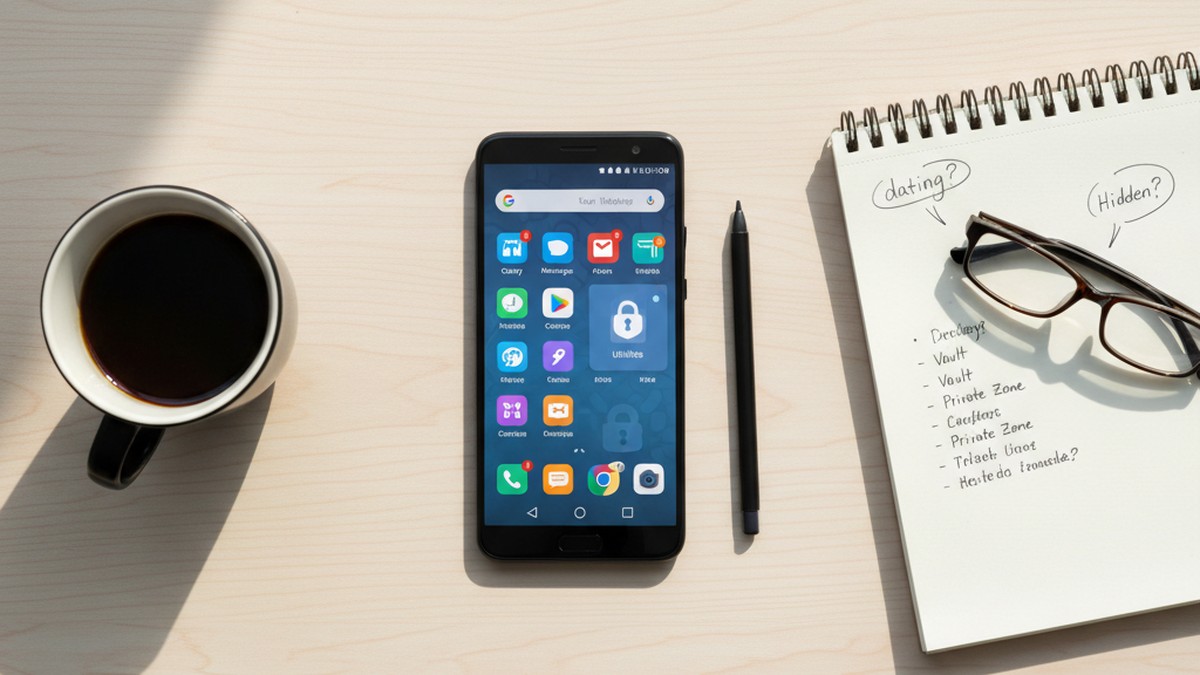
How Do Icon Renaming and Custom Launchers Work?
Android allows users to rename any app and change its icon through launcher features and third-party icon packs. Combined with a custom launcher's hide-app capability, this creates a concealment method that requires no special vault app or manufacturer feature — just a willingness to spend an hour on setup.
How Renaming Works
On most Android phones, long-pressing an app icon and selecting "Edit" or "Rename" allows typing a new display name. Some launchers also permit changing the icon to any image from the photo library. A dating app renamed "Work Notes" with a notepad icon visible on the home screen draws no attention from a partner who doesn't know to look closely.
The limitation: renaming changes only the visual representation on the launcher level. Under Settings > Apps, the original application name still appears in the system listing. So while the home screen shows "Work Notes," the Settings screen shows the app's real identity.
Custom Launchers With Hiding
Third-party launchers go further by allowing apps to be removed from the drawer entirely. Nova Launcher, one of the most popular Android launchers with over 50 million downloads, includes a "hidden apps" feature under Settings > App & Widget Drawers > Hidden Apps. Any app added to this list disappears from every visible interface — home screen, drawer, search — while remaining fully installed and active.
To access a launcher-hidden app, you need to know its exact name (to find it via Siri-equivalent search) or access the launcher settings directly. Neither is something a partner would do casually.
The Combination Approach
The most sophisticated version of this method layers multiple techniques:
- Hide the app from the custom launcher
- Assign a custom icon and name through the launcher settings
- Configure a hidden gesture (double-tap on a blank area of the home screen) to launch it directly
This creates a situation where the app has no visible icon, its launch method is undetectable to observers, and search won't surface it without knowing the exact system name. The tell for this setup: finding a third-party launcher installed on the device. Nova Launcher, Action Launcher, Microsoft Launcher, or similar entries in Settings > Apps indicate a home screen infrastructure that includes hiding capabilities.
The guide on find hidden dating apps on Android covers specific step-by-step detection methods for each of these launcher-based approaches.
How Do Cheaters Use Burner Numbers and Separate Account Infrastructure?
The final method doesn't involve hiding an app at all — it involves hiding the identity registered to the app. If your partner uses a second phone number for their dating accounts and a second email address they never access from shared devices, the app may be visible on the home screen while the account behind it is essentially untraceable through normal channels.
Burner Number Apps
Apps like TextNow, Hushed, Burner, and Google Voice generate secondary phone numbers that exist entirely within a software app. These numbers receive SMS verification codes for app sign-ups, accept calls, and send texts — without appearing on a carrier bill.
When someone registers a Tinder account using a TextNow number instead of their real phone number, carrier-level records show nothing. No Tinder registration confirmation arrives in a known inbox. No account verification SMS appears in the native messaging app.
The tell: look for TextNow, Hushed, Burner, or Phoner in Settings > Apps. These have legitimate uses — remote workers and small business owners use secondary numbers routinely — but combined with other signals from this guide, their presence is meaningful context.
Separate Google Accounts for Registration
Android allows multiple Google accounts to be logged in simultaneously. Under Settings > Accounts, every Google account signed into the device is listed. A secondary account — particularly one with a name that doesn't match your partner's name — may be the identity used to register dating profiles.
Google Play purchase history under the secondary account reveals any paid apps or subscriptions downloaded under that identity. Dating apps with premium features — Tinder Gold, Bumble Boost, Hinge Preferred — leave payment records here when paid via Google Play. Free apps leave no purchase record, but the timing of account activity can still reveal when a hidden app was first downloaded.
A Note on Second Devices
Some people use a second physical device entirely rather than a second account on the primary phone. A secondary device removes the Android detection methods described in this article from the equation. The signals in this case are physical: an unfamiliar charging cable, a second set of earbuds, a phone described as "broken" that was never traded in, or a "work phone" that is never actually at work. These fall outside digital forensics but are worth noting as a parallel possibility.
What Signs Indicate a Dating App Is Being Hidden?
The most consistent signs are: the phone screen turns face-down when you enter the room, battery drains faster than visible app usage would explain, the phone gained a new biometric lock recently, and your partner checks their device manually at regular intervals without receiving any notifications. Each of these maps to a specific hiding method.
Technical detection matters — but behavioral patterns are often visible before any phone inspection, and they reveal which hiding method is in use.
The Phone-Flipping Reflex
This is the most universally reported behavioral signal: the screen turns face-down or locks immediately when you approach. This behavior is associated with all hiding methods equally — it's not method-specific — and it's the most common early indicator. Worth noting: some people are simply private about their phones for reasons unrelated to infidelity. It becomes significant when it appears alongside other changes.
Unexplained App Drawer Gaps
If you've noted the home screen layout and apps seem to disappear and reappear, or the phone shows fewer visible apps than you'd expect, a Layer 1 hiding method is likely in use — specifically app drawer removal. This is typically the lowest-sophistication approach and often appears early before more deliberate concealment infrastructure is established.
Battery Drain Without Apparent Cause
Dating apps are battery-intensive. They use GPS for location features, load images continuously, and maintain persistent background connections. A phone whose battery drains faster than visible app usage would explain is likely running something the home screen doesn't show. This is the most reliable Layer 1-2 behavioral tell: the app is running and consuming resources, just not visibly.
Recent Changes to Biometric Authentication
Adding fingerprint unlock, face authentication, or changing a PIN on a phone that previously had simpler security is a common pattern when someone sets up Samsung Secure Folder or Android Private Space. Both features require authentication to access, and setting them up often coincides with a phone-level security upgrade. A partner who suddenly "got more serious about phone security" without any obvious reason for the change is worth noting.
Verification Code SMS Messages
If your partner occasionally receives SMS messages containing numeric codes — "Your verification code is 847291" — without explaining what they're for, these may be app sign-in codes for accounts registered under secondary credentials. Second-factor authentication codes arrive via SMS regardless of which email or username the account uses. Multiple unexplained verification texts suggest active account activity across services you don't have visibility into.
Manual Checking Without Incoming Notifications
Someone using a silenced dating app checks it on a personal schedule rather than responding to notifications. Look for moments when your partner excuses themselves or checks their phone at regular intervals — particularly in the evening or after specific times — without any apparent incoming notification triggering the check. The absence of notifications combined with regular manual checking behavior maps directly to Layer 1 notification silencing.
How Do You Read the Hiding Method as a Diagnostic?
This is where the 4-Layer Android Hiding Stack becomes a tool for understanding the situation rather than just classifying it. The method someone uses to hide apps reveals how long the situation has been ongoing, how technically capable they are, and how seriously they're treating the risk of discovery. This is the insight most guides miss: identifying the hiding method is more informative than identifying the specific app.
The Diagnostic Table
| Hiding Method | Technical Level | Setup Time | Concern Level |
|---|---|---|---|
| Notification silencing only | Low | Minutes | Low — wants privacy, may be situational |
| App drawer removal only | Low | Minutes | Low — basic, often first attempt |
| Samsung Secure Folder | Medium | 15–30 min | Moderate — deliberate, planned setup |
| Android Private Space | Medium | 10–20 min | Moderate — familiar with Android 15 features |
| Third-party vault app | Medium | 30+ min | High — specifically researched concealment |
| Custom launcher + icon rename | High | 60+ min | High — invested in deniability at every layer |
| Dual accounts + burner number | High | Ongoing | Very high — actively managing a separate identity |
| Multiple methods simultaneously | High | Days | Extremely high — sustained parallel infrastructure |
What Layer 1 Tells You
Simple notification silencing or app drawer removal suggests someone who wanted a degree of privacy but didn't plan for sustained concealment. They may have moved an icon after a first date or be in an early, exploratory phase. The behavior is more opportunistic than strategic.
What Layers 3–4 Tell You
If vault apps, custom launchers, burner numbers, or manufacturer-level secure spaces are in simultaneous use, this is deliberate infrastructure. Setting up Parallel Space inside a renamed icon inside a custom launcher requires time, intent, and iterative refinement. This isn't someone who hid an app on impulse — this is someone managing an ongoing parallel situation.
In practice, what we observe through CheatScanX scan requests corroborates this pattern. Cases involving complex, multi-layer concealment infrastructure are consistently associated with longer-duration situations — the 6-month and 12-month behavioral change timelines that precede many searches. Cases involving only Layer 1 methods tend to be shorter in duration or in an earlier stage.
For anyone trying to calibrate how long a situation has been progressing: the sophistication of the hiding method is often the best available proxy for duration.
What Evidence Remains Even After Hiding?
Every hiding method leaves traces. Hidden apps appear in Settings > Apps by their real name regardless of home screen concealment. Data usage and battery logs record activity from hidden apps. Google Play purchase history logs paid app subscriptions. WiFi router logs record domain connections from dating platforms. None of these can be suppressed by app-level hiding.
This is the insight most concealment methods don't account for. Hiding an app from the home screen is not the same as making it invisible to Android's system. Every layer of the hiding infrastructure leaves records in system-level logs that app-level methods cannot reach.
Settings > Apps: The Exhaustive List
Settings > Apps (or Settings > Applications on older devices) shows every installed application regardless of home screen status. An app hidden from the launcher, locked inside a vault, renamed, or buried in a folder — all of them appear here by their real developer-assigned name.
The one partial exception: apps installed inside Samsung Secure Folder are isolated at the OS level and do not appear in the main Settings > Apps list when the Secure Folder is locked. They do appear within the Secure Folder's own Settings > Apps view, accessible when the folder is open.
Battery and Data Usage: The Honest Logs
Android's battery usage log (Settings > Battery > Battery Usage) lists every application that has consumed power in the past 24 hours, organized by consumption. Apps hidden by any Layer 1–3 method still appear here by their real names. A dating app consuming 8% of daily battery without a visible icon is actively in use.
Data usage (Settings > Network and Internet > Data Usage) works identically. Dating apps are heavy data consumers — image loading, location syncing, and real-time messaging generate distinctive usage patterns. If you see significant data consumed by an application that has no home screen icon, it's present and active, regardless of how it's hidden.
Google Play Purchase and Download History
The Google Play Store maintains a complete history of every app ever installed on a device through a given account. This is accessible via the Google Play Store app > Account > My Apps, or through a web browser at play.google.com. Free apps appear in the download history. Paid apps and subscriptions appear in the purchase history with billing dates.
Filtering by "recently installed" or sorting by date reveals any dating app downloaded in the past weeks or months — even if it was subsequently hidden from the home screen, moved to a vault, or given a custom icon.
Google Account Activity
Google's My Activity service logs activity across all Google products, including app launches, search queries, and Google Assistant interactions. If the account is accessible from a shared family device or through family sharing links, reviewing activity from a relevant time period can reveal patterns of app usage not visible on the phone itself.
WiFi Router Logs
Home WiFi routers log every connection from every device. Modern routers with parental control features — Google Nest WiFi, Eero, Netgear Orbi, and others — record the domain names of every site and service accessed. Dating platforms connect to specific, identifiable domains. Tinder traffic, Bumble API calls, and Hinge server connections appear in router logs regardless of what the phone's home screen shows or how the app is hidden.
This data persists in the router independent of anything done on the phone. Checking it requires admin access to the router dashboard — typically via a manufacturer app or web interface.
How Do You Check for Hidden Dating Apps on an Android Phone?
These six locations, checked in this order, cover the most likely detection points across all four layers of the Android Hiding Stack. After the detection checklist, there's an additional section on where concealment attempts commonly break down — because knowing the failure points tells you which signals to weight most heavily.
1. Settings > Apps > See All
Tap See All or All Apps to display every installed application, regardless of home screen status. Sort by "Last Used" or scroll through looking for:
- Any app name you don't recognize
- Duplicate entries for the same app (sign of cloning)
- Calculator or utility apps with storage usage above 20MB (check each by tapping and reviewing Storage)
- App Hider, Parallel Space, Nova Launcher, App Cloner, or any launcher you haven't seen before
2. Settings > Battery > Battery Usage (Last 24 Hours)
Every app consuming battery appears here by real name. Look for app names without a corresponding home screen icon. Dating platforms — Tinder, Bumble, Hinge, OkCupid, Grindr — have recognizable names. Their presence in battery logs without a visible icon is a clear signal.
3. Settings > Network and Internet > Data Usage
Identical principle to battery logs. Sort by data consumed over the past week or month. Look for apps using significant data that have no home screen icon. Dating apps with active messaging threads and image loading generate gigabytes of usage that stands out against typical app consumption.
4. Settings > Security and Privacy
On Samsung devices, this is where Secure Folder status appears. If active, it shows here regardless of icon visibility. On Android 15 devices, Private Space setup may be visible here depending on manufacturer implementation. Check this path specifically on Samsung Galaxy, OnePlus, and Xiaomi devices where manufacturer-level private spaces are common.
5. Google Play Store > Account > My Apps and Games
Shows the full download and purchase history for the Google account. Filter by "Not on this device" — apps downloaded under this account that are no longer installed show here. Look for dating platform names in the history. Paid subscription purchases appear with billing dates in the purchase history tab.
6. Settings > Accounts
Lists every Google account signed into the device. A secondary account with an email address you don't recognize — particularly one with a name that differs from your partner's — may be the identity used to register dating profiles and receive purchase confirmations.
Where Concealment Typically Breaks Down
Understanding where hiding attempts fail tells you which signals to weight most heavily — and reveals how long the infrastructure has been in place based on how many of these mistakes have already been corrected.
Forgetting Settings > Apps shows everything. Layers 1–3 of the hiding stack focus on the home screen and notification interface. But Settings > Apps is comprehensive. Someone who successfully hides a dating app from the launcher often doesn't realize it's still fully listed in Settings by its real name with its real storage usage. This is why Settings > Apps is the first and most reliable place to check.
Ignoring data usage. Dating apps generate significant data — gigabytes per month from image loading, messaging, and location syncing. This appears clearly in Settings > Data Usage. A partner reviewing data usage for a high phone bill may find an app consuming hundreds of megabytes that has no visible icon.
The vault app appearing in plain sight. The irony: hiding apps requires downloading an app. That vault app appears in Settings > Apps by its real name — "Calculator Pro+," "App Hider," "Keepsafe." Anyone who doesn't recognize the name can search it in seconds and find exactly what it does.
Leaving charges on shared payment methods. Tinder Gold, Bumble Boost, and Hinge Preferred cost $20–30/month. These charges appear on whatever payment method is linked to the Google account — potentially a shared credit card — as "Google Play" charges without an obvious subscription match.
Forgetting browser sessions on shared devices. Chrome on Android syncs browsing history across all devices signed into the same Google account by default. Careful phone concealment can coexist with dating platform browser history appearing on a shared laptop or tablet signed into the same Google account.
Cloud backup exposure. Android automatically backs up photos to Google Photos. If images pass through the main camera roll before being moved to a vault, they may sync to Google Photos — accessible from every device on the account — before the vault completes the move.
Wrapping Up: Information Over Certainty
If you've read through this guide, you now have a complete map of how dating app concealment works specifically on Android — which methods exist, how each one works mechanically, and what evidence remains regardless of which method is used.
The most important practical takeaway from the 4-Layer Android Hiding Stack is this: no hiding method is invisible. Every layer leaves detectable traces in Settings > Apps, battery logs, data usage, purchase history, or router records. The question isn't whether evidence exists — it's whether you know where to look.
For technical checks on a device you have access to, Settings > Apps and data/battery usage are the three reliable places that app-hiding methods cannot fully suppress. For finding active profiles without device access, a platform search by name covers the territory that device-level inspection can't reach — because it checks the platform's servers rather than the phone's file system.
There's an honest limitation worth naming: finding hidden apps or active profiles gives you information, not certainty. A vault app may contain only private photos with no infidelity component. An active dating profile might be old or unmaintained. What you find tells you what exists — what it means is a conversation between two people.
If your partner uses an iPhone rather than an Android device, the concealment methods differ significantly — the guide on how cheaters hide dating apps on iPhone covers those Apple-specific methods in detail. For the broader picture of what to do once you have evidence, the guide on how to catch a cheater covers confrontation, documentation, and calibrating your response.
For finding active profiles without needing to touch the phone at all, CheatScanX searches 15+ dating platforms by name, age, and location simultaneously. The hiding method on the device is irrelevant — profiles exist on platform servers, not only on the phone, and a direct platform search finds them regardless of how the app is concealed locally.
Frequently Asked Questions
Not through the device itself — but you can search dating platforms by name and photo to check for active profiles without any phone access. Checking Google account activity from another shared device (with permission) is another option. A name-based platform search is often the most direct route since it bypasses the hiding method entirely.
On most Galaxy devices, Secure Folder appears as a blue shield icon labeled 'Secure Folder' in the app drawer. Cheaters can hide this icon in Settings, making it accessible only via a code in the search bar. The folder itself requires a PIN, password, fingerprint, or face authentication to open — and its contents are invisible from the main Android environment.
Yes. Android 15 introduced Private Space, a locked second partition accessible only via PIN. Apps inside it are invisible from the main app drawer, recent apps list, search, and notifications when the space is locked. Unlike third-party vault apps, Private Space leaves no suspicious-looking icon on the home screen, making it one of the harder native methods to detect.
The most common examples include Calculator+, Calculator Vault, Private Photo Vault, and Hide Photos and Videos. These apps look identical to a standard calculator on the home screen. Entering a specific PIN sequence — rather than a math calculation — reveals hidden storage inside. A real calculator uses under 10MB of storage; vault apps typically show 50MB or more.
Not on its own. Many people run dual app instances for legitimate purposes — separate work and personal accounts on the same messaging app, for example. Samsung's built-in Dual Messenger is the most common cloning tool and has millions of legitimate users. It becomes significant evidence when combined with other behavioral signals like increased phone protectiveness or unexplained secrecy.