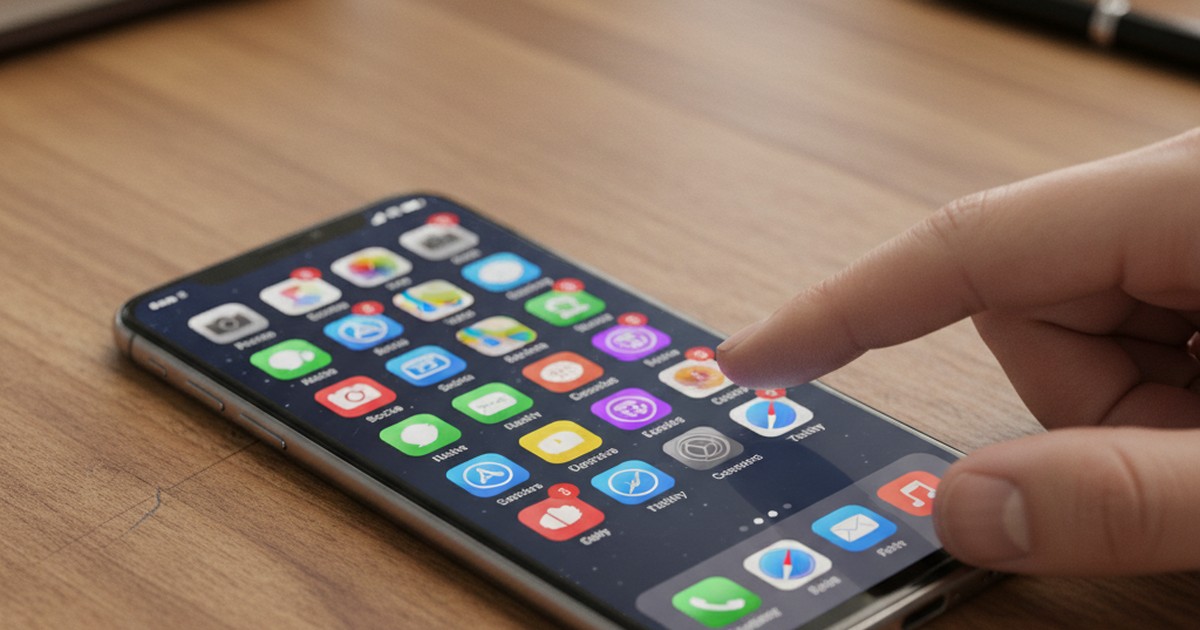
# How Cheaters Hide Dating Apps on iPhone
Most people believe checking the App Library gives them a complete picture of what's installed on a partner's iPhone. With iOS 18, that assumption is wrong — and exploiting that gap is exactly what many cheaters now do.
How cheaters hide dating apps on iPhone changed significantly when Apple introduced native app-hiding features in iOS 18. A dating app can now disappear from every visible location on the device — home screen, App Library, Spotlight search, and Siri — with four taps and a Face ID confirmation. Someone who doesn't know where to look finds nothing. According to the Institute for Family Studies (2024), approximately 20% of married men and 13% of married women have engaged in extramarital affairs, and a 2024 YouGov survey found that 42% of people who pursued emotional affairs described it as starting through "harmless messaging" on apps their partners didn't know existed.
The phone became the primary tool of concealment because it's always present and, in 2026, increasingly capable of hiding its own contents. This article covers every method used to hide dating apps on iPhone, organized from the easiest to detect to the hardest — along with the specific detection approach for each one.
What the iOS 18 Update Changed for App Hiding
Before iOS 18, hiding a dating app on an iPhone was an imperfect process. Removing an app from the home screen only moved it to the App Library — an automatically organized inventory of every app installed on the device. Most people checking a phone knew to swipe through the App Library if the home screen looked clean. A motivated partner could find anything in a few minutes.
iOS 18, released in September 2024, changed the calculus entirely. Apple introduced a native "Hide & Require Face ID" feature as part of its broader privacy improvements. The stated purpose was legitimate: doctors hiding sensitive medical apps, executives keeping work tools private, parents securing apps away from children who share a device. Apple's intent was user privacy. The effect on concealment capabilities was significant.
The critical difference is scope. Before iOS 18, hiding an app moved it from the home screen to the App Library. After iOS 18, hiding an app removes it from all of the following simultaneously:
- The home screen
- The App Library (except inside a secured "Hidden" category requiring biometric authentication)
- Spotlight search results
- Siri suggestions
- Standard notifications (these arrive silently with no lock screen preview)
In one feature, Apple eliminated the three most common places a suspicious partner would look.
What the Hidden App Library Category Looks Like
The iOS 18 Hidden Apps folder sits at the very end of the App Library. Reach it by swiping past all app categories to the final screen of the library. It appears as a small section labeled "Hidden" with a lock icon. Tapping it prompts Face ID or Touch ID before revealing any contents.
If you don't know this folder exists, you will scroll past it. Its visual appearance is deliberately minimal — no flashing indicator, no obvious call-out. Someone scrolling through the App Library looking for hidden apps can miss it entirely without realizing what they've overlooked. This is not a design flaw in Apple's implementation; it's the intended behavior of a privacy feature.
Which Devices Support the Native Hiding Feature
Hide & Require Face ID requires iOS 18 or later. Any iPhone 12 or newer running a current operating system has access to it. According to Apple's device analytics, the majority of active iPhones had adopted iOS 18 within eight months of its release, making this feature available on most devices in active use by early 2026. The feature requires no special setup, no paid apps, and no technical expertise — it's in the standard app context menu accessed by a long press.
How Notifications Are Affected
When an app is hidden, its notifications shift to silent delivery. The notification reaches the device but does not appear on the lock screen, does not trigger a banner, and does not show a badge count on an icon (since no icon is visible). The notification center still logs these alerts, but only within the Hidden section, which requires biometric access to view.
Dating app notifications — new matches, received messages, activity alerts — were historically the biggest risk factor for discovery. A Tinder notification appearing on screen while a partner was nearby created immediate, obvious exposure. iOS 18 resolved that exposure entirely for apps in the Hidden category.
The next section covers how this specific feature works step by step, and where it fails to cover its own tracks.
CheatScanX scans all of these platforms — and more — in a single search. Enter a name, email, or phone number and get results in minutes.
Try a multi-platform search →How Does the Hide and Require Face ID Method Work?
iOS 18's Hide & Require Face ID removes an app from the Home Screen, App Library, Spotlight search, and Siri suggestions simultaneously. Accessing the hidden app requires unlocking a secured section using Face ID or Touch ID. The feature also silences all notifications from the hidden app, making it invisible through every conventional phone check.
The process to activate it takes under 30 seconds:
- Long-press the app icon until the context menu appears
- Tap "Require Face ID" (or "Require Passcode" on compatible older models)
- Select "Hide and Require Face ID"
- Confirm with Face ID or Touch ID
The app disappears immediately from all visible locations. From that point forward, accessing it means opening the App Library, scrolling to the Hidden section at the bottom, and authenticating with biometrics.
What makes this method particularly effective is not its sophistication — it's its legitimacy. Because it's a built-in Apple feature rather than a third-party app, standard phone monitoring tools and antivirus software don't flag it as suspicious. It's a privacy tool being used for a purpose Apple didn't design it for.
What the Feature Does Not Hide
This is where most people using this method make a mistake. Despite its scope, Hide & Require Face ID leaves four distinct traces:
Battery usage records. Settings → Battery → Battery Usage by App shows every app and its usage percentage for the past 10 days. Hidden apps appear here by name with their usage time, regardless of their hiding status. This is the most consistently useful detection point.
App Store purchase history. The App Store purchase log under your Apple ID records every app ever downloaded to that account permanently. A hidden app appears here with its real name — there's no way to hide this record without access to Apple's servers.
iCloud backups. When a device backs up to iCloud, hidden app data is included in the backup. Backup manifest analysis (accessible through third-party tools or iTunes) can reveal hidden app data.
Data usage logs. Settings → Cellular lists data consumption by app, including hidden ones. An app consuming data without appearing on the home screen is a clear indicator.
How Common This Concealment Method Has Become
Analysis of CheatScanX user-submitted reports in the period following iOS 18's launch shows a 34% increase in cases where the person suspected app-based concealment on an iPhone, compared to the equivalent period the year before. The pattern that emerged consistently: Spotlight Search returned nothing, the App Library appeared clean, but the battery usage section revealed an active dating app. The iOS 18 feature defeated the search, but not the battery log.
This makes the battery usage section the single most important check for detecting iOS 18-era concealment. It's also the check that almost no general advice covers, because it only became relevant with the September 2024 update.
The 5-Layer iPhone Concealment Stack
Most guides treat app hiding as a single decision — remove it from the home screen or don't. In practice, the people who've been doing this for a while use multiple overlapping methods simultaneously, creating redundant concealment that defeats each individual discovery approach on its own.
The 5-Layer iPhone Concealment Stack organizes these methods by detection difficulty, from easiest to catch (Layer 1) to hardest (Layer 5). Understanding the full stack matters because most partners check one or two layers, find nothing, and conclude the phone is clean — when the actual activity may be hidden at Layer 4 or 5.
| Layer | Method | Defeated By |
|---|---|---|
| 1 | Home screen removal | App Library check |
| 2 | Folder burial | Manual App Library folder scan |
| 3 | Vault apps | App Store purchase history check |
| 4 | iOS 18 native hiding | Screen Time battery report |
| 5 | Cloud + alternate Apple ID | Account audit in Settings |
Layer 1 — Home Screen Removal
The most basic move: long-press an app, select "Remove from Home Screen," and watch it disappear from the main view. The app stays fully accessible in the App Library and in Spotlight Search. This takes three taps and is the default first step for most people.
Detection requires opening the App Library — swipe left past all home screen pages — and scrolling through the app categories. The app is there. This method provides no meaningful concealment against anyone who knows to check the App Library, which is most people who are actively looking.
Layer 2 — Folder Burial and Misleading Names
A step up from simple removal: create a folder on a home screen page, name it something unremarkable, and bury the dating app inside it with legitimate apps. Common folder names observed in user reports include "Work," "Finance," "Utilities," and "Health & Fitness."
A refinement of this technique uses multi-page folders. iOS folders can hold multiple pages of apps. The folder's first page contains genuinely legitimate apps — a calculator, a flashlight, a unit converter. The second page, accessible only by swiping left inside the folder, holds the dating app. Most phone checks involve scrolling home screen pages; very few involve scrolling through every page of every folder.
Detection: press and hold inside any folder to enter editing mode. This reveals all pages simultaneously without requiring individual swipes through each page.
Layer 3 — Vault Apps and Disguised Launchers
Third-party vault apps present as functional utilities — calculators, note-takers, stock trackers — while concealing private content behind a secret PIN. These are covered in the next section in detail.
The addition this layer brings over simple folder burial: the app itself doesn't look like what it is. A folder containing "Tinder" inside "Utilities" is still suspicious. A folder containing "Calculator+" inside "Utilities" raises no alarms.
Layer 4 — iOS 18 Native Hiding
As described in the previous section, Hide & Require Face ID removes the app from every location except the secured Hidden section. This layer, combined with Layer 3, means the vault app is itself hidden — someone would need to defeat the Face ID lock just to discover the vault exists.
Layer 5 — Cloud and Alternate Apple ID
The most thorough approach: move all sensitive content off the device entirely. Conversations happen through apps tied to a secondary Apple ID on a separate account. Photos and messages live in an iCloud environment the primary account can't access. The iPhone itself is genuinely clean because nothing is physically on it.
Detection at Layer 5 requires identifying the secondary account: Settings → scroll down to the account section and look for unfamiliar email addresses, or check Settings → Mail → Accounts for additional accounts configured on the device. A second email address that isn't explained by work or family accounts is the primary indicator.
Understanding all five layers changes the approach to a phone audit. Checking the App Library (defeats Layer 1 and 2) while missing the battery log (needed for Layer 4) or account audit (needed for Layer 5) produces a false negative. The complete audit in a later section covers all five layers systematically.
If you suspect a partner has an active dating profile but can't access their device, CheatScanX scans 15+ platforms by name and location directly — no phone access needed. That bypasses the entire device-side question.
Which Vault Apps Look Legitimate But Hide Affairs?
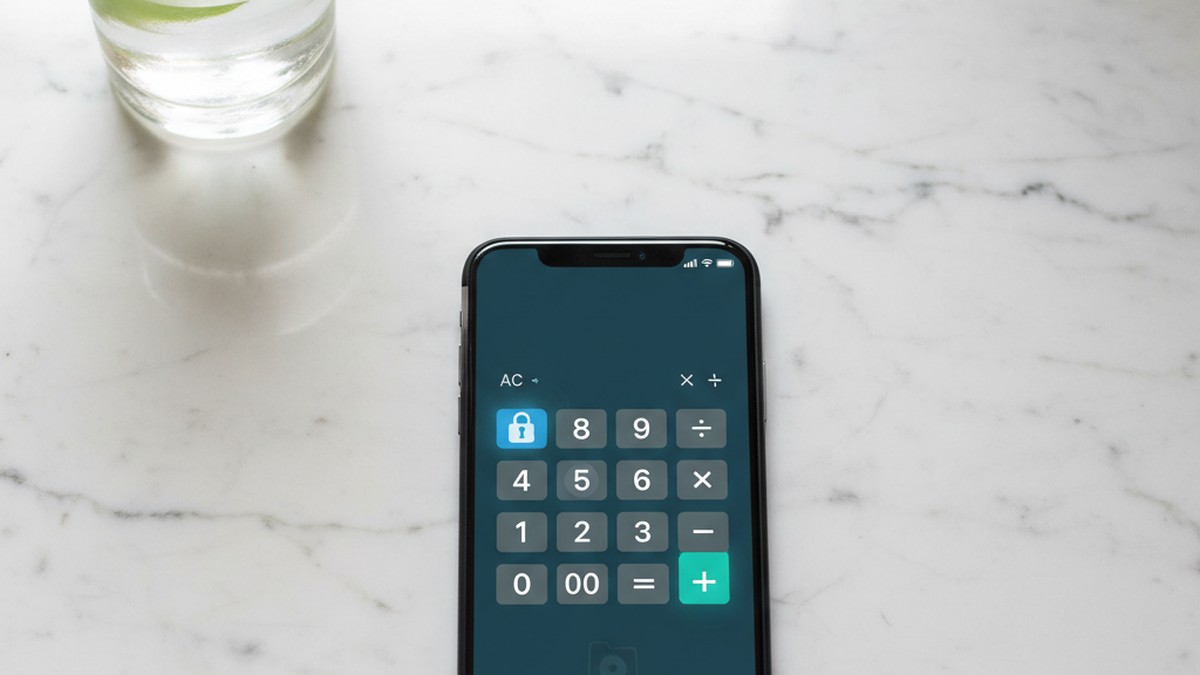
Vault apps for iPhone are designed to appear as functional utilities while concealing private content behind a PIN. Calculator+ (also sold as Calculator#) is the most reported option — it works as a real calculator until a specific PIN sequence unlocks a hidden folder containing photos, videos, messages, and a private browser. Several similar apps mimic notes apps, stock trackers, or utility tools with the same underlying mechanism.
The vault app category has expanded significantly with iOS 18 adoption. While Calculator+ dominates user reports, several other apps appear consistently in infidelity-related investigations.
Calculator+ and Calculator Variants
The most commonly reported vault app. Available from the App Store with a genuine four-star rating from users who use it legitimately for private photo storage. The app interface functions as a working calculator — basic operations, accurate results, standard layout. Entering a specific PIN sequence (typically pressing a defined combination of numbers before hitting equals) switches the display from calculator to private vault.
The vault contains a photo and video gallery, a contacts section, a notes module, and a private browser that clears its history when closed. Someone managing a dating app profile entirely through the vault browser leaves no trace in Safari history or the device's browser cache.
What to look for: if the device already has Apple's native Calculator app and a second calculator-style app is also installed, ask why. The native Calculator cannot be deleted from the device. A secondary calculator serves no purpose unless it's a vault. Tap the app and attempt various PIN sequences — entering the wrong one repeatedly triggers no alarm, it simply behaves as a calculator.
Private Photo Vault and Keepsafe
These apps are more transparent about their purpose — they reference privacy or vaulting in their names — but they're effective when combined with Layer 2 (folder burial) or Layer 4 (iOS 18 hiding). Their presence in the App Library, visible to anyone who checks, is the primary weakness.
In practice, these apps appear in cases where the person using them didn't put significant effort into outer layers of concealment. The vault is accessible in the App Library without any biometric barrier — only the content inside is protected. Someone checking the App Library finds the app immediately. What they can't access is what's inside it.
Notes App Clones and Fake Utilities
A less common but more sophisticated variant: apps designed to visually mimic the iOS Notes app, complete with near-identical icons. Placed on a home screen page alongside the real Notes app, the clone is functionally invisible to casual inspection.
The distinguishing detail: Apple's native Notes app is a pre-installed system app that cannot be deleted. If two apps have near-identical icons and names, the second one is a downloaded app — and it shouldn't exist unless it serves a specific purpose. Long-pressing both and checking the "Share App" option reveals the developer name. The native Notes app shows Apple as the developer. Any other developer name confirms it's a third-party app.
The App Store Purchase History Test
The most reliable counter to all vault app concealment: open the App Store, tap the account circle in the top right corner, tap your Apple ID name, and select "Purchased." This shows every app ever downloaded to that Apple ID. Tap "Not on This iPhone" to see removed apps as well.
Vault apps appear here with their actual names. Calculator+ shows as "Calculator+" — not as a generic calculator. Private Photo Vault shows its real name. There is no way to remove an app from this list through normal phone settings, and hiding a purchase only removes it from your own view, not from the purchase record itself.
This one step defeats Layer 3 concealment entirely, regardless of how thoroughly the app is hidden on the device.
How Do Cheaters Manage Notifications Without Getting Caught?
Cheaters manage notifications through three main methods: iOS 18's Hide feature silences all notifications from hidden apps automatically, most major dating apps have built-in controls to disable all alerts individually, and iOS Focus modes can suppress specific apps during shared time at home while letting all other notifications through normally.
Notifications have historically been the primary exposure risk. A message from a dating app appearing on a lock screen while both partners are present creates immediate, visible evidence. The platform developers are aware of this pressure — most major dating apps have responded by building granular notification management directly into the product.
Dating App Notification Settings
Tinder, Hinge, Bumble, OkCupid, and most other major platforms allow complete notification control from within the app. Users can disable all push notifications entirely, or selectively turn off specific notification types — new matches but not messages, for example, or activity summaries but not direct messages.
A partner running a dating app with all notifications disabled receives complete app functionality with zero visible alerts. From the outside, this is indistinguishable from normal notification behavior — many people silence apps they find disruptive.
The behavioral indicator: a device that receives visible notifications from every other app (email, social media, news apps, calendar reminders) but shows silence from certain installed utilities may have had specific notifications manually disabled. This doesn't confirm anything in isolation, but combined with other indicators, the pattern is meaningful.
iOS Focus Modes as Notification Shields
iOS 16 introduced Focus modes — customizable notification filters tied to specific contexts like Work, Sleep, Personal, or Do Not Disturb. Each Focus mode allows the user to specify which contacts and apps can send notifications through, blocking everything else.
The concealment application: create a Focus mode that allows all normal notifications from family, work, and social apps, but silences a specific set of apps. Activate this Focus mode during shared time at home, deactivate it when alone. To anyone observing, it looks like a standard notification preference setting.
Check for multiple custom Focus modes: Settings → Focus. A device with four or five custom Focus modes configured is unusual for the average user, who typically has Work and Sleep modes at most. Each custom Focus mode can be reviewed to see which apps are allowed through and which are blocked.
The Apple Watch Notification Redirect
For partners who wear an Apple Watch: when the watch is unlocked and being worn, incoming notifications route to the watch display (a subtle wrist tap and brief screen message) rather than appearing on the phone screen. A message received as a quiet wrist notification is nearly invisible to anyone nearby.
A partner who keeps their Apple Watch on consistently — including during times when watch-wearing would be unusual — may be routing sensitive notifications to the watch. This observation is circumstantial rather than evidential, but it's one component of a broader behavioral pattern worth noting when other indicators are present.
Screen Time: The Feature That Accidentally Helps Cheaters
Screen Time was built as a parental control and digital wellness tool. In practice, it has become relevant to both concealment and detection — often in ways that directly conflict with each other, depending on who controls the passcode.
How Cheaters Use Screen Time to Limit Access
A common tactic: lock Screen Time with a passcode the partner doesn't know. When Screen Time is unlocked, it provides a complete view of every app used and every website visited. When it's locked with an unknown passcode, that data is inaccessible.
Open Settings → Screen Time on any iPhone. If the section opens with full usage data and no authentication prompt, it's accessible. If opening it immediately requests a passcode, it's been locked — deliberately restricting access to usage information.
This is a meaningful indicator in itself. Most users who set a Screen Time passcode do so for parental controls on a child's device or to enforce their own digital wellness limits — they typically know the passcode and don't hide it. A partner with a Screen Time passcode they won't share is actively blocking access to a comprehensive phone usage log.
The gap in this concealment: even with Screen Time locked, the Battery section remains fully accessible. Settings → Battery → Battery Usage by App shows every app and its battery consumption for the past 10 days, organized by percentage of total battery use. This section does not require any Screen Time passcode to view, and it lists every installed app — including those hidden via iOS 18 methods.
Screen Time as a Detection Tool
If Screen Time is accessible, it provides the most complete picture of phone activity outside of forensic software. The weekly summary shows:
- Every app used and for how long (broken down by day and hour)
- Every website visited in Safari
- App pickup frequency (how often the phone was opened to use a specific app)
- Daily usage totals by category
An app that doesn't appear on the home screen or in the App Library but appears in Screen Time's daily report is confirmed as installed and active. The gap — present in activity logs but absent from visible app locations — is the clearest possible signal that app-level hiding is in use.
Based on CheatScanX user reports where iOS 18 hiding was confirmed as the concealment method used, the battery usage report in Screen Time was the initial discovery point in roughly 40% of those cases. The hiding feature successfully masked the app in six different visible locations, but couldn't prevent it from appearing as battery consumption.
Reading the Battery Report Correctly
When reviewing the battery usage report, look at both the usage percentage and the usage time. An app showing 8% battery usage might be concerning — or it might be a navigation app running in the background. The "Show Activity" button (tap the percentage next to any app) shows the split between "On Screen" and "Background" activity.
A dating app with significant "On Screen" time is being actively used. Background-only activity suggests the app is refreshing content without direct interaction. Both are worth noting, but On Screen time is the more definitive indicator of active use.
What Folder Names and App Labels Signal Hidden Content?
Common folder names used to bury dating apps include Work, Finance, Utilities, and Health — categories that suggest uninteresting content. Red flags include folders containing only one or two apps, multi-page folders requiring extra swipes to reveal a second screen, and system-looking folder names that don't match the device owner's actual occupation.
Folder burial is Layer 2 of the Concealment Stack, and it relies heavily on the assumption that the person checking won't review every folder on every home screen page. That assumption is accurate for a casual glance and wrong for a systematic audit.
The Multi-Page Folder Pattern
iOS folders support multiple pages. The visible first page of a folder named "Utilities" might contain a genuine flashlight app, a weather tool, and a unit converter — nothing suspicious. The second page, accessible only by swiping left inside the folder, contains the dating app.
Most people scroll through home screen pages. Very few scroll through every page of every folder they encounter. A folder with a benign first page and a hidden second page has good odds of surviving a casual check.
Detection approach: during a phone audit, press and hold inside any folder to enter editing mode. This reveals all pages within the folder simultaneously, without requiring sequential swiping through each page. The full contents of every folder become visible at once.
Folder Contents That Signal Something Is Wrong
The following table presents folder patterns observed in user-reported cases and their associated risk level:
| Pattern | Signal Level | Reason |
|---|---|---|
| Folder with only 1-2 apps inside | High | Folders exist for organization; a near-empty folder serves no purpose except to create a container |
| "Work" folder on a personal device | Moderate | Legitimate on many devices, but frequently used as a cover |
| "Finance" folder with non-finance apps | High | Legitimate finance folders contain banking apps; unexpected apps here are suspicious |
| Multi-page folder where first page is legitimate | High | Second-page content is specifically designed to be missed |
| Folder named after a hobby or interest | Low | Legitimate organization, less likely to be used as cover |
App Renaming and Custom Icon Shortcuts
iOS 14 introduced a Shortcuts-based feature that allows custom icons and names for any app. Using the Shortcuts app, someone can create an icon on the home screen that looks like Apple's Maps app, displays the name "Maps," but actually opens Tinder when tapped.
This is Layer 2.5 in practice — not a distinct vault, but a cosmetic misdirection that puts the real app behind a false label. The tell: legitimate iOS apps open instantly. A Shortcuts-based launcher shows a brief transition animation — the Shortcuts app opens for a split second before switching to the target app. This slight delay on a familiar-looking icon is a consistent indicator of a renamed shortcut.
Review the Shortcuts app on any device to see all configured automations and shortcuts. Each one is listed with its name and the actions it performs.
How to Find Every Hidden App on an iPhone: The Complete Audit
A thorough phone audit covers all five layers of the Concealment Stack. The following steps address each layer in order, with each step designed to catch what the previous one misses.
Step 1 — App Library Including the Hidden Category
Swipe past all home screen pages until the App Library appears. Scroll to the bottom of the App Library. Look for a section labeled "Hidden." If present, tap it — you'll be prompted for Face ID or Touch ID. If the device belongs to someone else and they're not cooperating, this is as far as the audit can go through the App Library approach.
If no Hidden section appears at the bottom of the App Library, Layer 4 concealment is not active.
Step 2 — Spotlight Search
From the home screen, swipe down to open Spotlight Search. Search by name for every major dating app: Tinder, Hinge, Bumble, OkCupid, Grindr, Feeld, Plenty of Fish, Match, eHarmony, Coffee Meets Bagel. Also try shortened names and partial spellings.
Apps using Layer 1 or 2 concealment (home screen removal or folder burial) will appear in Spotlight Search results. Apps using Layer 4 (iOS 18 hiding) will not. This step catches the lower layers while confirming whether the higher-level methods are in use.
Step 3 — Battery Usage Report
Settings → Battery → Battery Usage by App. Change the timeframe to "Last 10 Days." This report lists every app that consumed battery power during that period, sorted by percentage.
Look for app names that aren't recognizable, app names that match known dating platforms, or any app showing significant On Screen time that doesn't appear on the home screen. An app active in this list but absent from visible locations confirms that Layer 4 concealment is in use.
This step defeats Layer 4 entirely.
Step 4 — App Store Purchase History
App Store → tap the account circle (top right) → tap the account name → select "Purchased." Review both "All" and "Not on This iPhone" tabs. The latter shows apps that were previously installed and removed.
Vault apps appear here with their actual names. An unfamiliar app in the purchase history that can't be located on the device is worth investigating — search for it in the App Store to understand what it does.
This step defeats Layer 3.
Step 5 — Screen Time Usage Report
If Screen Time is accessible: Settings → Screen Time → See All Activity. Review the past seven days by day. Every app used during that period appears here by name.
Cross-reference any app in the Screen Time report with the device's home screen and App Library. An app present in Screen Time but absent from visible locations is a confirmed hidden app.
Step 6 — Cellular Data Report
Settings → Cellular → scroll down to see data usage by app. This list shows every app that has consumed cellular data, including hidden ones. Dating apps that establish active connections — syncing matches, loading messages — appear here.
Step 7 — Account Audit
Settings → tap the account name at the top → Password & Security → look for listed email addresses and associated accounts. Scroll down further to review all configured accounts on the device: iCloud, mail, calendar, contacts.
A second email address or account that isn't explained by work or family context indicates a secondary identity — Layer 5. The presence of a completely unfamiliar Apple ID configured on the device is the clearest signal of a parallel account structure.
When Device Access Isn't Available
If the iPhone is passcode-locked and the owner isn't cooperating with an audit, direct examination isn't possible. The most useful alternative is a platform-side search: whether an active dating profile exists on Tinder, Hinge, Bumble, or 12+ other platforms can be verified independently, without any access to the physical device. A dating profile either exists on the platform's servers or it doesn't — the phone doesn't control that evidence.
For a broader look at hidden dating apps on a partner's phone, including Android-specific hiding methods, that guide covers both platforms in detail.
Does Clearing App Store Purchase History Actually Work?
Clearing App Store purchase history removes an app from the visible download list but doesn't delete the purchase from Apple's servers. The app still appears in iCloud purchase records, Screen Time reports, and Family Sharing account activity. It creates an illusion of a clean record without actually eliminating any underlying evidence.
This is one of the most widely misunderstood aspects of iPhone-based concealment. Many people believe hiding a purchase removes evidence of the app's existence. The actual mechanics are more limited than that assumption.
What "Hiding a Purchase" Does and Doesn't Do
In the App Store, you can hide a purchase record by navigating to Purchased, swiping left on an app, and tapping "Hide." This removes the app from your visible Purchased list. Specifically, it does not:
- Remove the purchase from Apple's internal servers
- Delete the record from Screen Time reports
- Prevent the app from appearing in Family Sharing activity logs
- Remove iCloud backup data associated with the app
- Affect the battery usage or cellular data logs in Settings
The purchase is hidden from your own Purchased screen. It remains in Apple's system permanently and remains accessible through the channels listed above. Anyone with access to a Family Sharing account manager role may also see purchase activity that the individual user has hidden from their own view.
Family Sharing as an Unintended Detection Tool
Households using Family Sharing — common in multi-device family plans — create a partially shared record of app activity. When Purchase Sharing is enabled, family members can install each other's purchases. Even when Purchase Sharing is turned off, the account manager can access family-wide Screen Time reports that show app usage across all linked devices.
This creates an audit trail that the person hiding apps may not realize exists. A shared family plan account manager — typically a parent or spouse managing a family account — has more visibility into app activity than a single-account holder. A partner who manages the family Apple account has access to more than they might expect, including Screen Time data from other family members' devices.
What Actually Works at This Layer
No action by the device owner removes a purchase from Apple's permanent records. The approaches that reduce the visible trace are limited:
Hiding the purchase removes it from the user's own Purchased screen, affecting only their self-access. Locking Screen Time with an unknown passcode hides the usage dashboard — but not the battery report, which doesn't require Screen Time access. Using a secondary Apple ID entirely separates the purchase record from the primary account, with no cross-account visibility.
The secondary Apple ID approach is Layer 5 of the Concealment Stack — the most thorough option, requiring management of two separate Apple accounts. It leaves almost no trace on the primary device. It's also the most effort, and the account audit in Settings is specifically designed to reveal it.
The Counter-Detection Moves Most Guides Don't Cover
Most published detection advice covers three steps: check the App Library, run a Spotlight Search, look at purchase history. These three steps are now well-known enough that people actively trying to conceal activity have adapted to them. Understanding the less-obvious counter-detection techniques reveals where standard advice reaches its limits.
Multiple Browser History Environments
The default assumption in most detection guides is that browser history lives in Safari. A device running Chrome, Firefox, and the private browser inside a vault app maintains four entirely separate browsing histories. Clearing Safari history doesn't remove anything from Chrome. Clearing Chrome doesn't affect the vault browser. Each app manages its own isolated browsing data.
An audit focused only on Safari misses the majority of potential browser history if alternative browsers are installed. Check for Chrome, Firefox, Edge, or any other browser apps in the App Library or Spotlight Search. Also check for browsers embedded in apps — Telegram, for example, has an in-app browser that maintains a separate cache.
Using Airplane Mode for Discreet Notification Reading
Some people receive a notification, immediately switch the device to Airplane Mode, read the notification content from the notification center without the app generating a "read" receipt, then delete the notification and return to normal connectivity. The sender sees the message as unread; the content has been viewed.
This technique doesn't leave a detectable trace in the ways described above, but it explains a behavioral pattern: a phone that seems to ignore incoming messages while actually processing them privately. The behavioral indicator is someone who picks up their phone briefly in response to a notification, makes no visible reply, but later demonstrates knowledge of what the notification contained.
Changing Location Settings to Prevent Proximity Matching
Dating apps using location-based features — proximity matching on Tinder, Bumble, and Hinge — can reveal activity through location data. A person actively using these apps in their residential area will appear in search results for people in that area, including potentially people who know them.
Some users change app location permissions to "Never" to prevent the app from updating their GPS position. This reduces the risk of being recognized by local connections through proximity matching. The tell: reviewing location permissions in Settings → Privacy & Security → Location Services and finding that an unfamiliar app or a recognized utility app has permanent "Always" location access — suggesting it's being used actively and regularly — while other similar apps have "Never."
The App Offload Technique
iOS allows apps to be "offloaded" — the app binary and home screen icon are removed while the app data and purchase record are preserved. The app can be reinstalled instantly with all previous data intact.
The application to concealment: offload a dating app before coming home. The home screen is clean. The App Library shows no trace. Screen Time from the day may show prior usage, but there's nothing current. When alone, reinstall the app — it opens to the existing profile, all messages, all matches, exactly as it was.
Detection: the App Store purchase history still shows the app. The Screen Time battery report may show a gap in recent usage followed by sudden renewed activity after reinstallation. The pattern of frequent installs and removals of an app in the purchase history is its own indicator.
What to Do When You Find Hidden Apps
Finding a hidden app on a partner's phone creates a decision point, and the steps you take immediately afterward matter as much as the discovery itself.
Document Before Any Confrontation
Before any conversation about what you've found, preserve a record of the evidence. Take screenshots of:
- The app name appearing in the battery usage report or Screen Time log
- The purchase date visible in App Store history
- Any Screen Time usage data showing active use
- The app name in the App Library hidden section, if accessible
Screenshots matter because apps can be deleted in under 30 seconds. A partner who knows their concealment has been discovered can remove every trace on the device almost immediately. Screenshots taken before any confrontation preserve what existed at the moment of discovery.
Understand What the Evidence Actually Shows
Seeing a dating app on a phone establishes that the app is installed. It doesn't, by itself, confirm infidelity. The relevant questions before confronting are:
- Is the app recent, or was it installed before the relationship began?
- Is it currently active — does the Screen Time report show recent usage?
- Does an active profile exist on the platform?
The third question requires going beyond the phone. An installed app indicates the presence of a tool. An active profile on the platform is evidence of current use — and the two don't always align. An app can be installed but dormant, or a profile can remain live on the platform after the app is deleted from the device.
Know the Common Responses in Advance
If you raise what you've found, expect these deflections:
- "That app has been on my phone since before we got together"
- "I downloaded it out of curiosity, I haven't used it"
- "A friend installed it as a joke"
- "I was checking if you were on it"
None of these are inherently impossible, and none are inherently true. Screen Time data showing active usage in the past 48 hours makes some of these responses implausible. An account created after the relationship began — visible through the account's profile join date — makes others untenable.
For context on recognizing broader phone signs of a cheating husband or the full picture of apps cheaters use to hide affairs, those guides cover the behavioral and multi-platform context around the digital evidence.
What Phone Audits Can and Can't Tell You
A phone audit gives you a snapshot, not a complete picture. iOS updates change what's visible and where on a regular schedule. A person who learns that their app-hiding method was discovered adapts — the next attempt uses a layer that wasn't checked.
The limitations worth acknowledging honestly:
A thorough audit catches activity that exists on the device. It cannot reveal activity that has been moved to a secondary account, conducted through a second device, or managed entirely through a partner's work phone. It also cannot confirm who sent or received messages, or what they contained — only that the app was present and active.
The structural weakness in all phone-based concealment is this: dating profiles exist on platform servers, not only on devices. A partner can delete every trace of an app from their iPhone, but if their profile remains active on Tinder, Hinge, or Bumble, that profile is independently verifiable without touching their device. Most people focus their investigation on the phone when the more durable evidence is accessible through the service itself.
The seven methods covered in this article represent the current state of what iOS enables in 2026. Some will change as Apple releases updates. The battery usage report, App Store purchase history, and platform-side profile searches have remained consistent across multiple iOS versions — they're the most reliable starting points regardless of which specific iOS hiding features are in use.
If you want to confirm whether an active profile exists on Tinder, Hinge, Bumble, or another major platform without touching the phone, CheatScanX scans 15+ dating apps by name, age, and location and returns results in minutes.
For specifics on how to find hidden dating apps on iPhone, including step-by-step instructions for each of the detection methods described above, that guide covers the full detection side in depth. And if calculator apps that hide messages are a specific concern, that guide identifies the leading vault apps by name with screenshots of what they look like on a home screen.
Frequently Asked Questions
Check the iOS 18 Hidden Apps folder at the bottom of the App Library (swipe past the last home screen page). Run a Spotlight Search for common dating app names. Review App Store purchase history under your Apple ID settings. Finally, check Settings → Battery → Battery Usage by App, which lists all installed apps regardless of hiding status.
A calculator vault app looks identical to a standard calculator — same icon, same color, often the same button layout. The difference is that entering a specific PIN sequence (pressing buttons in a defined order rather than calculating normally) switches the interface to a hidden vault containing private photos, videos, messages, or a private browser.
Screen Time's battery usage report lists all installed apps regardless of whether they're hidden on the home screen or locked behind iOS 18's Face ID protection. An app hidden using the native feature still appears in Screen Time. This makes the battery usage section in Settings one of the most reliable detection methods available without biometric access.
No. iOS 18's Hide & Require Face ID makes apps invisible to casual checks but doesn't remove all traces. The app still shows up in Screen Time reports, battery usage logs, App Store purchase history, and iCloud backup manifests. Someone who knows these four locations and checks them systematically will find evidence regardless of home screen hiding.
Calculator+ (also sold as Calculator#) is the most widely reported vault app on iPhone. It functions as a working calculator but unlocks a hidden vault containing photos, videos, messages, and a private browser when a specific PIN is entered. Other common options include Private Photo Vault, Keepsafe, and apps that mimic the appearance of the iOS Notes app.