
# Apple Screen Time: What It Reveals About Hidden Dating Apps
Apple's Screen Time feature logs every app installed on an iPhone — including apps hidden from the home screen. If you have legitimate access to a device and want to understand its app usage, the Screen Time activity report shows each app's name, daily usage time, and notification history, whether those apps appear on the home screen or not.
This matters because iOS makes it genuinely easy to hide apps. A swipe into the App Library, a folder rename, or the built-in "Hide from Home Screen" option in iOS 16+ can make Tinder or Bumble effectively invisible to anyone who glances at the phone. What none of those methods affect is the Screen Time record. According to Apple's official documentation, Screen Time logs activity for every installed app continuously, and hiding an app's icon does not stop that logging (Apple Support, 2026).
A 2026 study published in Frontiers in Psychology found that dating app-facilitated infidelity has risen steadily, with 40% of people who have dating apps installed while in a committed relationship reporting some form of overlapping romantic communication. The Institute for Family Studies puts broader infidelity rates at 23% of married men and 12% of married women (IFS, 2024). Those numbers are the quiet context behind a lot of uneasy gut feelings.
This article covers seven specific Screen Time checks — what each one reveals, the step-by-step access method, and critically, where Screen Time falls short. Understanding both sides keeps you from drawing the wrong conclusion in either direction.
Can Apple Screen Time Detect Hidden Dating Apps?
Yes. Apple Screen Time logs every app installed on an iPhone, including those hidden from the home screen. The Activity Report under Settings > Screen Time > See All Activity shows each app's name, daily usage time, and notification count — regardless of whether the app is visible on the home screen or buried in the App Library.
Screen Time cannot, however, show you what happens inside those apps. It records that Tinder was open for 34 minutes on Tuesday evening. It does not show you matches, messages, or profile activity. That distinction matters: Screen Time establishes whether an app is present and used, not what it was used for.
Three specific properties make Screen Time a useful starting point. First, it cannot be selectively disabled for one app — it tracks everything or nothing. Second, hiding an app icon does not affect tracking in any way. Third, usage history persists for up to 30 days after an app is deleted, which means a recently removed app doesn't vanish from the record.
Understanding how iOS hides apps is useful context. iOS offers three distinct ways to make an app invisible on the home screen. The first is "Hide from Home Screen," introduced in iOS 14, which moves an app to the App Library but leaves it fully installed and trackable. The second is placing apps inside nested folders where they're unlikely to be seen. The third — more recently added in iOS 16 — is locking an app behind Face ID or a passcode so it can't be opened without authentication, though it still appears in Screen Time. None of these three methods removes the app from Screen Time reporting. All three are commonly used by people who want an app accessible but not visible.
A less obvious fact: Screen Time has been part of iOS since version 12, released in 2018. That means the feature has been present on virtually every active iPhone for years, including those people have carried through multiple relationships and life stages. Data in Screen Time doesn't arrive suddenly — it accumulates continuously. If the person you're checking has had the same Apple ID and has never reset Screen Time, the records may extend back months, not just the standard 30-day retention window that applies to older data.
The significant limitation — which most guides skip over — is access. If a Screen Time passcode has been set by the phone's owner, you cannot view the activity report without that passcode. The existence of a passcode is itself information, but it closes the door on the actual data. The sections below address this directly.
CheatScanX scans all of these platforms — and more — in a single search. Enter a name, email, or phone number and get results in minutes.
Try a multi-platform search →How Do You Access the Screen Time Activity Report?
Before you can read any data, you need to navigate to the right location in Settings. The default Screen Time view shows a single summary bar — you have to go one level deeper to see individual apps and categories.
Step 1: Open the Settings app on the iPhone.
Step 2: Scroll down and tap Screen Time.
Step 3: Look at the colored bar graph at the top showing today's usage. Tap See All Activity below it.
Step 4: At the top of the activity page, tap Day or Week to switch between the two views.
Step 5: Scroll down past the bar chart to reach the Most Used section, which lists individual apps sorted by time spent.
The Week view gives you a seven-day rolling summary, which is more useful for identifying patterns. A single outlier day might be accidental — consistent daily usage of an unfamiliar app across a full week is harder to dismiss. The Day view shows a timeline broken into hourly segments, letting you see exactly when an app was open and for how long during a specific 24-hour period.
Day View vs. Week View: Which Shows More
Each view answers a different question. The Week view shows totals and averages, helping you identify which apps consumed the most time over the full period and whether usage has been consistent or spiked on specific days. This is the right view for an initial assessment.
The Day view gives you hour-by-hour granularity. Once the Week view has flagged something unusual — an app you don't recognize with significant usage, or a higher-than-expected Social Networking total — the Day view lets you confirm specific time windows. For example, you can check whether an app was active during hours the person claimed to be at work, asleep, or elsewhere.
How to Read the "Most Used" Section
The Most Used section lists every app with logged screen time, ordered from highest to lowest. Each entry shows the app name and total time for the selected period. Tapping on any individual app reveals a day-by-day breakdown for the past week, showing exactly how usage was distributed.
Scroll past the top five to eight apps. Those are typically the familiar ones — Messages, Safari, YouTube, Instagram, and whatever the person uses for work or news. What you're looking for sits further down: apps you don't recognize, or apps with meaningful usage time that were never mentioned in any context. An app with 45 minutes of daily usage that you've never heard of warrants a second look.
What Dating Apps Look Like in Screen Time
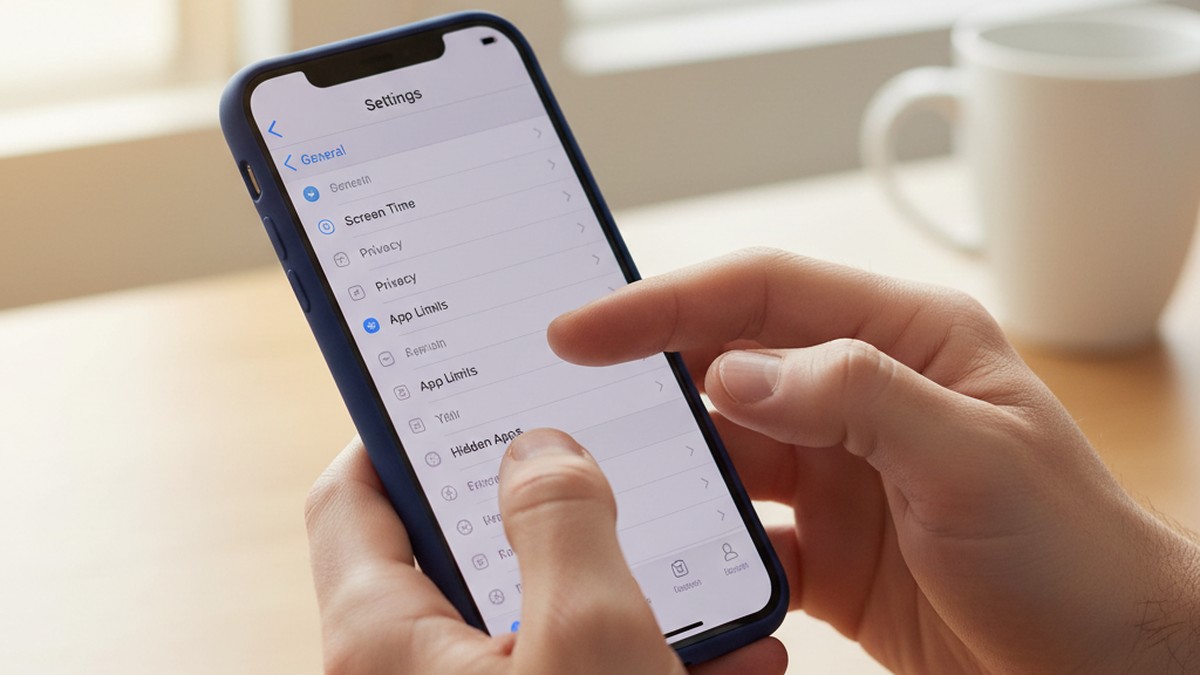
Dating apps don't signal themselves with any special marker in Screen Time. They appear by their actual name in the Most Used list, listed like any other app. If a dating app is installed and has been used, it will be visible. Here's what the major platforms display as:
| Dating App | Screen Time Display Name | Screen Time Category |
|---|---|---|
| Tinder | Tinder | Social Networking |
| Bumble | Bumble | Social Networking |
| Hinge | Hinge | Social Networking |
| OkCupid | OkCupid | Social Networking |
| Grindr | Grindr | Social Networking |
| Feeld | Feeld | Social Networking |
| Match | Match | Social Networking |
| Plenty of Fish | Plenty Of Fish | Social Networking |
| Badoo | Badoo | Social Networking |
| MeetMe | MeetMe | Social Networking |
| Zoosk | Zoosk | Social Networking |
| Her | HER — Lesbian Dating App | Social Networking |
The consistent pattern is Social Networking. Apple's App Store category system places relationship-oriented apps under Social Networking rather than Lifestyle or Entertainment, which means they appear in the same category bucket as Instagram, Facebook, Twitter/X, LinkedIn, and Snapchat.
The Social Networking Category: What's Really in There
To see which specific apps are contributing to the Social Networking total, go to Screen Time > See All Activity and scroll past the Most Used section to the Categories area. Tap Social Networking and it expands into a list of every app in that category with its individual usage time.
Scan that expanded list against what you know about the person's social media habits. If they regularly use Instagram, Facebook, and Snapchat, those will typically dominate. An unfamiliar app name appearing alongside those platforms — with more than a few minutes of daily usage — is the signal that warrants investigation.
This category-level view is particularly useful when the Most Used list is long. Rather than scrolling through 30+ apps looking for unfamiliar names, tapping Social Networking narrows your focus to the exact category where almost all dating apps will appear.
When You Don't Recognize an App Name
If an unfamiliar name appears in the Most Used list or Social Networking category, the fastest way to identify it is to open the App Store and search the exact name as it appears in Screen Time. The App Store search returns the app's full description, screenshots, and developer name. You'll know within 10 seconds whether it's a dating app, a messaging platform, or something else entirely.
Some apps use abbreviated or truncated names in Screen Time. "POF" appears instead of "Plenty of Fish." "HER" appears for the lesbian dating platform. A few regional dating apps use abbreviated names that could be mistaken for general utilities. Always confirm by searching the App Store before drawing a conclusion from the name alone.
Apps That Disguise Their Category
A small number of platforms that function as dating or hookup tools are categorized differently. Some "social discovery" apps — marketed around meeting new people without explicitly framing themselves as dating platforms — fall under Lifestyle or Entertainment. These are a minority. The twelve apps in the table above, which collectively represent the vast majority of dating app usage in the US, all appear under Social Networking as expected.
The Screen Time Detection Matrix
Most guides tell you to "check Screen Time" without specifying what to actually look at, how to interpret it, or how to weigh one signal against another. The Screen Time Detection Matrix is a structured approach to evaluating four distinct data points that Screen Time provides, each with a different weight and a different set of caveats.
The Matrix doesn't produce a verdict — it produces a signal inventory. You evaluate which signals are present, how strong each one is, and whether multiple signals point in the same direction. Two or more aligned signals constitute meaningful evidence. A single signal alone rarely does.
Signal 1: App Names in Most Used
What it reveals: Direct confirmation that a specific app is installed and has been used on this device.
How to evaluate: Scroll through the full Most Used list. Identify every app by name and purpose. Any app you can't immediately account for should be researched — open the App Store and search for the exact name. Do this before assuming anything. Some unfamiliar names are productivity tools, games with social components, or regional apps with non-obvious names.
How to weight it: High. An identified dating app appearing by name in the Most Used list with meaningful usage time is the strongest Screen Time signal. It's not ambiguous — the app is present and being used.
Real-world caveat: Apps sometimes auto-reinstall if a user hasn't explicitly removed them from their purchase history. An app appearing in Screen Time that was supposedly deleted months ago could reflect an accidental reinstall, a scheduled notification that triggered a background refresh, or an active reinstall. The presence of the app is confirmed; the intent behind it requires context.
Signal 2: Social Networking Category Time
What it reveals: Whether the total Social Networking usage is higher than what known apps account for.
How to evaluate: Add up the approximate daily time for known social networking apps — Instagram, Facebook, Twitter/X, Snapchat, LinkedIn, TikTok, or any other platforms you know the person uses. Compare that sum to the total Social Networking time shown in Screen Time. A consistent daily gap of 20 minutes or more that you can't attribute to known apps suggests something else is in that category.
How to weight it: Medium. Elevated Social Networking time is a prompt to investigate further, not a conclusion. It tells you to look at the individual app list within that category.
Real-world caveat: New apps installed recently, games with leaderboard or chat features, some productivity tools with social components, and certain messaging platforms all classify under Social Networking. A gap in the math doesn't automatically mean a dating app is present — it means something is worth identifying.
Signal 3: Notification Spike Patterns
What it reveals: When an app is sending push notifications, which correlates with active server-side engagement rather than just installation.
How to evaluate: Scroll down in the Screen Time activity report to the Notifications section. This shows a per-app notification count for each day. A dating app running in the background sends notifications for new matches, incoming messages, and "someone liked your profile" alerts. An unfamiliar app sending 10 or more notifications per day — particularly during early morning or late evening hours — is a meaningful signal.
How to weight it: Medium-High. Notifications indicate active server engagement, not just a dormant install. If an app you don't recognize is sending 15 notifications on a Tuesday morning, the app is actively communicating with the device. That's different from an app that was tried once and forgotten.
Real-world caveat: Push notifications can arrive without the user actively opening or responding to them. High notification counts confirm the app is installed and active on the server side — they don't confirm the person is reading or responding. Combined with Signal 1 (app identified) and usage time (Signal 4 below), notification volume tells you the app is in active use, not just installed.
Signal 4: Pickup Frequency Changes
What it reveals: How often the phone is picked up and which app is opened first after each pickup.
How to evaluate: Scroll to the Pickups section in Screen Time. This shows the total number of pickups per day and a breakdown of which app was first opened after each pickup. A significant increase in pickup frequency — particularly if a previously unmentioned app appears frequently as the first-opened app after pickups — suggests checking behavior associated with active communication on a new platform.
How to weight it: Low-Medium. This signal requires a baseline comparison. If you have prior weeks of Screen Time data, you can compare. A jump from 70 average daily pickups to 130, combined with an unfamiliar first-open app, is worth noting. Without a baseline, elevated pickups alone don't tell you much.
Putting the Matrix Together: The Matrix works through triangulation. One signal alone is rarely conclusive. Two aligned signals — particularly app name confirmed (Signal 1) and notification spikes from that same app (Signal 3) — constitute evidence worth taking seriously. Three or four signals aligned strengthens that considerably.
In practice, if the dating app name appears in Most Used, everything else in the Matrix serves as context for usage intensity. If the name doesn't appear but the category time is elevated, Signals 2 through 4 guide you toward the additional investigation methods described in the next section.
How Do You Find Apps Hidden from the Home Screen?
Knowing Screen Time shows all apps is useful, but sometimes you need to locate the actual app on the device — either to confirm what an unfamiliar name refers to, or to see the app's icon and verify it's what you suspect. Apps hidden from the home screen in iOS are still accessible through several routes that bypass folder organization entirely.
These methods work with standard device access. They don't require the Screen Time passcode — they operate at the device level if you have the phone unlocked.
The App Library Method
Swipe all the way right from the last home screen page to open the App Library. This system-generated view organizes every installed app into automatic categories, regardless of how the home screen is arranged. Dating apps appear under the Social category folder in the App Library.
Each folder in App Library shows a 3×3 grid preview. Tap the folder to expand it and see every app in that category as individual icons. The App Library cannot be customized to hide specific apps within categories — every installed app appears here, including those explicitly set to "Hide from Home Screen."
This is your most comprehensive single-view inventory. If an app is installed on the device, it's in App Library.
Spotlight Search Confirmation
From any home screen, swipe down from the center of the screen to open Spotlight Search. Type the name of a specific app — "Tinder," "Bumble," "Hinge," "Feeld" — and if the app is installed, it appears in the search results instantly, typically as the top result with its icon and a launch button.
This is the fastest method for confirming a specific app's presence. If Screen Time showed an app name you want to verify, Spotlight Search gives you the answer in under five seconds. If the app isn't installed, nothing appears in results.
The Settings App List (iOS 17+)
Open Settings and scroll down past all the system settings sections. The lower portion of the Settings main screen lists every app installed on the device alphabetically, with each app's icon and name. This list includes apps hidden from the home screen, apps buried in folders, and apps in the App Library that you might otherwise miss.
This method is slower than Spotlight Search for a specific app but gives you a complete scrollable inventory when you're doing a broad scan rather than confirming a specific app. For a thorough check, scrolling through this list alongside the Screen Time Most Used data gives you a near-complete picture of what's installed and what's been used.
Does Deleting an App Remove It from Screen Time?
No. Deleting an app does not erase its record from Screen Time. Usage history persists for up to 30 days after the app is removed, giving you a window to see activity even on apps that have since been deleted. Only a Screen Time data reset clears historical records.
This fact is the most practically important thing about Screen Time that almost no guide mentions. Someone who suspects they're about to be checked may delete a dating app immediately. The Screen Time record of that app — its name, the time it was used each day, the notifications it received — stays in the report for the next four weeks regardless.
To find recently deleted apps in Screen Time, go to Settings > Screen Time > See All Activity. Apps that have been deleted but whose usage records remain will appear in the Most Used list normally. The app icon won't launch (it's no longer installed), but the name and timing data remain fully visible and readable.
There's one scenario where the record disappears faster: if the phone owner goes to Settings > Screen Time and selects Turn Off Screen Time, then immediately re-enables it. This resets all historical data as a side effect of the toggle. If you find that Screen Time shows only a very short history — one or two days on a phone that's been in active use for weeks — that pattern suggests a deliberate data wipe, which is itself a signal worth taking seriously.
What about iCloud backup? iCloud does not sync Screen Time data between devices or restore it from backup in the way that app data is restored. Screen Time records are stored locally on the device and are not recoverable from iCloud if deleted. This means that turning Screen Time off and back on — or doing a factory reset followed by a restore — permanently eliminates the historical record. There is no way to recover deleted Screen Time history from cloud backup.
A few scenarios produce innocently short Screen Time histories that could be mistaken for a deliberate wipe. A recently purchased or recently reset phone will naturally have only days of data. Someone who switched to a new iPhone and set it up as a new device (rather than restoring from backup) will also start with a fresh Screen Time record. These scenarios are worth considering before drawing a conclusion from a short history window alone.
One additional check: if you're looking at Screen Time and the "Screen Time is on for [X] days" message at the top shows a number inconsistent with how long you've known the person to have the device, that discrepancy is worth noting. Seven days of history on a two-year-old phone is different from seven days of history on a phone that was just replaced.
How Do You Find Hidden Dating App Subscriptions on iPhone?
Screen Time shows usage data. Subscriptions show payment intent. Someone who has paid for Tinder Gold, Bumble Premium, or Hinge Preferred has gone further than casual installation — they've put money toward it. This check is separate from Screen Time but runs in parallel and often provides harder-to-dispute evidence.
To access subscriptions: Settings > [Apple ID Name at top] > Subscriptions
This page shows every active and recently expired subscription tied to that Apple ID. Dating app subscriptions appear under their actual app name. Look for any entries you don't recognize, and note the renewal date, price per period, and billing frequency.
Reading the Subscription List
The Subscriptions page divides into two sections: Active (currently billing) and Expired (cancelled or lapsed, typically visible for up to 12 months). Both sections are worth checking.
An active dating app subscription tells you the person is currently paying for premium features. An expired subscription tells you they were paying for it until recently. The dates provide a timeline: when did the subscription start, and if it's expired, when did it end?
Common Dating App Billing Names
| App | Subscription Name in Apple Subscriptions |
|---|---|
| Tinder Plus | Tinder Plus |
| Tinder Gold | Tinder Gold |
| Tinder Platinum | Tinder Platinum |
| Bumble Premium | Bumble Premium |
| Hinge Preferred | Hinge Preferred Membership |
| Match Premium | Match.com Premium |
| OkCupid Premium | OkCupid Premium Subscription |
| Grindr Unlimited | Grindr Unlimited |
| Feeld Premium | Feeld Majestic |
None of these billing names are obscured or vague — they display exactly as shown in the table. Paid subscriptions are difficult to explain away. You cannot accidentally subscribe to Tinder Gold at $29.99 per month.
Also check App Store purchase history for a full download record. Open the App Store, tap your profile icon in the top right, tap Purchased, then Not on This iPhone. This shows every app ever downloaded on that Apple ID — including dating apps no longer installed — with the original download date. An app that's no longer installed but was downloaded within the past year will appear here, giving you a timeline that the Subscriptions page doesn't always provide.
One important nuance on billing: not all dating app subscriptions route through Apple. Many apps offer their own in-app billing that bypasses the Apple Subscriptions system, often at a lower price point. If a subscription was purchased through the app's own payment processor — entered via a credit card directly in the app — it won't appear in Settings > Subscriptions. This means a clean subscription list doesn't rule out paid premium features on a platform. The App Store purchase history confirms the app was downloaded regardless of payment method; the subscription page only captures Apple-billed charges.
Tinder, Bumble, and Hinge all offer both Apple-billed and direct-billed subscription options. If you find the app in the purchase history but no corresponding subscription in the Apple Subscriptions list, the person may have subscribed through the app's own payment system rather than Apple's. In that case, the subscription would appear on bank or credit card statements under the platform's company name: "Match Group" (Tinder, Hinge, OkCupid, Match.com), "Bumble Inc.," or "Badoo Technologies."
What Can Screen Time NOT Tell You?
This is the section most guides leave out, and it's the most important for avoiding a wrong conclusion in either direction.
Screen Time tells you an app was used. It does not tell you what happened inside that app. Here's the specific list of what Screen Time data cannot reveal:
Message content. Screen Time logs time spent in an app, not what was typed, sent, or received. Forty-five minutes in Hinge could mean the person set up an account to investigate their own partner using the same method you are, was helping a friend with their dating profile, or is actively messaging someone. Screen Time cannot distinguish between these.
Active engagement vs. passive notification receipt. A high notification count from a dating app means the app sent push notifications to the device. It does not confirm the person opened and responded to them. Some users receive notifications from apps they haven't actively used in weeks because they never revoked push notification permissions.
Account ownership in shared-device scenarios. If Tinder appears in the Most Used list, Screen Time cannot confirm whether the account belongs to the device's primary user or whether someone else briefly used the device while logged into their own account. This scenario is uncommon in the context of a personal phone, but it's a caveat worth holding.
Intent or purpose. Some apps categorized as Social Networking in Screen Time are dual-purpose. Certain platforms used for professional networking in some regions, community apps, and older social tools all land in the same category as dedicated dating platforms. High Social Networking time from an unfamiliar app name doesn't automatically mean the purpose was romantic.
The Passcode Barrier
The single most significant limitation of Screen Time as a detection method is access. If the phone's owner has set a Screen Time passcode, you cannot view the activity report without entering that passcode. The report is locked completely.
A Screen Time passcode is separate from the phone's regular lock-screen passcode. It's a second layer typically set to prevent modifications to content restrictions — parents use it to stop children from adjusting their own limits. In the context of a relationship, an active Screen Time passcode on a partner's device means the usage reports are inaccessible to you even when the phone is otherwise unlocked.
The existence of a Screen Time passcode doesn't confirm anything on its own. Some people set it years ago for personal productivity reasons and have forgotten it's there. What changes the context is recency: a passcode that didn't previously exist appearing recently, or a passcode that exists alongside other behavioral changes, carries more weight than one that's been set for years.
What App Content Always Stays Private
Even with full Screen Time access and no passcode:
- The content of any message in any app remains private
- Who the person communicated with is not recorded
- Profile details, photos, or account status on any platform are not visible
- Payments made through in-app billing that bypass Apple's payment system (some apps offer this) won't appear in Apple Subscriptions
Screen Time is a usage ledger, not a communication record. It answers the question "was this app open and for how long" — not "what was being done in it."

Is the Screen Time Passcode Set? Here's What That Signals
If you navigate to Settings > Screen Time and the report is locked — you're prompted for a passcode you don't know — that's a specific situation that requires careful thinking rather than an immediate conclusion.
A Screen Time passcode can exist for entirely benign reasons. Some people set one to prevent accidental changes to their own restrictions, or to block themselves from certain apps as a personal productivity measure. Finding a passcode doesn't automatically mean usage is being hidden from you.
What changes the analysis is context and timing. If Screen Time was previously accessible without a passcode and suddenly requires one — particularly following a conversation about trust or fidelity — that's a behavioral change worth noting. The question isn't simply "does a passcode exist" but "when did this appear, and what else changed around the same time?"
You can observe when Screen Time was last configured by looking at the Screen Time summary page itself. If Screen Time shows only one or two days of history on a phone that's been in daily use for months, that indicates the data was recently reset. A reset clears all historical usage records, which is the most direct way to eliminate Screen Time evidence.
There are three meaningful questions to ask yourself when you encounter a Screen Time passcode:
When did this appear? If you had previously accessed Screen Time without a passcode and it now requires one, that's a behavioral change. If you've never tried to access Screen Time before on this device and are only doing so now, you have no baseline to compare against — the passcode may have existed for years.
What was happening when it appeared? A Screen Time passcode set after a conversation about trust, after you mentioned you'd been reading about how to check iPhone app usage, or after a period of unusual behavior carries different weight than one that predates any concern.
Does the rest of the evidence picture support concern? A Screen Time passcode alone doesn't confirm anything. Paired with a recently reset history, unfamiliar app names visible in other settings locations, or behavioral changes you've observed directly, it becomes one piece of a pattern rather than an isolated fact.
If the passcode is set and unknown, the App Library method, Spotlight Search, the Settings app list, and the Subscriptions check described above all still work without requiring the Screen Time passcode. The passcode specifically blocks the usage report — it doesn't restrict access to the rest of the iPhone's settings or installed apps. You lose visibility into the specific usage data, but you retain the ability to verify what apps are actually installed.
How Do You Set Up Transparent Screen Time Sharing?
For relationships where both partners want to operate with full mutual transparency, Apple's Family Sharing feature combined with Screen Time sharing provides a consensual, built-in solution. This is meaningfully different from checking someone's phone without their knowledge — it's an agreed-upon transparency layer that both people opt into together.
Family Sharing Setup
- On your own iPhone, go to Settings > [Your Name] > Family Sharing
- Tap Add Member and send an invitation to your partner's Apple ID
- Your partner receives an invitation notification and must tap Accept
- Once accepted, open Settings > Screen Time on your device and tap Family at the bottom
- Select your partner's name from the list
- You'll see their full Screen Time report — every app they use, for how long, notifications, pickups — updated in real time
Both people must actively consent and participate for this setup to function. This is not a covert monitoring arrangement — the invited person receives a clear notification about the sharing and has to accept it deliberately. Any existing Screen Time passcode on either device would need to be removed for the sharing to work fully.
The Transparency Agreement Approach
Some couples use Screen Time sharing proactively — not as a response to a specific incident, but as a standing agreement from the start of the relationship or after a trust-rebuilding period. The value is that it eliminates ambiguity entirely. Both partners have full visibility into each other's device usage, so there's nothing to investigate and nothing to hide.
The limitation is mutual consent. If your partner declines the Family Sharing invite or later disables Screen Time sharing on their device, the data stops appearing on your end. A decline or a sudden opt-out, particularly after a period of transparent sharing, is information in itself — and the appropriate response to that information is a direct conversation, not a different technical workaround.
Some couples find that proposing Screen Time sharing is more useful as a conversation than as a technical tool. Raising the idea — "I'd like us to share Screen Time so we both have full transparency about device usage" — produces a response that's informative regardless of what the person says. Immediate agreement and participation suggests comfort with visibility. Resistance, deflection, or the sudden appearance of a Screen Time passcode in response to the proposal can tell you something even if the sharing is never actually set up.
Family Sharing also comes with separate transparency features worth knowing about. The Ask to Buy feature notifies you when someone in your family group attempts to download a new app or make a purchase. If this is enabled for an adult partner, it functions as a real-time notification of new app downloads. This isn't a covert monitoring feature — both people know it's in place when Family Sharing is set up — but it provides app-level visibility that Screen Time sharing alone doesn't offer.
What Screen Time sharing is not: a monitoring system imposed on an unwilling partner. Using it that way defeats its purpose and damages trust rather than building it. Its value is in the transparency it creates when both people agree to it willingly.
When Screen Time Results Raise Suspicion But Don't Give Answers
If you've run through the Screen Time checks — Most Used list, category totals, notification patterns, subscription history — and you've found something you can't explain, Screen Time has done its job. It has identified a signal. What it cannot do is give you the confirmation needed to understand what that signal means.
A dating app in the Most Used list tells you the app is installed and was used. It doesn't tell you whether there's an active account on that platform, current conversations, or any specific behavior you're concerned about. That gap between "this app is present and was used" and "what is actually happening on this platform" is where Screen Time ends and other methods begin.
If the Screen Time data has raised a concern but left you without a clear answer, a direct search across dating platforms may give you what Screen Time cannot. CheatScanX scans 15+ platforms including Tinder, Bumble, and Hinge for active profiles — answering not "was this app open" but "does this person have an active profile right now." That's a different and often more actionable question.
Before acting on Screen Time results, it's worth understanding what a false positive looks like in this context. The most common false positives come from:
Apps downloaded out of curiosity and never used seriously. Dating apps are frequently downloaded to understand what a friend is experiencing, to see what the app looks like after hearing about it in conversation, or as part of research. A single download and brief usage period looks identical in Screen Time to an active account.
Apps that auto-reinstall. If an app was previously installed and linked to an Apple ID, iOS can reinstall it automatically after a device restore, a new device setup, or in some cases when app updates are processed in bulk. The reinstall can generate Screen Time data even if the person has not consciously opened it.
Social networking apps that aren't dating apps. Platforms like Meetup, Skout, or certain community apps appear in the Social Networking category. Elevated time in that category doesn't automatically mean a dating-specific app is involved.
Screen Time is a detection tool, not a verdict. The data it provides narrows the field of what to investigate — it doesn't conclude anything on its own. Treat it as the starting point it is.
For a broader view of methods for finding hidden dating apps on your partner's phone, or guidance on what to do when Screen Time gives partial results, our guide on how to find out if your partner is on dating apps covers both device-based and external search methods in detail.
What to Do If You Find Evidence
Finding a dating app in Screen Time — or confirming one through subscriptions, App Library, or Spotlight Search — is not the same as understanding what it means. Before raising anything, be clear about what you actually know and what you don't.
What you know: A specific app was installed and used on this device during a specific time period.
What you don't know yet: Whether there's an active profile, whether the person is communicating with anyone, whether the app installation reflects current behavior or something older, or what the intent behind the usage was.
This distinction isn't a reason to minimize your concern. It's a framework for having a productive conversation rather than an accusatory one. "I noticed Hinge in your Screen Time with significant usage this week — can you help me understand that?" invites an honest response. "I know you're cheating because I found this app" invites a defensive one. The first approach leaves room for an explanation. The second forecloses it before you've heard it.
Document before raising it. If you've found specific Screen Time data — an app name, usage time, dates, notification counts — take screenshots before you start any conversation. Screen Time data can be cleared, and you don't want to be recalling details from memory during an emotionally charged discussion.
Bring specific information, not vague concern. "The Social Networking category showed 2 hours and 15 minutes on Thursday evening — that's three times the typical average, and I saw an app in there I don't recognize" is harder to dismiss than "you've been on your phone a lot lately." Specific data creates specific accountability.
Prepare for explanations that could be legitimate. Some explanations are honest and mundane: the app was reinstalled automatically, they were helping a recently single friend navigate their own dating profile, or a work colleague showed them something on the platform. The quality of the explanation — its specificity, its consistency with other facts — matters alongside the fact that an explanation was offered.
Recognize when you need external confirmation. If the Screen Time data is suspicious and the conversation doesn't resolve the concern, gathering additional information before making a relationship decision is reasonable. The apps cheaters use to hide conversations guide covers the full range of platforms and concealment methods. For a broader investigation framework, our guide on how to catch a cheater covers digital verification methods that go beyond device access.
A note on timing: avoid raising Screen Time findings immediately after discovering them if you're in a reactive emotional state. The instinct to confront in the moment is understandable, but acting on incomplete information when you're upset produces worse outcomes than taking a day to gather your thoughts. The data in Screen Time doesn't expire overnight — you have time to think through what you actually want to ask and what answer you're prepared to hear.
If you ultimately decide to involve a couples counselor or therapist in the conversation, that doesn't mean you've escalated something minor — it means you've recognized that the emotional dimensions of this kind of discovery are legitimate and worth handling carefully. A trained professional can facilitate a conversation about trust and transparency that's harder to have productively without a third party present.
The goal throughout is clarity — not to build a case, but to get to the truth, whatever that turns out to be.
Frequently Asked Questions
Yes. Screen Time tracks every installed app, including those removed from the home screen or placed in the App Library. The app's name appears in the Most Used list and under its category in the activity report. Hiding an app from the home screen does not stop Screen Time from recording its usage.
Most major dating apps — Tinder, Bumble, Hinge, OkCupid, and Grindr — appear under the Social Networking category in Screen Time. A few apps may fall under Entertainment or Lifestyle. If you see unusual Social Networking usage you can't account for with known apps like Instagram or Facebook, unfamiliar apps in that category are worth investigating.
Not completely. A user can set a Screen Time passcode to prevent others from viewing the report, but the tracking itself cannot be disabled for individual apps. Turning off Screen Time entirely clears all history and would show as a visible settings change — a signal in itself.
No. Deleted apps remain in Screen Time records for up to 30 days after removal. This means even if a dating app was deleted before you checked, its usage history is still visible in the activity report for several weeks. Only a full Screen Time data reset clears historical usage records.
Open Settings > Screen Time > See All Activity and scroll to the Most Used section. This lists every app that has logged usage time, bypassing folder organization entirely. Apps that were used but aren't visible on the home screen appear here alongside their exact usage time and notification counts.