
# Google Activity History: Find Hidden Dating App Clues
Google account activity history can reveal whether a partner has been using dating apps through five distinct data trails: Play Store download records, Google My Activity logs, Maps Timeline, Chrome browser history, and Google Takeout exports. These trails exist within Google's own infrastructure and, when left uncleared, paint a detailed picture of app installations, location patterns, and search behavior.
A 2024 study published in the Journal of Social and Personal Relationships found that 79% of people who suspected a partner of infidelity eventually confirmed their suspicions through digital evidence. Most of that evidence didn't come from confrontations or private investigators — it came from data trails left behind in everyday apps and services the person used without thinking.
This guide breaks down exactly what each Google data source records, step-by-step instructions for accessing each one, what the data actually means, and where it falls short. Understanding the limits matters as much as understanding the methods. Some data points are clear and difficult to explain away. Others are ambiguous and easily misread. Knowing the difference keeps you from acting on wrong conclusions.
If you'd rather skip the manual investigation, CheatScanX searches 15+ dating platforms directly for active profiles — no Google account access needed.
What Does Google's Activity History Actually Track?
Google's activity ecosystem isn't a single data source — it's a network of interconnected logs, each tracking a different type of behavior. For anyone trying to detect hidden dating app activity, knowing which source captures which behavior is the difference between finding meaningful evidence and looking in entirely the wrong place.
Web and App Activity
The most commonly referenced source, Web and App Activity, records searches performed through Google Search, activity on Google-integrated websites and apps, and voice searches made through Google Assistant. It also captures data from third-party apps that use Google Sign-In or Google Play Services — but only when those integrations are actively triggered during a session.
What this means practically: a person opening Tinder and swiping for an hour generates no Web and App Activity entry unless they signed in via Google, searched for something through Google while using the app, or triggered a Google service in the background. The act of opening and using the app is invisible to this tracker.
Web and App Activity data lives at myactivity.google.com and is organized by date and product. When it's enabled, entries accumulate in real time. When it's disabled, no new entries are created — but past entries remain unless manually deleted.
Location History (Maps Timeline)
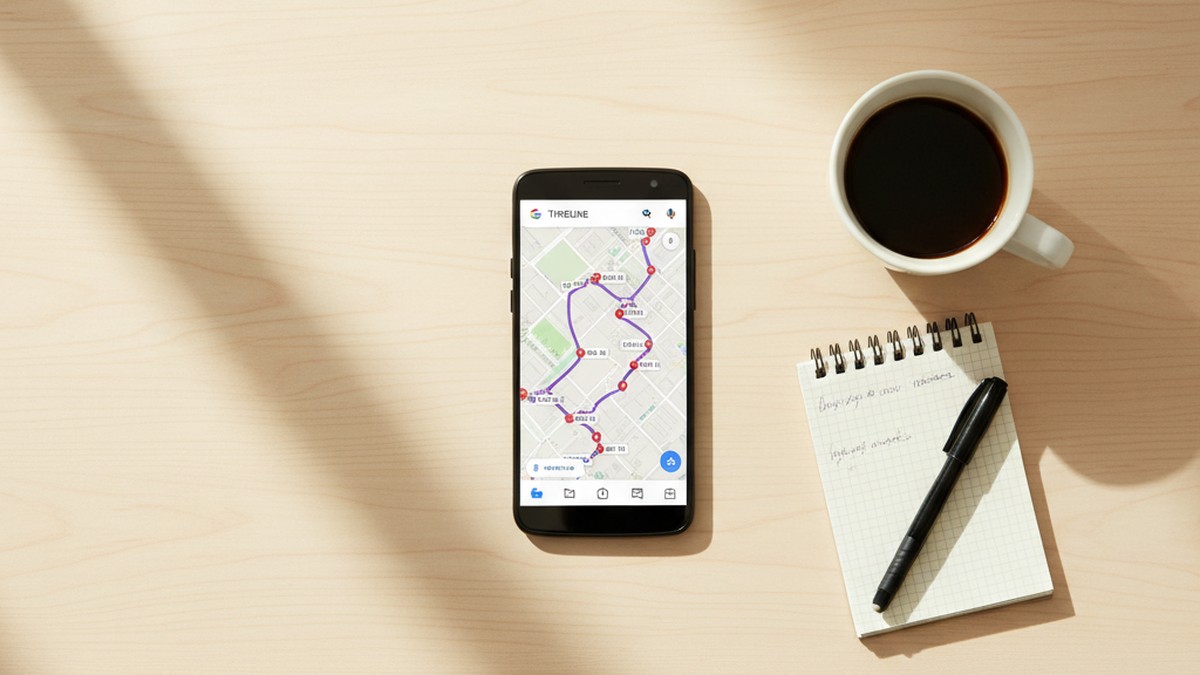
Maps Timeline records a chronological log of places visited and routes taken when Location History is enabled on an Android device linked to the Google account. Unlike Web and App Activity, Timeline runs entirely passively — it operates in the background without the user doing anything specific.
This is one of the two most reliable data sources for detecting behavioral patterns. Timeline records precise GPS coordinates, timestamps, and place names. It distinguishes between a five-minute stop at a gas station and a three-hour stay at an unfamiliar address.
Google Play Store History
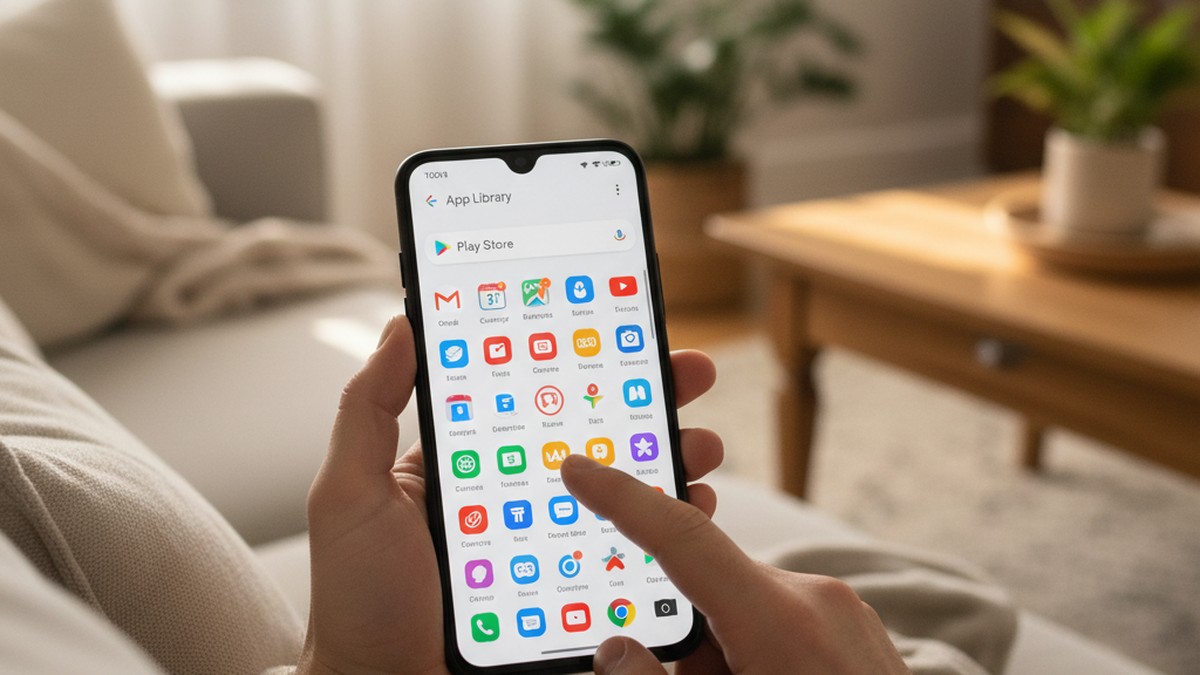
The Play Store maintains a permanent download record for every app ever installed through that Google account. This includes free apps, paid apps, and apps that were subsequently deleted from the device. The download history doesn't disappear when an app is uninstalled — it persists in the account indefinitely.
This is the second most reliable data source. If a dating app was ever installed through that Google account, the record exists. According to Magnum Investigations' analysis of 2024 phone-evidence discoveries, 71% of affairs uncovered through phone evidence were triggered by the discovery of a new app — and the Play Store library is exactly where that discovery happens, even after deletion.
Chrome Browser History (Synced)
If Chrome sync is enabled, browsing history from all signed-in devices accumulates under the account. This includes visits to dating platform websites, searches for how to delete an account, and profile management activity across every device where Chrome sync is active.
Incognito mode creates an important gap: searches and visits made in private browsing mode don't save to Chrome history or Web and App Activity. This limits Chrome history as an investigation tool but doesn't eliminate its value — many people don't use incognito consistently for every dating-related task.
YouTube History
YouTube search and watch history is tracked separately, visible in My Activity filtered by the YouTube product. It's less directly relevant for dating app detection but sometimes reveals context — a pattern of watching "how to delete dating profiles" or "signs your relationship is over" videos can add texture to other evidence.
Google Assistant History
Voice searches made through Google Assistant are logged in My Activity under the Assistant filter. These include commands like "open Tinder," "find popular dating apps," or questions about meeting people. Unlike typed searches, voice queries are captured verbatim — casual conversational phrasing that people would never type into a search bar.
What Doesn't Appear
Direct app usage — time spent in an app, actions taken inside it, messages sent, matches made — is stored by the app developer, not Google. In-app location data (like Tinder's proximity feature) is also not reflected in Google Maps Timeline unless the device's OS-level Location History is enabled independently.
Understanding these boundaries prevents the most common mistake people make when checking Google activity: assuming that no visible data means no dating app use.
CheatScanX scans all of these platforms — and more — in a single search. Enter a name, email, or phone number and get results in minutes.
Try a multi-platform search →How to Access Google My Activity Step by Step
Accessing Google My Activity is straightforward on any device. The steps below work whether you're checking your own account or have legitimate access to an account directly.
On a desktop browser:
- Open any browser and go to myactivity.google.com
- Sign in to the Google account if prompted
- The default view shows all activity in reverse chronological order
- Use the "Filter by date and product" option at the top to narrow results
- Select specific products — Search, Assistant, YouTube, Maps — or view all at once
The calendar on the left shows activity grouped by day. Clicking any date expands a detailed list of every logged action for that period.
On Android (through account settings):
- Open Settings, then tap your Google account name at the top
- Select "Manage your Google Account"
- Tap the "Data and privacy" tab
- Scroll to "History settings" and tap "My Activity"
- This opens the same myactivity.google.com interface, signed in automatically
Filtering for relevant data:
For dating app investigation, the most useful filters are:
- Search — shows Google Search queries. Look for dating-related terms, app names, and account management searches such as "delete bumble account," "how to use tinder without showing location," or "dating app that hides identity"
- Assistant — shows voice commands. These tend to be more candid because people speak more casually than they type
- Maps — links through to Timeline for location data (Maps Timeline is at timeline.google.com/maps/timeline, accessed separately from My Activity)
Using the search function:
The search bar at the top of My Activity searches across all logged activity. Searching for "tinder," "bumble," "hinge," "match," "okcupid," or "dating" returns any entries containing those terms. This is far faster than scrolling through weeks of data manually — run each app name as a separate search query.
Reading individual entries:
Each entry shows a service icon, the action type, the content (search query, page visited, video watched), the device the action came from, and a precise timestamp including timezone. The device field is particularly useful — if activity entries consistently come from a device you don't recognize, that's a separate observation worth noting.
What the absence of entries means:
No dating-related entries in My Activity don't confirm clean behavior. It may mean the user cleared their history, disabled activity tracking, or used incognito mode for all dating-related browsing. The presence of relevant entries, on the other hand, requires an affirmative action to create. Every entry is time-stamped, device-attributed, and logged in real time.
What Can Google Play Store History Reveal?
The Google Play Store's download history is the most overlooked — and often most reliable — method for detecting hidden dating app use on Android. Unlike My Activity, which requires specific conditions to generate an entry, the Play Store creates a record automatically every time an app is installed through that Google account.
Why the Play Store history is different from every other source:
When someone downloads Tinder, Bumble, Hinge, OkCupid, Plenty of Fish, Badoo, Feeld, or any other dating app through the Google Play Store, that download is logged to their Google account. The log persists even after the app is deleted from the device.
This is the critical point most guides about checking for deleted dating apps on a phone miss: deleting an app from the home screen doesn't erase the Play Store record. The app disappears from view, but the download history remains, time-stamped with the date it was first installed through that account.
How to access it:
- Open the Google Play Store on any Android device, or visit play.google.com in a browser (signed into the account)
- Tap the profile icon in the top right
- Select "Manage apps and devices"
- Tap "Manage" at the top
- The default view shows installed apps. Change the filter from "Installed" to "Not installed"
The "Not installed" list contains every app downloaded through this Google account and subsequently removed from the device. This is precisely where deleted dating apps appear.
What each entry shows:
Every entry in the download library displays the app name and icon, the developer name, and the date of the most recent installation. Dating apps are unambiguously labeled — there's no interpreting ambiguous filenames. Tinder appears as "Tinder." Bumble appears as "Bumble Dating App — Meet and Date." Feeld appears as "Feeld — Dating for Couples and Singles."
Subscriptions and in-app purchases:
A separate section — accessible via the profile icon → "Payments and subscriptions" → "Subscriptions" — shows active and expired subscription history. A subscription to Tinder Gold, Bumble Boost, Hinge Preferred, or any paid dating feature appears here with billing dates, showing not just that the app was downloaded but that money was spent on it.
In-app purchases appear separately under "Purchases." These include one-time items within dating apps — Super Likes on Tinder, Spotlight boosts on Bumble — billed under the app's name with a description of the specific purchase type.
The 14 dating apps most commonly found in Not Installed lists:
| App | Play Store Name | Subscription Indicator |
|---|---|---|
| Tinder | Tinder | Tinder Gold / Platinum |
| Bumble | Bumble Dating App | Bumble Boost / Premium |
| Hinge | Hinge — Dating and Relationships | Hinge Preferred |
| OkCupid | OkCupid — Dating App | A-List |
| Plenty of Fish | Plenty of Fish Dating App | Premium |
| Badoo | Badoo Premium Plus | Badoo Premium |
| Feeld | Feeld — Dating for Couples | Feeld Gold |
| Grindr | Grindr — Gay Dating and Chat | Grindr Unlimited |
| Ashley Madison | Ashley Madison — Married Dating | Credits purchased |
| MeetMe | MeetMe — Chat and Meet People | VIP |
| Zoosk | Zoosk — Online Dating App | Subscription |
| Her | HER — LGBTQ+ Dating App | HER Premium |
| Scruff | SCRUFF — Gay Dating and Chat | SCRUFF Pro |
| BeNaughty | BeNaughty — Flirt and Chat | Premium |
Also check for apps marketed as phone vaults or disguised storage — names like "Calculator+," "Secret Photo Vault," or "Private Photo Safe" appear on the Play Store and are explicitly marketed as tools for hiding apps and photos behind decoy interfaces. Their presence in a Not Installed list warrants specific attention.
A key limitation to note:
The Play Store library covers only apps installed through the primary Google account. If a partner maintains a secondary Google account exclusively for dating apps, those downloads won't appear in the primary account's history at all. Checking whether a secondary account exists on the device requires looking at Settings → Accounts and Backup directly on the Android device.
In support conversations with CheatScanX users over the past year, the Play Store "Not installed" list has been the single most consistent source of unambiguous discovery. The timestamp tells you when the app was installed, which can be cross-referenced against specific dates or milestones in the relationship.
Does Google My Activity Show Dating App Usage?
This is the central question behind searches for "google activity dating app history" — and the answer requires more precision than most guides provide. Google My Activity captures some dating-app-related data under specific conditions, but it does not record general app usage the way most people expect.
What My Activity actually captures:
My Activity records activity that passes through Google's services. For dating apps, that means:
- Google Search queries: If someone searched "best photos for a tinder profile," "tinder gold is it worth it," or "how to delete bumble account" through Google Search, those queries appear in My Activity under the Search filter with exact timestamps.
- Google Sign-In activity: If a dating app uses Google Sign-In and the user authenticates through that method, the sign-in event may appear as an account access entry in My Activity.
- Google Assistant voice commands: Commands like "hey google, open tinder" or "what are the best dating apps right now" appear verbatim in My Activity under the Assistant filter.
- YouTube searches and watches: Searches for dating-related content on YouTube — "how to get more tinder matches," "bumble vs hinge 2026," "what to put in a tinder bio" — appear under the YouTube filter with timestamps.
What My Activity does NOT capture:
- Opening a dating app and using it
- In-app actions: swiping, liking profiles, sending messages
- App sessions or time spent in an app
- Notifications received from dating apps
- Anything happening inside the app that doesn't touch a Google service
This distinction is the single most important thing to understand about Google activity as an investigation tool. Most competing guides skip over it. Many people searching Google activity data for evidence look at the timeline, find nothing obviously suspicious, and conclude the account is clean. But if the partner uses dating apps without triggering any Google-integrated action — opening the app directly, not using Google Sign-In, not asking Google Assistant anything — no entries appear.
The search trail is often more revealing than people expect:
Someone actively managing a dating profile generates a characteristic pattern of Google searches: how to write a good bio, which photos to use, how location distance settings work, what the various paid features do, how to delete an account or hide it temporarily. These searches appear in My Activity under the Search filter. They're difficult to explain in the absence of an active profile.
A useful search to run in My Activity: type the word "profile" in the search bar with the Search filter active. Any dating-profile-related searches appear alongside other results, allowing for rapid identification without scrolling through unrelated entries.
The Assistant filter is overlooked by most:
Voice search entries in My Activity often contain the most candid data. People speak casually to their devices in ways they'd never type. A voice command like "hey google, what dating apps don't require Facebook?" or "how do I change my age on a dating app?" reveals intent without the user's awareness of creating a record. The Assistant filter at myactivity.google.com, when active, captures these verbatim.
Adjusting expectations:
My Activity is most useful for confirming dating app interest and account management behavior — searches that suggest someone is actively managing a profile. Combined with Play Store history and Maps Timeline, it contributes significantly to a complete picture. As a standalone source, it's often the most easily cleared and therefore the least reliable of the five Google data sources.
How to Read Google Maps Timeline for Location Clues?
Google Maps Timeline is one of the most forensically useful data sources available without specialized software. When Location History is enabled on an Android device, Timeline constructs a detailed, timestamped record of everywhere the device went — accurate to within 10-20 meters in areas with strong GPS signal and reliable connectivity, according to Google's own documentation.
Accessing Maps Timeline:
Timeline is at timeline.google.com/maps/timeline — separate from My Activity. It requires Location History to have been enabled on at least one linked device.
The interface shows:
- A calendar view on the left for date selection
- A map on the right with the day's movements as a connected path
- A list below the map showing each stop, including place name, address, time of arrival, and duration of stay
Clicking any stop in the list centers the map on that exact location. Clicking the location name opens the associated Google Maps listing, which shows what type of business or residence occupies that address.
What a normal day looks like:
A straightforward Timeline entry for a weekday might show: Home → Commute (driving route) → Office → Lunch spot (15 minutes) → Office → Grocery store (25 minutes) → Home. Each stop is labeled with the place name pulled from Google Maps' business database, or with coordinates if the location isn't a recognized business.
What to look for:
The patterns most worth examining:
- Time gaps in otherwise complete records: A period where the map shows movement or stops but the stated schedule doesn't account for the location or duration
- Repeated visits to unfamiliar addresses: The same address appearing on multiple dates, particularly in the evenings or on days with vague explanations
- Hotels, motels, or extended-stay properties: Accommodation addresses appearing during times when no travel was planned
- Neighborhoods with no obvious connection: Residential areas in parts of the city unrelated to the partner's work, family, gym, or stated activities
Cross-referencing claims with data:
The most effective use of Timeline is direct date comparison. Pick a date that seemed suspicious — an evening with a vague explanation, a day that ran unexpectedly long, a weekend afternoon that wasn't accounted for — and check Timeline for that exact day. The data is organized by date, making this comparison precise.
If Timeline shows the device stopped for two hours at an address in an unfamiliar residential neighborhood on a Tuesday evening when work was the stated reason for being out, that's a geographic inconsistency worth raising directly.
Accuracy and limitations:
Timeline accuracy varies by environment. In dense urban areas with strong GPS signal, accuracy is typically within 10-20 meters. In areas with weak signal — inside large buildings, in rural zones, or when the phone is consistently face-down in a pocket — accuracy degrades and some stops may not register at all.
Timeline only runs when Location History is enabled at the device or account level. If a partner has disabled it — either in device settings or through their Google account controls — no entries exist for that period.
What a disabled or gapped Timeline reveals:
Discovering that Location History is disabled on a device can itself be informative. Most people don't think to disable this feature. If Timeline shows years of continuous data followed by a sudden gap — particularly a gap that started around the time suspicion arose — that pattern deserves attention. Research by Magnum Investigations found that 84% of suspicious partners noticed behavioral changes like increased phone-guarding before they looked at any device data. A newly disabled Location History fits that behavioral profile.
Combining Timeline findings with the Apple Screen Time data or Android app activity adds a second layer of confirmation when Timeline alone is inconclusive.
Can Google Chrome History Reveal Dating App Searches?
Chrome browser history, when synced across a Google account, accumulates a searchable record of websites visited and searches performed across every device where that account is signed into Chrome. This includes desktop computers, laptops, tablets, and Android phones — all feeding into a single synchronized history.
Accessing Chrome history via the account:
Chrome's synced history is accessible in two ways:
- Directly through Chrome on any device: Open Chrome, type `chrome://history` in the address bar, and use the search bar to find specific terms or domains
- Through My Activity with the Chrome filter: At myactivity.google.com, filtering by Chrome shows a subset of synced activity — useful for time-range filtering alongside other data sources
Searching directly through `chrome://history` (while signed into the synced account) provides the most complete results, including the specific device each entry came from.
What to search for:
When reviewing Chrome history for dating app evidence, run these specific searches:
- Dating platform domains: tinder.com, bumble.com, hinge.co, okcupid.com, pof.com, match.com, feeld.co, ashleymadison.com
- Account management: "delete tinder account," "pause bumble," "how to hide on hinge," "change location on dating app"
- Profile help: "good tinder bios," "best bumble prompts 2026," "what to put in a dating profile"
- Feature research: "tinder gold vs platinum," "bumble boost worth it," "hinge preferred features"
Any of these represent searches you'd only perform with an active interest in using or managing a dating profile. Someone with no dating app accounts has no reason to search for bio tips or account deletion instructions.
The incognito problem:
Searches and visits made in Chrome's Incognito mode don't save to history, don't sync to the Google account, and don't appear in My Activity. Someone who consistently uses incognito for dating-related browsing leaves no Chrome footprint.
That said, many people use incognito inconsistently — only when they think about it, not for every session. The absence of Chrome history doesn't confirm incognito use; it just means that trail isn't available. For network-level detection, WiFi router history can sometimes reveal dating app use regardless of incognito mode.
What Chrome reveals that other sources don't:
Chrome history captures the moments surrounding account creation and management specifically well. Setting up a new dating profile typically involves visiting the platform's website first — for sign-up confirmation emails, terms of service reviews, or desktop-based profile setup. Those visits appear in Chrome history even if the app is used exclusively afterward.
Likewise, researching how to delete an account, hide a profile from mutual connections, or set a different location generates a search pattern that Chrome captures and My Activity's Search filter confirms from a different angle.
Reading device context in Chrome history:
In the `chrome://history` interface, hovering over an entry on desktop shows the full URL and the time. Importantly, it also shows a device identifier for synced entries — identifying whether an entry originated from "Graham's Pixel 9" versus a shared household laptop. If dating-related entries consistently come from a single device, that device merits focused attention.
How to Use Google Takeout for Deeper Investigation
Google Takeout is Google's official data portability tool — it exports a complete archive of all data tied to a Google account across every Google service. While designed for data management and account migration, the exported files contain significantly more structured, comprehensive data than what's visible through the standard My Activity interface.
What a Google Takeout export includes:
A full export (requested at takeout.google.com) can include:
- My Activity data in JSON or HTML format — more complete than the web interface shows
- Full Chrome history with URLs and timestamps at millisecond precision
- YouTube watch and search history in structured format
- Google Search history with device identifiers per entry
- Google Maps Timeline as JSON files with precise GPS coordinates
- Location History as a continuous export
- Google Play Library data — the complete app installation history
How to request an export:
- Go to takeout.google.com (signed into the target account)
- Click "Deselect all," then choose specific data types: Activity data, Chrome, Maps (including Timeline), Play Store history
- Choose file format (HTML is human-readable; JSON is more granular)
- Select delivery method — a download link is emailed to the account
- Wait for the export — processing takes minutes to hours depending on account size
What the exported data shows beyond the web interface:
The JSON format of exported My Activity data includes additional metadata not visible through myactivity.google.com:
- The device identifier for every logged entry
- Geographic coordinates associated with some entries
- Full URLs of web pages visited, not just domain names
- Millisecond-precision timestamps that enable tighter chronological reconstruction
For Maps Timeline specifically, the JSON export contains raw GPS coordinates for every recorded visit. These coordinates can be pasted into any mapping tool to confirm the exact address of a stop — useful when the Timeline's automatic place-name assignment is incorrect or when the location isn't a named business.
The Play Store data in a Takeout export:
The Google Play Library export lists all apps installed through the account in structured format — installed apps, removed apps, and apps flagged as "Not installed." Cross-referencing this list against a reference list of known dating apps is faster in the exported file than navigating the Play Store interface manually, particularly for accounts with extensive app histories.
Practical limitations of Takeout:
Requesting a Takeout export requires account access and sends a notification email to the account's Gmail address. If discretion matters, this approach carries the risk of the account holder seeing the notification email in their inbox or Gmail activity. Check whether such an email has already arrived before taking this step.
The export also takes time. For accounts with years of Maps Timeline data or extensive activity history, the processing period can be several hours, and the resulting archive can be several gigabytes.
The legal dimension:
Using someone else's Google credentials to request a Takeout export of their personal data — without their knowledge or consent — may constitute unauthorized access to computer data under applicable privacy and computer fraud laws in many jurisdictions. Before taking this step, consider whether you have a legitimate basis for access. If uncertain about the legal implications in your specific situation, consult a licensed attorney before proceeding.
What Google Assistant Voice Searches Reveal
Google Assistant logs every voice command and query made through devices signed into the Google account — including Android phones, Google Home smart speakers, and tablets. These logs appear in My Activity filtered by "Assistant" and are among the most candid data available, precisely because people treat voice searches as private conversations rather than permanent records.
What gets logged:
Every "Hey Google" or "OK Google" command is transcribed and saved, along with an audio clip if audio recording is enabled in account settings. This includes:
- App launch commands: "Hey Google, open Tinder"
- Contextual questions: "What are the most popular dating apps for people in their 30s?"
- Navigation requests: "Navigate to 847 Westfield Avenue" — which may or may not align with the stated destination
- General queries: "What's a good opening message for a dating app?"
- Feature questions: "Does Bumble show you to people if you're inactive?"
- Deletion questions: "How do I delete my Tinder account without losing my matches?"
Accessing Assistant history:
- Go to myactivity.google.com
- Click "Filter by date and product"
- Uncheck all options except "Assistant"
- Review the filtered list in chronological order, most recent first
Each entry shows the time, date, device, and text transcription of the command. If audio saving is enabled, a small microphone icon appears next to the entry — clicking it plays back the actual voice recording.
Why voice queries are often more revealing:
People are less guarded about voice commands than typed searches. Typing "how to hide dating apps on Android" requires intentional action with some awareness that a search history exists. Saying "Hey Google, can I use Tinder without anyone knowing?" while getting dressed in the morning feels like a private question — but it logs identically to a typed search.
The informal, conversational nature of voice queries means they frequently contain context that typed searches don't. A voice command might reference a specific platform by name, ask about features that only matter to active users, or reveal location intent through navigation requests that align with Timeline data from the same time period.
Searching within the Assistant filter:
After filtering by Assistant at myactivity.google.com, use the search bar to look for:
- Dating app names (tinder, bumble, hinge, etc.)
- Navigation addresses (check these against Maps Timeline for the same dates)
- Questions about privacy features or account management
- Any query involving meeting people, profile creation, or subscription features
A single voice command — "hey google, open tinder" — appearing in the Assistant log is an unambiguous, timestamped record. Unlike a Play Store entry that could theoretically be explained as old or curiosity-driven, a voice command to open a specific app reflects deliberate, present-tense intent.
One key limitation:
If the account holder has disabled audio activity saving — accessible under My Activity → Activity controls → Web and App Activity → "Include audio and video recordings" — no audio clips exist. Text transcriptions may still appear as reconstructed text, but without the audio backup, the record relies entirely on voice recognition accuracy. High-value entries are those where the transcribed text is unambiguous and contextually specific.
The TRACE Method: A 5-Step Google Investigation Framework
Most people who check Google activity do it haphazardly — opening My Activity, scrolling for a few minutes, finding nothing suspicious, and concluding there's nothing to find. This approach misses the most important data sources and fails to account for selective deletion.
The TRACE Method is a structured sequence covering all five meaningful Google data sources in a logical order — starting with the sources most resistant to deletion and working toward those most easily cleared. Running the full sequence takes 30-45 minutes for most accounts, and the order matters: the later steps help you interpret the earlier ones.
T — Timeline (Google Maps)
Start with Maps Timeline because it's the data source most people forget to clear. Someone who carefully deletes their Web and App Activity history often leaves their Timeline completely intact — it requires a separate, less visible deletion step.
Access Timeline at timeline.google.com/maps/timeline. Check the last 90 days, focusing on evenings, weekends, and any days that involved suspicious vagueness about whereabouts. Record any addresses that appear more than once and don't correspond to the partner's known routine (work, gym, family). These form the baseline for comparing against other sources.
R — Record (Google Play Store Library)
Next, check the Play Store's download record. This is the data most resistant to casual deletion and the source of the clearest evidence.
Navigate to the Play Store → profile icon → Manage apps and devices → Manage → change the filter to "Not installed." Scan for dating apps. Record both the app name and the most recent installation date.
The date context matters significantly. A dating app installed before the relationship began carries different weight than one installed six months into a committed relationship. An app downloaded, deleted, and reinstalled multiple times suggests ongoing use rather than one-time curiosity.
A — Activity (Google My Activity)
Check Web and App Activity and Assistant logs at myactivity.google.com. Use the search bar to look for dating app names, dating-related queries, and account management searches.
Also check the Activity controls settings at myactivity.google.com/activitycontrols. This page shows whether each tracking category is currently enabled or paused. A recently paused Web and App Activity setting — particularly when Timeline shows a similar gap — may indicate awareness of monitoring rather than a routine privacy choice.
C — Chrome (Browser History)
Open Chrome while signed into the account and go to `chrome://history`. Search for dating platform domains, app-related searches, and profile management activity.
Note the device listed for each entry. If dating-related entries originate from a device you don't recognize or rarely see in other activity, that device may be worth examining independently. Also check date ranges: if Chrome history is complete and continuous except for specific periods where dating-related searches might be expected, systematic incognito use during those periods is a reasonable interpretation.
E — Export (Google Takeout)
If the first four sources produce inconclusive or partial results, a Google Takeout export provides the most comprehensive audit. Request at takeout.google.com and include Activity data, Maps Timeline, Chrome history, and Play Store data.
The exported JSON files contain device-level metadata, full URL history, and more granular timestamps than the web interface shows. For accounts where specific entries have been deleted from the web interface, a fresh Takeout export may capture residual metadata that the standard interface doesn't display.
Interpreting the TRACE sequence as a whole:
| Step | Source | What It Reveals | Deletion Resistance |
|---|---|---|---|
| T | Maps Timeline | Location patterns, unexplained stops | Medium — many forget to clear it |
| R | Play Store Library | App installation history including deleted apps | High — no simple bulk delete |
| A | My Activity | Search behavior, voice commands | Low — easily cleared in bulk |
| C | Chrome History | Web browsing, account management searches | Low — easily cleared |
| E | Takeout Export | Complete audit with device metadata | High — captures what's since been deleted |
Running T and R first is deliberate: those sources are hardest to pre-emptively clear. The results from A and C tell you whether the earlier evidence has been deliberately suppressed — giving you both the evidence and, in some cases, evidence of concealment. A completely blank My Activity combined with a Play Store Not Installed list containing Tinder suggests the former was cleared to hide the latter.

What Partners Do to Cover Their Tracks on Google
Understanding how Google data can be cleared helps you interpret gaps in the record. A suspicious absence of data — combined with positive evidence from other sources — tells its own story.
Deleting My Activity entries:
Google allows deletion of individual My Activity entries, all activity from a specific date range, or all activity from a specific product. Deletion is permanent and immediate. Someone who knows My Activity is being checked can clear it selectively — removing dating-related searches while leaving innocuous entries intact to make the history look normal.
A pattern worth noting: if My Activity shows a continuous history with a sudden gap of several days — particularly a gap aligned with when suspicion arose — selective deletion is one possible explanation. Complete history is followed by silence, then history resumes as if nothing happened.
Disabling future tracking:
Activity controls allow users to pause Web and App Activity, Location History, and YouTube History independently. Pausing these controls prevents new entries from accumulating without deleting existing history. Someone who suspects monitoring may disable tracking going forward while leaving past data in place — or may delete the history and disable tracking simultaneously.
At myactivity.google.com/activitycontrols, each tracking category shows whether it's currently enabled or paused. A recently paused Location History creates a visible endpoint for Timeline data that can be cross-referenced against the date suspicion arose.
Using incognito mode consistently:
Chrome's Incognito mode and other private browsing windows save nothing to history, Chrome sync, or My Activity. This requires no technical sophistication — it's a single keyboard shortcut or browser menu option. Consistent incognito use for all dating-related browsing leaves zero Chrome or My Activity evidence regardless of how much activity is occurring.
Maintaining a secondary Google account:
A separate Google account created specifically for dating app use operates completely independently of the primary account — its own Play Store history, Activity logs, and Maps Timeline. This leaves almost no traces in the primary account.
Signs a secondary account may exist: multiple Google accounts visible in the account switcher within Gmail or Chrome, an unfamiliar profile icon appearing when switching accounts in the Play Store, or an account appearing in Settings → Accounts on the device that the primary account holder can't explain.
What remains even after deliberate clearing:
Even after active effort to clear Google data, some traces persist:
- Play Store download history for free apps requires individual entry removal — there's no "clear all" option in most Play Store versions, making bulk deletion tedious. Most people who clear their My Activity skip this step.
- Maps Timeline requires its own separate deletion, distinct from Web and App Activity deletion. Many people who know to clear one don't think to clear the other.
- Activity controls settings themselves are timestamped — showing when each tracking category was enabled or disabled, which is itself visible to anyone reviewing the account.
- Router-level DNS logs on shared home networks record domain queries regardless of incognito mode or Google account settings. The router doesn't care about Google's privacy controls.
What Does Google Activity History NOT Reveal?
This section deserves as much attention as any other. Misinterpreting Google activity data leads to confrontations built on wrong conclusions — and that damages trust whether the suspicion was founded or not.
It cannot confirm active dating app use:
A Play Store download record shows that an app was installed. It doesn't confirm a profile was created, that the app was used after installation, or that any matches or conversations occurred. Someone might have downloaded a dating app out of curiosity without creating a profile, downloaded it to research the topic, or installed it at a friend's request to help them set up their account.
The download is significant context. It's not proof of active dating behavior on its own. A Play Store entry gains meaningful weight when combined with My Activity search entries, Timeline patterns, or a direct platform search confirming an active profile.
It cannot identify who performed the activity:
Google activity is tied to an account, not a person. A Web and App Activity entry showing a search for "best tinder opening lines" could have been made by the account holder, by someone using their device while logged in, or by an app making background requests. This limitation applies most directly to shared devices — a desktop computer used by multiple household members accumulates activity from all of them under whichever account is signed in.
It cannot confirm current usage:
An app downloaded 18 months ago and subsequently removed carries different significance than one downloaded last Tuesday. The Play Store history doesn't distinguish between an account that was created and immediately abandoned versus one being actively used daily.
Checking whether the app is currently installed (visible in the "Installed" tab, not the "Not installed" tab) adds crucial context. An app currently installed and active on the device carries more weight than one that appears only in the removed list.
It produces false positives in specific scenarios:
Some apps used for legitimate purposes appear on dating platform lists. Bumble has a "BFF" mode for finding platonic friendships and a "Bizz" mode for professional networking. Hinge is occasionally downloaded by someone who creates an account during a single period and never returns. Feeld is sometimes downloaded by people researching non-monogamy in a relationship context rather than pursuing it secretly.
A dating app in the Play Store history is a reason to have a direct, honest conversation — not a pre-formed accusation. The evidence informs the conversation; it doesn't replace it.
Incognito browsing and secondary accounts create complete blind spots:
The single largest limitation of any Google-based investigation is that it only captures what passed through that specific Google account. Someone using incognito mode for all dating-related browsing, and a secondary Google account for app downloads, can maintain extensive dating app activity with zero trace in the primary account's data.
This is precisely where a direct platform search fills the gap. Searching dating platforms directly for an active profile doesn't depend on what the account holder allowed to be saved. An active profile either exists on the platform or it doesn't.
When Google Activity Is Enough — and When It's Not
Google activity data is useful starting evidence, not a final verdict. Knowing when the picture is complete enough for a direct conversation — and when it falls short — prevents both premature action and extended, unresolved uncertainty.
When Google data provides a clear enough picture:
The evidence is strongest when multiple Google data sources point toward the same conclusion independently. A convergent example:
- Maps Timeline shows repeated unexplained stops at the same address on evenings when the partner claimed to be at work
- Play Store history shows Tinder was installed four months ago and subsequently deleted
- My Activity shows searches for "how to change tinder location without paying" and "can someone see if you viewed their tinder profile"
Three independent data types, each recording different behavior, pointing toward the same conclusion — that's a pattern that warrants a direct conversation. No single source is conclusive in isolation, but three sources each providing a different piece of the same picture together constitute meaningful evidence.
When Google data falls short:
Single data points are ambiguous by themselves. A Play Store entry for a dating app downloaded two years before the current relationship, with nothing else to support it, could easily reflect a previous single period. Acting on one data point without corroboration risks a damaging confrontation based on misread context.
Entirely absent data — no Play Store entries, no My Activity matches, no Timeline anomalies — doesn't confirm fidelity. It may mean the partner uses a secondary Google account, applies systematic privacy measures, or conducts dating activity through a device not linked to the primary account (like a work phone or a tablet with its own Apple ID). Absence of evidence and evidence of absence are different things.
Closing the gap:
When Google data is inconclusive or incomplete, a direct profile search on the dating platforms themselves removes the ambiguity. If an active profile currently exists on Tinder, Bumble, or Hinge under the partner's name, age, and photo — that's direct, present-tense evidence.
CheatScanX searches across 15+ dating platforms simultaneously using name and photo matching to confirm whether an active profile currently exists. Unlike Google activity (which records past behavior), a live platform search reflects current status. For the question "is my partner actively using dating apps right now?" — a platform scan answers it directly.
What Every Piece of Evidence Means Together
Running the TRACE sequence gives you five categories of data about one question. Interpreting that data accurately requires holding two things simultaneously: what each piece actually shows, and what it cannot confirm.
A clean Play Store history is less conclusive if a secondary account may exist. A Maps Timeline full of unexplained stops is significant, but not necessarily for the reason assumed — cross-reference with the partner's calendar before drawing conclusions. A My Activity log containing searches for dating tips is more meaningful if the partner's behavior has recently shifted, and considerably less so if the searches are from 18 months before you started dating.
For anyone catching a cheating husband using technology or trying to verify a partner's claims, the honest summary of what Google activity history accomplishes: it confirms specific behaviors — app downloads, searches, location visits — that are consistent with dating app use. It can establish a multi-source pattern that points toward a clear conclusion. And it can identify where data has been cleared in ways that themselves carry meaning.
What it can't do is answer the underlying question directly. That question — is my partner actively using dating apps right now? — is best answered by checking the platforms themselves, not the activity trails around them. Google's data tells you about the past. Active profiles exist in the present.
If you've worked through the TRACE sequence and found concerning evidence across multiple sources, the logical next step is confirming whether an active profile currently exists on the platforms themselves. That answer is faster, more direct, and eliminates the ambiguity that Google data alone can't fully resolve.
Frequently Asked Questions
Google activity history can show dating app downloads from the Play Store, dating-related Google searches, and location patterns from Maps Timeline. It cannot show in-app activity like swiping or messaging. Play Store download history is the most reliable data point — apps that were installed and deleted still appear in the account's Library section, time-stamped with the installation date.
Google My Activity shows app activity only when Web and App Activity is enabled and the activity involves a Google-integrated action — like signing in with Google or performing a Google Search through the app. Direct app launches typically don't appear in My Activity. Play Store Library and Maps Timeline are more reliable for detecting app installation and location patterns.
Open the Google Play Store, tap your profile icon, go to Manage apps and devices, then select Manage. Change the filter from Installed to Not installed — this displays every app ever downloaded through that account, including ones later deleted. Dating apps that were installed and removed will appear here, with the date they were last installed.
Yes. Google allows users to delete My Activity entries individually or in bulk, and to disable future tracking. However, Play Store download history for free apps has no simple bulk-delete in all regions, requiring individual entry removal. Maps Timeline also requires a separate deletion step that many people miss — leaving that data intact even after everything else is cleared.
Whether accessing a partner's Google account without their permission is legal depends on your jurisdiction and the specific circumstances. Many privacy and computer fraud laws apply to unauthorized account access even within a relationship. This article covers what these data sources contain — for questions about the legality of any specific action, consult a licensed attorney.