# iCloud Backup: Can It Reveal Dating App Activity?
iCloud backup can show whether dating apps were installed on an iPhone — but only under specific conditions, and the backup itself is often the last place you should look. The App Store Purchase History is a permanent record of every app ever downloaded under an Apple ID, including deleted ones, and it exists entirely outside of backup settings.
If you're trying to determine whether your partner has been using dating apps, understanding what iCloud stores — and doesn't store — matters more than almost anything else. Apple's data stores work differently from each other, and a person can clean one while leaving another intact without realizing it.
According to a 2025 analysis by Magnum Investigations, 71% of affairs uncovered through phone evidence were triggered by the discovery of a new app, not by reading messages. That insight points directly at the question this article addresses: how to find out whether that app was ever there.
This guide breaks down four separate iCloud-related data stores, what each actually shows, and how to interpret what you find. You'll also see which method is most likely to survive a cleanup attempt — and why that answer surprises most people who search this topic.
What Does iCloud Backup Actually Store?
iCloud backup stores device settings, home screen layout, app data for third-party apps, messages (when Messages in iCloud is off), photos (when iCloud Photos is off), and a snapshot of installed apps at backup time. It does not store real-time activity logs, app usage history, or a running record of deleted apps.
That last point is what most guides get wrong. People assume iCloud backup works like a security camera that records everything happening on a device continuously. It doesn't. It's a snapshot — one image taken at a specific moment, then overwritten when the next image is taken.
What the Backup Actually Contains
Here's what Apple's documentation confirms is included in a standard iCloud backup:
- App data: Data for third-party apps that have chosen to back up locally, rather than through iCloud Drive
- Device configuration: Home screen layout, wallpaper, folder organization, accessibility settings
- Messages: Text, iMessage, and MMS threads — only if Messages in iCloud is disabled
- Photos and videos: Camera Roll contents — only if iCloud Photos is turned off
- Installed app list: The set of apps present on the device at backup time
- Purchased ringtones and Visual Voicemail password
- Health app data (if enabled)
- Safari bookmarks and history (if not syncing separately through iCloud)
What the Backup Deliberately Excludes
An iCloud backup skips anything already syncing to iCloud through a separate channel. If Messages in iCloud is active, your messages aren't in the backup — they're stored directly in iCloud. If iCloud Photos is on, photos aren't in the backup either.
This exclusion logic has a direct implication for dating app detection: if an app synced its data to iCloud Drive rather than relying on backup, that data lives in a separate location — one that may persist even after the app is deleted from the device.
The Snapshot Problem
iCloud keeps only one backup per device. Every new backup overwrites the previous one completely. If your partner ran a dating app for four months and deleted it the day before their phone backed up automatically, that new backup contains no trace of the app. The installed app list reflects what was present at backup time, not what was installed over the past year.
This is the core limitation that changes how you should think about backup evidence. The backup is not an evidence archive designed to help you reconstruct device history. It's a restore point designed to help someone recover their phone to its last known state. Understanding that distinction shapes everything about how useful backup data actually is for detecting dating apps.
CheatScanX scans all of these platforms — and more — in a single search. Enter a name, email, or phone number and get results in minutes.
Try a multi-platform search →Can iCloud Backup Show Dating Apps on Your Partner's iPhone?
Yes, iCloud backup can indicate whether dating apps were installed, but with real limits. The backup records apps present at backup time, not a running history. If an app was deleted before the last backup ran, it won't appear. The App Store Purchase History is the more reliable and permanent record that persists regardless of deletion timing.
The backup app list is most useful when the app is still installed at the time of the most recent backup. It's least useful when the device owner is actively deleting apps before backup cycles run.
How to View the Backup App List (With Authorized Access)
If you have legitimate, authorized access to the device and Apple ID:
- Open Settings on the iPhone
- Tap your name at the top (the Apple ID section)
- Tap iCloud
- Tap Manage Account Storage
- Tap Backups
- Tap the device name
You'll see a list of apps included in the most recent backup, with a storage size figure next to each one. Dating apps that have accumulated significant data — conversation history, photo matches, cached profiles — often show up with meaningful storage numbers (100MB or more). Apps excluded from backup, or deleted before the last backup ran, won't appear here at all.
The Access Question
There is a practical and legal issue worth stating plainly: viewing detailed backup contents requires either physical access to the device during its setup/restore process or the Apple ID credentials combined with a third-party backup viewer tool. Even viewing the backup app list in Settings requires access to the device itself.
Accessing someone's iCloud account without their authorization is not a gray area legally. In the United States, unauthorized access to a computer system — including a cloud account — falls under the Computer Fraud and Abuse Act. Other countries have equivalent statutes. What follows in this article covers how iCloud backup works and what it contains; whether you have lawful access to it in your specific situation is a question for a licensed attorney, not a guide like this one.
Method 1: App Store Purchase History — The Most Reliable Signal
The App Store Purchase History is the single most important iCloud-adjacent record for detecting dating apps, and it's the method most guides overlook. Unlike iCloud backup — which is a snapshot overwritten daily — the purchase history is a permanent log that Apple maintains on its servers and never fully removes.
Every app ever downloaded under an Apple ID appears in this list. Apps that have been deleted, reinstalled, deleted again, and hidden all stay in this record. The user can hide individual entries from the visible list on their device, but the underlying record on Apple's servers persists. This is the record that doesn't disappear when the app does.
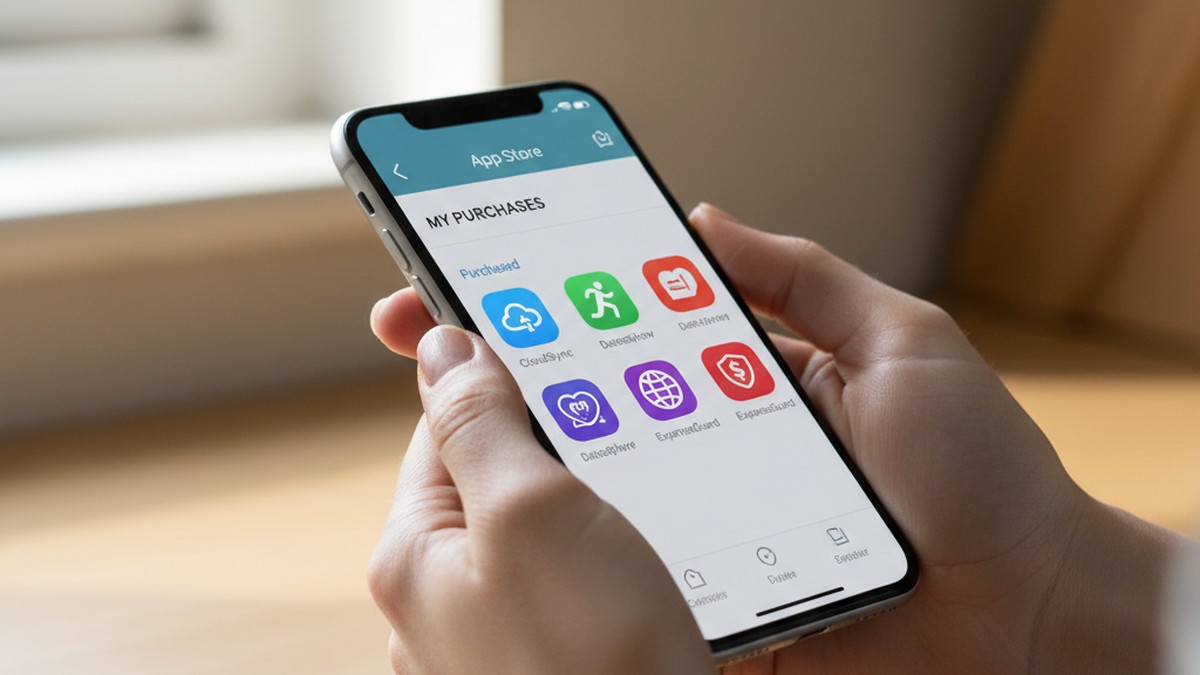
How to Access App Store Purchase History
If you have authorized access to the iPhone:
- Open the App Store
- Tap your profile icon in the top-right corner
- Tap Purchased
- Tap Not on This iPhone at the top of the list
The "Not on This iPhone" tab shows every app downloaded under that Apple ID that is not currently installed on this device. If Tinder was downloaded eight months ago and deleted last Tuesday, it appears here. If Bumble was downloaded, deleted, and redownloaded twice, it appears here.
For the full history across all devices linked to the Apple ID, you can also view purchase history through Apple's Account Settings, which covers all media services, not just apps.
What the Purchase History Shows
The list confirms:
- App name and developer
- Whether the app is currently installed on this device
- Every app downloaded under that Apple ID, including from other devices
What it does not show:
- When the app was first downloaded or when it was deleted
- How frequently the app was opened after download
- Whether an active account exists within the app
- Whether the account has been deleted
The history proves a download happened. It doesn't timestamp when or confirm what the app was used for.
One Catch: Hidden Purchases
A user can hide specific apps from their purchase history. In the App Store, after tapping Purchased, swiping left on any app reveals a "Hide" option. Hidden apps no longer appear in the "Not on This iPhone" list. However, they remain on Apple's servers and can be unhidden through App Store account settings.
If you're reviewing a purchase history that seems unusually sparse for someone who uses their phone regularly, hidden purchases may be the reason. A person who knows to hide specific apps has taken a deliberate step to remove them from view — which is itself informative.
For a broader approach to finding hidden dating apps on iPhone beyond what the purchase history shows, including system-level indicators that don't require account access, there are additional methods worth combining with this one.
If you've found a dating app in the purchase history and want a direct answer about whether an active profile currently exists on that platform, CheatScanX scans 15+ platforms simultaneously to confirm current account status.
Method 2: Checking the iCloud Backup App List
The iCloud backup app list gives you a second angle: it shows which apps were present on the device at the time the last backup ran, along with how much storage data each app had accumulated. For dating apps, this storage size number reveals more than just presence — it tells you whether the app was actively used.
Accessing the Backup App List
This requires access to the iPhone or the Apple ID credentials.
Via iPhone Settings:
Settings → [Your Name] → iCloud → Manage Account Storage → Backups → [Device Name]
Review the app list and the storage figures next to each app.
Via iCloud.com:
Sign in at iCloud.com → Account Settings → Manage Storage → Backups → [Device Name]
Note that iCloud.com provides backup management — viewing backup size, deleting backups — rather than a content browser. Viewing the actual data within a backup requires either a device restore or a third-party tool.
What App Data Size Reveals
The storage figure next to each app in the backup list is underutilized as evidence. An app's backup size often tells you more than its mere presence:
| App Data Size | What It Typically Suggests |
|---|---|
| Under 5 MB | App installed, minimal or no meaningful use |
| 5–50 MB | Moderate use — some activity, limited media |
| 50–200 MB | Regular use — profile activity, conversations |
| 200–500 MB | Frequent use — extensive messages, photos cached |
| Over 500 MB | Heavy, sustained use over weeks or months |
A dating app with 350MB of backup data was not downloaded out of idle curiosity. That data accumulated over time through active profile use, browsing, conversation threads, and cached match photos. It's not possible for an app to reach that size from a brief single-session visit.
This data size metric doesn't tell you what the conversations contained, but it directly contradicts the explanation of "I just downloaded it as a joke." The size of the footprint is proportional to the depth of use.
The Core Limitation
The backup app list only reflects what was installed at the time of the last backup. An app deleted before the backup ran won't appear, regardless of how long it was previously active. That's why the App Store Purchase History (Method 1) is more reliable — it isn't dependent on timing relative to the backup cycle. Combining both methods gives you cross-validation: if something appears in both, you have consistent evidence; if it appears in Purchase History but not the backup list, the app was active but cleared before the backup.
Method 3: iCloud Drive and Third-Party App Data
Some apps store data directly in iCloud Drive rather than in the device backup. When a person deletes an app without also deleting its iCloud Drive data, that data can linger — sometimes for months.
This behavior is app-dependent. Most mainstream dating apps (Tinder, Bumble, Hinge) don't create significant iCloud Drive footprints because they rely on their own servers for profile and conversation data. But some secondary apps — particularly "vault" apps, encrypted messaging tools, or apps that explicitly promise to back up data across devices — do use iCloud Drive as local storage.
How to Check iCloud Drive for App Data
Via iCloud.com:
- Sign in at iCloud.com
- Open iCloud Drive
- Look for any folders with app names, unfamiliar names, or names matching apps in the purchase history
Via iPhone:
- Open the Files app
- Tap Browse, then iCloud Drive
- Look for any folders not associated with currently installed apps
What to Look For
- Folders named after deleted apps
- Files with modification dates that coincide with periods of suspected change in behavior
- Unfamiliar folder names that don't match any app currently on the device
- Data files with sizes inconsistent with what any installed app would generate
Finding iCloud Drive remnants from a mainstream dating app is relatively uncommon. But apps commonly used for hiding affairs include a range of tools beyond standard dating platforms — encrypted messaging apps, private photo storage apps, and communication apps that deliberately use cloud backup to persist data across device changes. These are more likely to leave iCloud Drive traces after deletion.
The 30-Day Recovery Window
iCloud.com includes a recovery section (accessible through Account Settings → Data Recovery) that retains recently deleted files from iCloud Drive for up to 30 days. If app data was stored in iCloud Drive and recently deleted, this recovery section may still contain it. After 30 days, deleted iCloud Drive data is permanently removed.
Method 4: Screen Time Reports and App Usage History
Screen Time is the most overlooked method for dating app detection among the four data stores, and it provides the one type of information the other methods don't: evidence of when an app was used and for how long.
Unlike the App Store Purchase History (which confirms a download happened but not when it was active) or the backup app list (which shows a static snapshot), Screen Time gives you a usage timeline. It runs silently on every iPhone with Screen Time enabled, logging per-app session duration, notification counts, and pickup events.
How to Access Screen Time Data
If Screen Time is enabled and accessible:
- Settings → Screen Time
- Tap See All Activity
- Scroll to "Most Used" for per-app time breakdowns
- Tap any app to see daily usage within the displayed week
- Use the date arrows at the top to move back through previous weeks
Screen Time retains 4 weeks of detailed daily data. For a guide to interpreting the full range of Screen Time evidence for dating apps, see our article on using Screen Time to detect dating apps.
What Screen Time Can Show That Other Methods Can't
Screen Time provides usage timing that creates context other methods can't deliver:
- How many minutes per day a specific app was open
- Which days of the week showed the highest activity
- Whether usage patterns cluster around specific times (late evenings, work-from-home days, overnight)
- Whether app usage increased or decreased over time
A dating app showing 2.5 hours of use on a Thursday evening when your partner was supposedly working late is a different kind of evidence than a purchase history entry alone. The timing context transforms raw presence into a behavioral pattern.
What Screen Time Cannot Show
Screen Time data is deleted when the device is fully reset or when Screen Time is turned off and back on. A person can set a Screen Time passcode that locks access to the settings behind a PIN — meaning they can selectively disable Screen Time reporting without your knowledge.
If Screen Time is turned off on a device, or if a Screen Time passcode exists that wasn't there before, that change has meaning. Proactively disabling monitoring tools — especially ones that weren't previously interfering with normal use — is a documented pattern in digital evidence analysis.
The 4-Layer iCloud Evidence Method
Rather than checking a single data source and drawing a conclusion, the 4-Layer iCloud Evidence Method treats each Apple data store as an independent check with different reliability, different susceptibility to cleanup, and different types of information. Cross-validating across all four gives you a much clearer picture than any single layer alone.
| Layer | What It Shows | How Easily Cleared | Reliability for Dating App Detection |
|---|---|---|---|
| App Store Purchase History | Every app ever downloaded | Apps can be hidden, not deleted | Very High |
| iCloud Backup App List | Apps installed at last backup | Deleted pre-backup = no trace | Medium |
| iCloud Drive Data | App folders and cached data | Manually deleteable | Medium |
| Screen Time | Usage timing and duration | Wiped by reset or disable | High (within 4-week window) |
How to Apply the Method Step by Step
Step 1 — App Store Purchase History first. This is your most permanent record. It captures every download regardless of when the app was deleted or when backups ran. Access it via App Store → Profile → Purchased → Not on This iPhone. Document every app that appears.
Step 2 — Cross-check with iCloud Backup App List. If an app appears in Purchase History but not in the backup app list, it was deleted before the last backup ran — which means the person deleted it but didn't know about (or didn't address) the purchase record. If it appears in both, it was recently active. If it appears in the backup with significant data size, its use was sustained.
Step 3 — Check iCloud Drive for orphaned data. Data folders that exist for apps no longer installed indicate the app was deleted without clearing its cloud storage — a common pattern when someone removes an app in a hurry. Open iCloud Drive via the Files app or iCloud.com and look for folders that don't match any currently installed app.
Step 4 — Review Screen Time if accessible. This provides usage timing that none of the other layers can supply. Even 4 weeks of Screen Time data can reveal patterns worth noting. Usage concentrated in specific time windows, or unusual spikes on particular dates, creates a behavioral timeline.
Step 5 — Look for cross-layer inconsistencies. An app that appears in Purchase History but has no Screen Time data and minimal backup data may have been downloaded briefly and never seriously used. An app with a purchase history entry, 380MB of backup data, and 2–3 hours of Screen Time on multiple weeknights tells a very different story. The convergence of signals across layers is what matters.
Why Cross-Validation Matters
Any single data source can be manipulated. The purchase history can have entries hidden. The backup can miss apps deleted before backup time. Screen Time can be wiped with a reset. But cleaning all four systematically without creating other obvious gaps is difficult. The person who deletes the app, hides the purchase history, clears iCloud Drive, and disables Screen Time has covered a lot of ground — but the fact that they covered all that ground is itself a meaningful data point.
What Cheaters Erase First — and What They Can't Delete
People who use dating apps in committed relationships and want to avoid discovery follow recognizable cleanup patterns. Understanding what they prioritize erasing tells you which data sources are most likely to still contain intact evidence.
What Gets Erased First
The app itself. Deleting the app from the home screen is the most common first step. It removes the visible icon, eliminates the app's locally-stored data from the device, clears the notification badge, and takes about two seconds. Many people stop here, assuming that deleting the app is equivalent to eliminating evidence of it.
Notifications. Before or alongside app deletion, notification settings are often disabled so that incoming messages don't appear on the lock screen. This is usually done while the app is still installed, then the app is deleted immediately after.
Visible conversation threads. If a messaging component inside the app has been used, message threads are often deleted within the app before removing it. This doesn't affect server-side copies, but it removes any content visible if someone picks up the unlocked phone.
Browser history related to account creation. Search history and browser records related to creating a dating profile, accessing the site, or managing account settings are commonly cleared through Safari or Chrome settings.
What Gets Left Behind
App Store Purchase History. This is the most consistently overlooked record. Deleting an app from your phone does not remove it from the downloaded list. It remains visible under "Not on This iPhone" in the App Store Purchased section. To hide it, the user must manually swipe left on each individual app entry and tap "Hide" — a step most people don't know exists, and a step that hides the entry on-device while leaving the server-side record intact.
Based on patterns observed through the CheatScanX platform, when users report partners who have visibly cleaned their phones — deleted apps, cleared messages, removed contacts — the App Store Purchase History is the most common location where evidence remains intact. People delete the app. They don't think about the receipt.
iCloud Backup Data. If the app was actively running for weeks or months before deletion, the backup history from that period may contain the app's presence and data size. Depending on timing between deletion and backup cycle, the most recent backup before deletion may still contain the app entry.
Metadata and configuration footprints. Some apps create configuration files, temporary caches, or locally-stored preference data that persists after the main app binary is removed. These aren't systematically cleaned by most people during a hurried app deletion. For a thorough look at all the places evidence can survive on a device, see the guide on checking deleted dating apps on a phone.

Why iCloud Backup Is Less Reliable Than Most Guides Claim
Most articles that address iCloud backup in the context of cheating detection position the backup as the primary or first-resort data source. That framing is backwards. The iCloud backup is actually the most limited and most easily defeated of the four methods in the 4-Layer framework.
This is a genuinely contrarian position relative to what you'll find in most guides on this topic — but it's directly supported by how iCloud backup actually works.
The Core Problem
iCloud backup captures a single moment in time: the moment the backup ran. It then completely overwrites the previous backup. If your partner used a dating app daily for four months, then deleted it on a Wednesday night, and the automatic backup ran Thursday morning while the phone charged overnight, that Thursday backup contains zero evidence of the dating app. Not a reduced amount. Zero.
The backup does not accumulate history. It does not maintain a rolling archive of device states. It takes one snapshot and immediately discards the previous one.
Where the Misconception Comes From
The confusion has a legitimate source. iCloud backup is genuinely valuable in law enforcement and professional forensic contexts. Investigators with proper legal authority can obtain data from Apple through legal process, including information that isn't visible in consumer-facing backup management tools. Forensic software used by professionals can sometimes access older backup states in ways individual users cannot.
But for an individual without law enforcement authority trying to determine whether a partner has been using dating apps, the backup's single-snapshot limitation is directly relevant. The App Store Purchase History is more reliable precisely because it isn't a snapshot — it's an ongoing log that Apple maintains independently of the device's current state.
When Backup Data Is Still Worth Checking
The iCloud backup isn't useless. It provides actionable information when:
- The app was still installed at the time of the last backup (which happens whenever someone hasn't yet deleted the evidence, or when you're checking before they have a chance to do so)
- The backup data size reveals prolonged use rather than a brief install
- You're correlating findings across multiple data sources and the backup adds a confirming data point
Think of the iCloud backup as one corroborating source — valuable when it contains something, but whose silence doesn't mean nothing happened.
How Long Does iCloud Keep Evidence After an App Is Deleted?
iCloud only keeps the most recent backup per device, overwriting the previous one each time a backup runs. If a partner deleted a dating app before the latest backup completed, no trace remains in the backup. The App Store Purchase History retains records indefinitely — Apple does not allow users to fully delete their download history, only hide individual entries.
The iCloud Backup Evidence Window
Standard iCloud backups run automatically when the device is connected to power, connected to Wi-Fi, and the screen is locked — typically overnight, every night, for most iPhone users.
The timeline plays out like this:
Day 0 (evening): Dating app is deleted from the device
Day 1 (overnight): Nightly backup runs — the new backup contains no trace of the deleted app, overwriting the previous backup that did contain it
Day 7: There's now no backup-based evidence the app ever existed
The window for finding backup evidence is narrow. Unless you check the backup within hours of when the app was actively installed — before the next overnight backup runs — the backup-based evidence is likely already gone.
App Store Purchase History: Effectively Permanent
By contrast, the App Store Purchase History persists until Apple removes the app from the App Store entirely (rare) or the user goes through the manual hiding process (which doesn't delete the server-side record).
Apple's servers retain the download record for every app under each Apple ID indefinitely. This record exists for licensing purposes — it's how Apple verifies that a user has already paid for or downloaded an app and lets them redownload for free. That same infrastructure creates a record of downloads that outlasts any backup cycle by years.
The iCloud.com 30-Day Recovery Window
There's a partial exception to the single-backup overwrite rule. iCloud.com includes a Data Recovery section (accessible through Account Settings) where deleted files from iCloud Drive and some other data types can be recovered for up to 30 days after deletion. This applies to specific files and data stored in iCloud Drive, not to the backup app list itself — but it may apply to app-specific data stored in iCloud Drive if that data was deleted recently.
After 30 days, deleted iCloud Drive data is permanently removed. This 30-day window is the only place where "it already happened but might still be visible" is true for iCloud Drive data specifically.
Does iCloud Backup Include Dating App Messages?
Potentially, if the dating app stored messages locally on the device and had not disabled backup for that specific app. Most major dating apps — Tinder, Bumble, Hinge — primarily use server-side message storage, meaning conversations live on the app's own servers, not the device. Local message databases may be partially captured, but most dating app chats are not included in backup.
The question of whether message content is in the backup depends on a technical decision made by the app developer — not by the user — about where to store conversation data.
Two Storage Models for Dating App Messages
Server-side storage (dominant among major platforms): Messages and profile data live on the app company's servers. The app on the iPhone is essentially a viewer — it fetches conversations from the server each time the app opens. Very little data is stored locally on the device. For these apps, iCloud backup captures almost no conversation content, because there's very little local data to capture.
Local storage with server backup: Some apps store a local database of conversations on the device, which gets backed up to iCloud, while also maintaining server copies. In this architecture, the local database — containing message content, timestamps, and conversation metadata — can be captured in the iCloud backup. Restoring from a backup on a new device would restore these messages.
What This Means for Dating App Evidence
For mainstream dating apps in 2026, the realistic expectation is that iCloud backup does not contain readable conversation history from those apps. It may contain cached images, user preference data, and configuration files — but not the message threads themselves.
The exception tends to be apps that aren't primarily dating apps but are used for secret communication: encrypted messaging apps, "private" social apps, or apps that store data locally rather than on central servers. A niche communication app storing conversations locally would have those conversations captured in the iCloud backup, unless the user had specifically disabled backup for that app.
If finding message content is the goal, the relevant data source is the app itself — or, in a legal context, the app company's servers accessed through proper legal process. Screen Time can confirm an app was open for extended periods. Only the app's own data layer can tell you what was said.
What Should You Do If You Find Dating App Evidence in iCloud?
Document everything before taking any other step. Take screenshots of the App Store Purchase History, note backup data sizes, and record Screen Time figures. Evidence can disappear once the other person realizes what you know. Then decide whether to have a direct conversation, consult a family law attorney, or use a dedicated platform scan for confirmation.
Those three steps cover the most important immediate actions, but each deserves more than a bullet point.
Why Documentation Comes First
Evidence has a way of disappearing the moment a confrontation begins. If the other person realizes you've been checking their purchase history, they may hide the remaining entries. If they know you saw the backup data, they may clear the backup, reset the device, or change their Apple ID credentials. Screenshots with timestamps — ideally auto-syncing to iCloud Photos so they have a verified creation date — create records that are difficult to retroactively challenge.
Document the specific app names from the purchase history. Note the data sizes visible in the backup settings. Write down the Screen Time figures with dates. These concrete specifics matter later, whether you're having a direct conversation or consulting with an attorney about your options.
Understand What You Have Before Acting
The evidence gathered through iCloud data sources confirms what was downloaded and how much it was used. It doesn't confirm what the app was used for, whether any actual contact occurred, or whether any of that contact constituted infidelity by the standards of your specific relationship.
A 2026 study in Frontiers in Psychology on dating app-facilitated infidelity found that the mere presence of dating apps does not reliably predict relationship boundary violations without additional context. A dating app downloaded for three days with minimal data and no Screen Time is different from one running for months with hundreds of megabytes of accumulated data. The size and pattern of use matters for interpreting what you found.
That said: an app showing 400MB of backup data and consistent Screen Time activity over several weeks is harder to explain as idle curiosity. The specifics of what you find shape how much uncertainty remains.
Having a Direct Conversation
The evidence gathered through iCloud methods is most useful as a foundation for a specific, evidence-based conversation. Vague accusations ("you seem secretive about your phone") are easily deflected. Specific observations ("your App Store history shows this app was downloaded, and the backup data shows it had 380MB of data on it") are much harder to dismiss.
You don't need to reveal exactly how you found the information. You need to know it yourself well enough to resist deflection. People who are confronted with specific evidence they weren't expecting to be confronted with respond very differently than people who face vague suspicions.
If you want confirmation of whether a profile is currently active on a specific platform before having that conversation, CheatScanX can scan across 15+ dating platforms to confirm current account status, which gives you a more definitive answer about present activity rather than just download history.
Know the Legal Context
If separation, divorce, or formal action is a possibility, consult a family law attorney before continuing to gather information. Evidence gathered through unauthorized account access may be inadmissible and can expose you to legal liability. An attorney can advise on what evidence is legitimately obtainable in your jurisdiction and how to gather it in a way that can actually be used.
What Can iCloud Evidence Actually Prove?
iCloud data stores can establish that certain apps were downloaded and, in the case of backup data size and Screen Time, that they were actively used over time. What they cannot establish alone is the nature of that use — a limitation worth understanding clearly before you draw conclusions or take action.
The Evidence Ceiling
The strongest version of what iCloud evidence can prove is this: "This Apple ID was used to download [app name], the app accumulated [X]MB of data over an extended period, and it was actively open during [specific time windows]." That is meaningful, documentable, and specific.
What it cannot confirm:
- Whether the person connected with anyone through the app
- What any conversations contained
- Whether any specific interaction constituted infidelity under the terms of your relationship
- Whether an active account currently exists (an app can be installed without maintaining an active profile)
This evidence ceiling doesn't make the evidence worthless. It means the evidence provides a well-grounded starting point for a direct conversation, not a verdict that ends one.
When iCloud Data Is Sufficient
For many people, finding a dating app in the purchase history — particularly combined with backup data suggesting months of active use — is sufficient to change how they approach a relationship conversation. They don't need to prove every specific action. The presence and extent of use is enough to change the nature of the conversation from "do I have reason to be concerned?" to "what was actually happening?"
For that purpose, the 4-Layer iCloud Evidence Method provides a structured, cross-validated approach that gives you the most complete picture available without requiring technical expertise or professional forensic tools.
Looking Forward
The evidence you've gathered is a starting point. Whether it leads to a direct conversation, professional support, legal consultation, or a decision to do a targeted platform scan for current profile activity depends on what you found, how certain you need to be, and what you're prepared to do with the answer. What you now have — rather than suspicion — is specific, documented information about what was on that device and how much it was used.
Frequently Asked Questions
No. iCloud backups are encrypted and tied to a specific Apple ID. Accessing someone's iCloud account without their credentials and explicit permission is unauthorized access — a potential violation of the Computer Fraud and Abuse Act in the US and equivalent laws elsewhere. If you suspect infidelity, there are legal methods available that do not require accessing private accounts.
Not reliably. iCloud backup captures a snapshot of installed apps at the time of backup. If Tinder was deleted before the latest backup ran, it won't appear. The App Store Purchase History is the more permanent record — it shows every app ever downloaded under an Apple ID, even after deletion, and users cannot fully erase this list from Apple's servers.
Yes. A person can disable iCloud backup entirely, turn off backup for specific apps, or delete the app before a backup runs. They can also hide purchased apps from the App Store Purchased list, though hiding an entry doesn't delete the server-side record. If backup is disabled for a specific app, its data is excluded from future backups.
Potentially, if the app stored messages locally and had not disabled backup for that specific app. Most major platforms like Tinder and Hinge use server-side message storage, so conversation content lives on their infrastructure rather than the device. Local message databases may appear in backup for some apps, but most dating app chats are not included.
This depends on your jurisdiction and circumstances. If your partner has explicitly shared their Apple ID credentials and consented, reviewing backup data may be permissible in some jurisdictions. Accessing an account without consent is likely illegal under computer fraud laws in most countries. Consult a licensed attorney before taking any action that involves accessing another person's account.