
# App Store Purchase History: Find Hidden Downloads
App store purchase history records every app ever downloaded to an account — paid or free, currently installed or deleted. This record is permanent on iPhone (tied to your Apple ID and stored on Apple's servers) and persistent on Android (linked to your Google account across every device). Deleting an app from the phone does not remove it from this history.
If you're trying to understand what apps have been on a device, this is one of the most overlooked places to check. Unlike messages or photos, purchase records aren't stored on the phone itself. A factory reset doesn't touch them. They predate any individual device.
According to a 2026 study published in Frontiers in Psychology, 75% of men and 70% of women who arranged sexual encounters through dating apps identified as currently partnered at the time. A separate analysis by Global Dating Insights found that 42% of Tinder users are already married or in a committed relationship. Purchase history is one of four digital layers that can reveal what's been downloaded and what someone has actively tried to conceal.
This guide walks through the full process for iPhone and Android, explains what can and cannot be erased, and introduces the 4-Layer Digital Paper Trail — a structured method for reading this evidence accurately.
How Does App Store Purchase History Work?
App store purchase history is a permanent log maintained by Apple and Google that records every app associated with an account — free downloads, paid purchases, and subscriptions. The log lives on their servers, not on the device. It persists across phone changes, factory resets, and individual app deletions.
On Apple's platform, the record ties to an Apple ID. Every time an app is downloaded through the App Store — even if deleted the same day — that download is recorded against the account permanently. Apple's own support documentation confirms that purchase history includes "apps, subscriptions, music, and other purchased content" with no option for a user to fully erase it. Hiding individual apps from the visible list is possible, but the underlying data remains.
On Google's platform, the equivalent record lives in the Play Store Library. Every app ever installed on any device associated with a Google account appears there. The Library distinguishes between currently installed apps and those listed as "Not installed" — and that second category is where deleted apps live.
The Permanence Principle
Think of the purchase record the way a bank thinks about transaction history. The bank keeps records of every deposit and withdrawal even after you shred the paper receipt. App store purchase history works the same way. The entry stays on file with Apple or Google even if the app is removed from the device — this is actually a consumer protection measure, ensuring you can re-download paid apps without paying again.
For the purpose of understanding a device's app history, this permanence has an important practical implication. An app downloaded six months ago, used briefly, then deleted is still visible in the account history. The only way to change what's visible is to hide it — and even that leaves traces, as we'll cover shortly.
The Permanent Record vs. the Visible List
There's a distinction that matters:
- Permanent account record: Stored on Apple's or Google's servers. Contains all downloads ever made. Cannot be deleted by the user.
- Visible purchase list: The list you see when browsing your account in the App Store. Can be filtered, and individual apps can be hidden from view.
Most people only ever interact with the visible list. The permanent record is what sits behind it. These two things look the same most of the time — but they diverge whenever someone hides an entry. The hidden app disappears from the visible list while staying fully intact in the permanent record.
Understanding both exist, and that they're separate, is the foundation of everything in this guide.
Why This Matters for Hidden App Detection
When someone downloads a dating app and later wants to conceal it, the typical sequence is: delete the app from the home screen, then hide it from the App Store purchase list. This creates the appearance of a clean record. But it leaves the app visible in two places: the Hidden Purchases section (accessible with a few taps) and the complete account history in Settings, which shows every transaction regardless of hide status.
The purchase record is specifically the kind of evidence that survives because it's stored outside the device. No amount of phone management touches it.
CheatScanX scans all of these platforms — and more — in a single search. Enter a name, email, or phone number and get results in minutes.
Try a multi-platform search →Does App Store History Show Deleted Apps?
Yes. Both Apple's App Store and Google Play keep permanent records of every app ever downloaded, even apps that have since been deleted from the device. On iPhone, deleted apps remain in the Purchased list indefinitely. On Android, deleted apps appear under the Not Installed section in the Play Store Library.
This is the single most important thing to understand about this method. People who delete dating apps often believe the evidence is gone. It isn't. The purchase record predates the phone entirely — it's linked to an account, not a device. A new phone, a reset phone, and a wiped-and-restored phone all show the same history when the same account is signed in.
What the Research Reveals About This Gap
Based on what we commonly see in the digital investigation space, deleted-but-not-purged apps represent the most frequent oversight in concealment attempts. People think in terms of removing the app from their home screen — which is a device-level action — without considering that the download record lives on a separate, account-level system entirely. The mental model most people have of "deleting something" doesn't map to how cloud-linked account histories actually work.
Private investigator Aaron Bond addressed this pattern directly: "Technology doesn't lie, it's just data and when that data paints a different picture to what you are being told, that's when the alarm bells should start to ring." His point holds precisely because the data layer is separate from the device layer people typically try to manage.
On iPhone: The "Not on This iPhone" View
When you open the App Store and go to your Purchased list, two options appear: All (every app ever downloaded to this Apple ID) and Not on This iPhone (apps associated with the account but not currently installed on this specific device). The second option is the relevant one.
Apps in "Not on This iPhone" were downloaded at some point and then deleted from the current device. The entry remains until the user specifically hides it — or, in rare cases, until an app is completely removed from the App Store by its developer, which is uncommon for mainstream apps.
One nuance worth noting: if a device has multiple users signed into different Apple IDs, the purchase list reflects the currently active Apple ID. If someone uses two Apple IDs, only the currently signed-in one's history is visible through this method.
On Android: The "Not Installed" Library
In the Google Play Store, the parallel feature is the Library tab within the Manage apps & device section. Apps in the Library that show as "Not installed" were downloaded at some point under this Google account and have since been uninstalled. This list carries over across device changes — even if someone switches to a new Android phone, their old download history appears when they log into the same Google account.
Unlike Apple's version, Android's Play Store Library does allow users to remove individual entries. This creates a partial workaround for concealment, though it only affects the visible Library view — paid app transaction records remain in Google Pay regardless.
How to Check App Store Purchase History on iPhone
Three methods give you access to app purchase history on an iPhone. Each reveals slightly different information. Start with the most accessible method, then use the others as verification or to get additional detail.
Method 1: The App Store Purchased List
This is the quickest way to see what apps have ever been downloaded to an Apple ID.
- Open the App Store
- Tap the profile icon in the top-right corner (your photo or initials in a circle)
- Tap Purchased
- You'll see two tabs: All and Not on This iPhone
- Tap Not on This iPhone to view deleted apps
- Scroll through or use the search bar at the top to look for specific apps
The App Store Purchased list shows app names and icons. It does not show the date each app was downloaded or how much was paid. For that detail, use Method 2 below. One limitation: this view only shows apps not hidden by the user. If apps have been hidden, they won't appear here — check Method 3 to address that gap.
Method 2: Settings → Media & Purchases (Full Transaction History)
This method shows the complete date-stamped, price-tagged transaction record — which is more useful for establishing a timeline.
- Open Settings
- Tap your name at the top
- Tap Media & Purchases
- Tap View Account (you may need to authenticate with Face ID or a password)
- Scroll down to Purchase History
- Tap it to see a date-sorted list of every App Store transaction
The purchase history in Settings shows each item with the date of purchase and the amount paid. Free app downloads may not appear prominently here — the view focuses on paid transactions. This matters because most dating apps follow a free-download, paid-subscription model. The base app (free) might show separately from the subscription charge (paid).
When reviewing this list, look for:
- App Store purchases you don't recognize
- Recurring subscription charges with app names
- Subscription charge dates and amounts — these indicate ongoing active use, not just a one-time download
- Charges from dates that don't match the account holder's stated activity
Method 3: reportaproblem.apple.com (The Full Audit Trail)
This is Apple's billing dispute interface — and it provides the most comprehensive view of account activity available outside of Apple's internal systems.
- Open a browser (on any device) and go to reportaproblem.apple.com
- Sign in with the Apple ID credentials
- You'll see a complete list of every purchase tied to that account
- Filter by date range to focus on a specific period
- Each entry shows the app name, transaction date, and amount
This method requires the Apple ID password. If you're checking your own account or a shared account where you have authorized access, this provides a complete picture that includes items that may not appear in other views.
App Store Search History as a Supplementary Signal
While not purchase history itself, the App Store search history can complement what you find in the Purchased list. On iPhone, the App Store retains recent search terms — visible by tapping the search bar, which surfaces recent queries. If someone searched for a specific dating app by name but the app doesn't appear in the purchase list, it may mean they searched, considered downloading, and then used a different device or account.
This is a secondary indicator rather than evidence on its own, but combined with a clean purchase list that still shows hidden entries, it adds context to the overall picture.
What to Document When You Find Something
If you find a significant entry, take a screenshot before doing anything else. Capture the app name, the date it was downloaded or last purchased, and which section it appeared in (Not on This iPhone, Hidden Purchases, subscription list, etc.). Store these screenshots on your own device rather than the device you're investigating.
Documenting what you've found before taking any action protects the integrity of the information in case you need it later, whether for a direct conversation or with professional guidance.
The Hidden Purchases Feature: What It Reveals
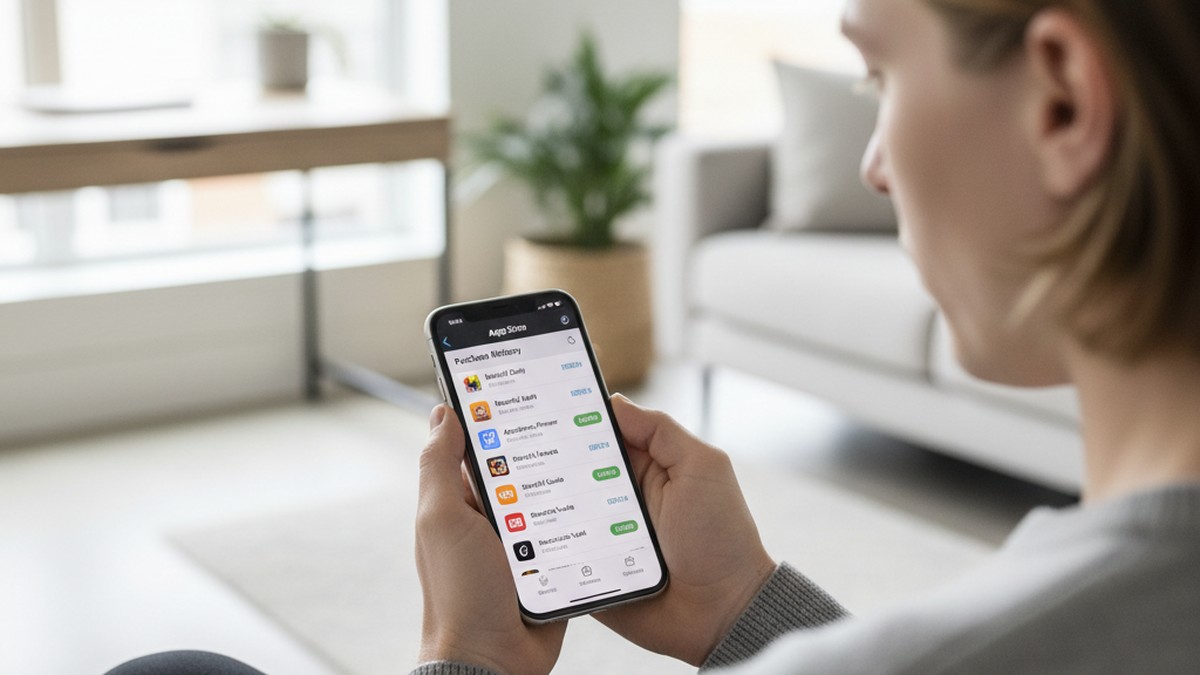
Apple's App Store allows users to hide specific apps from their visible purchase list. The feature was designed to help people declutter their download history — for example, hiding apps purchased as gifts so the recipient doesn't see them before delivery, or hiding apps from a job that's no longer relevant. In practice, it's also the mechanism people use when they want to reduce the visibility of apps they'd prefer a partner not to see.
Here's what hiding does and what it doesn't:
- It removes the app from the visible Purchased list in the App Store application
- It does not remove the app from the complete account history in Settings
- It does not remove the app from Apple's servers
- It does not affect subscription billing records
- It does not prevent someone from seeing the hidden apps specifically by checking the Hidden Purchases section
Apple's support documentation states explicitly: "The app, including any in-app purchases or subscriptions, will still appear in your complete purchase history in Settings." The hiding feature changes the visible layer, not the underlying data.
How to Check Hidden Purchases
- Open the App Store
- Tap the profile icon in the top-right corner
- Tap your Apple ID name (you may need to re-enter your password or authenticate)
- Scroll down to find Hidden Purchases
- Tap to view any apps that have been specifically hidden
If this list is empty, no apps have been hidden. If it contains dating apps, messaging apps, or vault apps, that presence has meaning beyond just the apps themselves — because of what hiding requires.
Why Hidden Apps Signal More Than Open Ones
Hiding an app from purchase history is a multi-step deliberate process:
- Knowing that the purchase list is visible and reviewable
- Navigating to the specific Purchased section in the App Store
- Locating the specific app in the list
- Swiping left on the entry
- Confirming the hide action
This is not something that happens accidentally. The act of hiding requires specific knowledge of how Apple's account system works and a clear reason to want that particular app less visible.
The 4-Layer Digital Paper Trail
Purchase history evidence works best when you understand all four layers. Each is independent — concealing one doesn't conceal the others. Together, they're difficult to address simultaneously.
Layer 1 — App Store Purchased List (visible layer)
The standard view in the App Store. Shows what's been downloaded. Can be partially edited by hiding individual entries. This is what most people think of as "the purchase history."
Layer 2 — Complete Account History (permanent layer)
The full record accessible through Settings > [Your Name] > Media & Purchases > View Account > Purchase History, and at reportaproblem.apple.com. Shows every transaction with date and amount. Cannot be altered by the user. Persists permanently.
Layer 3 — Hidden Purchases (the concealment indicator)
Apps specifically removed from Layer 1. Still fully visible in the Hidden Purchases section. The existence of hidden entries — regardless of what they are — indicates that someone knew the history was visible and took steps to reduce it.
Layer 4 — Subscription Billing (the financial trail)
Active subscriptions generate charges on the payment method on file. These appear on credit card and bank statements as "APPLE.COM/BILL" or similar, often with the app name or subscription type in the description. This layer exists entirely outside the device and the App Store interface — it can't be hidden by any action taken on the phone.
A partner using a dating app with an active subscription will show evidence in at least one of these four layers unless they're using a completely separate financial account and a completely separate Apple ID — both of which are significant, independent steps.
How to Check Google Play Download History on Android
The Android equivalent of Apple's purchase history is split between two locations: the Play Store Library for app download history and Google Pay for financial transaction records. Both are needed for a complete picture.
The Play Store Library Method
This shows all apps ever downloaded to a Google account, including uninstalled ones.
- Open the Google Play Store
- Tap the profile icon in the top-right corner
- Select Manage apps & device
- Tap the Manage tab
- In the filter dropdown at the top left, switch from Installed to Not installed
- Browse or search the list for apps of interest
This view shows app names and basic information about each. Unlike the Apple version, Android users can remove individual entries from this Library list — which means an Android user with specific technical knowledge could delete certain apps from this view. However, paid transaction records in Google Pay are unaffected by Play Library management.
When checking this view, look particularly at apps in the "Not installed" category that have unfamiliar names or that fall into the categories discussed later in this guide.
The Google Pay Transaction History Method
For paid apps and in-app purchases — including dating app subscriptions — the financial record lives in Google Pay.
- Open a browser and go to pay.google.com
- Sign in with the Google account
- Select Activity from the navigation
- Browse transactions or search by app name
Free apps with paid subscriptions will show each billing cycle here. A Tinder Gold renewal or a Bumble Premium charge, for instance, appears as a Google Play transaction with the app name, regardless of whether the Tinder or Bumble app is still installed, hidden, or removed from the Play Library.
Android Work Profiles and Multiple Google Accounts
Android has a feature that iPhone doesn't: native support for completely separate device profiles. A work profile, set up through Android's Digital Wellbeing or a device management app, creates a parallel space on the same physical phone where apps run under a different identity. Apps installed in a work profile appear separately from personal apps and are associated with a different Google account.
The visual indicator of an active work profile is a briefcase badge on app icons — but users can remove or disable this indicator. If a device shows evidence of a work profile in Settings > Accounts or under Digital Wellbeing, checking what apps are installed in that profile requires logging in under that profile's credentials.
Beyond work profiles, Android devices support multiple simultaneous personal Google accounts. Switching between accounts changes which account's app history and purchases are visible. A second Google account on the same device would show a completely separate Play Store Library and Google Pay history. Check under Settings > Accounts to see every Google account currently signed in on the device.
The One Difference Between Android and iPhone History
The key practical difference: Android allows removal of individual items from the Play Library (though not from financial records), while Apple does not allow removal from the purchase history at all. This means Apple's record tends to be more complete for casual concealment attempts, while Android investigations should prioritize the Google Pay financial layer alongside the Library layer.
If you want to know whether a partner currently has an active profile on specific apps — regardless of what their phone's app history shows — finding out if your partner is on dating apps through a profile scan covers current activity rather than download history.
What Apps Should You Be Looking For?
Focus on three categories: dating apps (Tinder, Bumble, Hinge, Grindr, Ashley Madison), secret messaging apps (Telegram, Signal, Wickr), and vault apps that disguise themselves as calculators or utilities. The most significant finding is not one unfamiliar app but a cluster of these categories appearing as deleted entries around the same time period.
Not every unfamiliar app in purchase history signals infidelity. People download and delete apps for many reasons: a free trial they abandoned, an app recommended by a friend, a game they tried once. The goal is pattern recognition and context, not reflexive accusation based on a single entry.
That said, certain app categories carry specific significance when they appear in deleted and concealed purchase history — particularly when they cluster together.
Dating Apps
Any of the following appearing in a "Not on This iPhone" or "Not installed" list, especially alongside a corresponding subscription charge, warrants attention:
| App | Key Notes |
|---|---|
| Tinder | Free download; Gold/Platinum subscriptions show in billing |
| Bumble | Free download; subscription tiers leave financial trail |
| Hinge | Free download; subscription clearly distinguishable in billing |
| Grindr | Gay/bisexual men primarily; subscription charges labeled clearly |
| Feeld | Designed for open and non-monogamous arrangements |
| Ashley Madison | Explicitly designed for affairs; subscription billing leaves clear record |
| Match.com | Subscription-based; download and billing both visible |
| OkCupid | Free tier; may show as a free download without billing trace |
| Plenty of Fish | Free; high usage volume |
| Zoosk | Subscription-based; billing trace present |
The most common pattern in the apps cheaters commonly use is a free-tier dating app downloaded, used, and deleted — with the purchase record remaining while the billing record either never existed (free tier) or persists separately as a subscription charge.
Secret Messaging Apps
Messaging apps don't automatically indicate infidelity — most are used for legitimate purposes. The relevant signal is their combination with deleted dating apps, or their presence alongside unusual usage patterns.
Signal — End-to-end encrypted messaging. Mainstream and widely used for privacy generally, but also common in conversations people want to keep separate from standard message apps.
Telegram — Has a "Secret Chat" mode with auto-delete timers. Regular chats are cloud-stored; secret chats are device-only and fully deletable. A Telegram download alongside a dating app download from similar dates creates a meaningful combination.
Wickr — Designed for complete message deletion after reading. The presence of this app on a device historically used only for standard messaging is unusual.
Snapchat — Disappearing photo and video messages. Still appears in purchase history even though the content sent through it doesn't persist on devices. A Snapchat download in an account where it wasn't previously installed, from a specific date, is traceable.
Vault Apps and Hidden Content Storage
Vault apps are designed to look like something innocuous — a calculator, a utility, a flashlight — but contain a password-protected folder for photos, videos, or messages. They appear in purchase history under names like:
- Calculator+ / Secret Calculator / Private Photo Vault / Keepsafe
- Any calculator utility with an unusually high number of ratings (legitimate calculator apps rarely accumulate hundreds of thousands of ratings)
- Apps with names that suggest organization or file management but have no obvious legitimate use
The presence of a vault app in purchase history — especially as a deleted entry, and especially alongside deleted dating apps from a similar date range — is a meaningful combination. Articles covering hidden dating apps on a partner's phone detail how vault apps are identified in practice.
What Combination Looks Like
In practice, what we commonly observe is not one suspicious app but a cluster: a deleted dating app from six months ago, a deleted messaging app from a similar date range, and a vault app hidden from the purchase list. No single element proves anything. The combination, combined with other behavioral signals, forms a pattern worth taking seriously.

Can You Delete App Store Purchase History?
You cannot delete Apple App Store purchase history. Apple allows users to hide apps from the purchase list view, but hidden apps still appear in the complete account history accessible through Settings. On Android, individual apps can be removed from the Play Library, but paid app transaction records remain in Google Pay order history.
This is consistently confirmed across Apple's own support documentation and community forums. The system was designed without a user-facing delete function for purchase records — the permanence is intentional, both as a consumer protection measure and as part of Apple's fraud-prevention architecture (Apple's App Store prevented more than $9 billion in fraudulent transactions in recent years, a capability that depends partly on permanent transaction logging).
What Each Concealment Action Actually Removes
| Action Taken | What Disappears | What Remains |
|---|---|---|
| Delete app from device | App from home screen, App Library | Purchase record tied to Apple ID |
| Hide from Purchased list | App from visible Purchased tab in App Store | Complete history in Settings; Hidden Purchases section |
| Log out of Apple ID | Active App Store session | All purchase records on Apple's servers |
| Factory reset device | All local data on device | Apple ID purchase history (cloud-based, survives reset) |
| Use new device | Previous phone's local storage | Same Apple ID history appears on new device at sign-in |
| Create new Apple ID | — | Old Apple ID retains all its purchase history unchanged |
The pattern here is consistent: all standard concealment actions affect the device layer while leaving the account layer intact. A factory reset — which most people assume destroys all evidence — actually does nothing to App Store purchase records. The same history reappears the moment the same Apple ID is signed in again.
The One Complete Erasure Path
The only way to fully separate from App Store purchase history is to create an entirely new Apple ID and stop using the previous one. This is practically disruptive: it eliminates access to all previously purchased apps, iCloud storage, Apple Music library, Apple TV purchases, and any other Apple services tied to the old account. It's a significant undertaking that few people actually execute as a concealment strategy.
This means that for the vast majority of accounts in use, the purchase history tied to an existing Apple ID is essentially complete and intact. Someone who hasn't gone to the extraordinary step of creating a parallel identity is traceable through their existing account.
Subscription History: The Backup Evidence Layer
Even when someone has successfully hidden apps from the App Store's visible list, active subscriptions leave a financial trail. This is the fourth layer of the 4-Layer Digital Paper Trail, and it's the one that survives every other concealment attempt short of using a separate financial account.
How to Check Active iPhone Subscriptions
- Open Settings
- Tap your name at the top (Apple ID section)
- Tap Subscriptions
- The list shows all currently active subscriptions and subscriptions that expired within the last 12 months
The subscription list is fully independent of the hidden purchases function. Hiding an app from the Purchased list has no effect on whether it appears in the subscription view. A Tinder Gold subscription, a Bumble Premium plan, or a Hinge Preferred membership shows here with the app name, billing amount, and renewal frequency — regardless of whether the app itself is installed or hidden.
In practice, what we see frequently is that people delete and hide the app but forget about the active subscription. The subscription continues generating charges, continues appearing in Settings, and continues appearing in billing statements. This is among the most reliable secondary indicators available through account-level investigation.
How to Check Google Play Subscriptions
On Android, active subscriptions appear in two places:
- Google Play Store: Profile icon > Payments & subscriptions > Subscriptions
- Google Pay: pay.google.com > Subscriptions tab
Both show the subscription name, cost, and renewal date. Unlike the app Library, you cannot remove an active subscription from these views — it has to be cancelled first, which generates its own record and leaves a gap in billing if it was previously recurring.
The Credit Card and Bank Statement Trail
Credit card and bank statements provide the most tamper-proof version of subscription evidence — because they exist outside the device entirely.
When someone subscribes to a dating app, charges appear on statements as:
- "APPLE.COM/BILL" followed by the app name or subscription type (for iOS purchases)
- "GOOGLE PLAY" followed by the app name or a transaction reference (for Android purchases)
- Direct merchant billing in some cases, which may use the app's company name rather than platform
If you have visibility into shared finances, checking statement history for recurring charges over the past 6-12 months provides a layer of evidence that doesn't require any access to the device or accounts at all. Recurring monthly charges of $9.99 to $29.99 from app store billing are a common price range for dating app subscriptions and are distinct from media streaming services.
One limitation: some apps use billing descriptors that don't clearly display the app name. "APPLE.COM/BILL" may appear multiple times for different services. Cross-referencing the amount and billing date against known subscription prices helps narrow down the source.

What Does It Mean When Apps Are Hidden in Purchase History?
Hiding an app from purchase history requires deliberate, multi-step action: knowing the history is visible, navigating to the Purchased list, swiping left on the specific entry, and confirming the action. Someone who has hidden a dating app understood that the history could be seen and chose to reduce that visibility. That intent is itself significant.
Finding a deleted dating app in purchase history is meaningful, but finding a deliberately hidden one tells a different story. The distinction matters for interpretation.
Deleting an app is routine behavior. People regularly remove apps they no longer use, tried once, or stopped finding useful. A dating app in the "Not on This iPhone" list that was downloaded two years before the current relationship started is information, but it's not evidence of current infidelity — it might simply reflect a normal part of that person's life before they met their current partner.
Hiding an app is different. Hiding requires:
- Knowing the history is visible — not everyone knows about the Purchased list
- Deciding to address that visibility — a deliberate choice
- Navigating to the specific entry — App Store, profile, Purchased list
- Swiping left on the specific app — a targeted action for that particular entry
- Confirming the hide — a second confirmation step
This is not accidental. It requires specific knowledge of how Apple's account system works and an active decision to reduce the visibility of that particular app. Someone who has hidden a dating app from their purchase list understood the list existed, knew that list could be seen, and chose to act on that knowledge.
The contrarian perspective worth understanding: most relationship guides focus on finding apps — the presence of a dating app as evidence. What's actually more revealing is the act of concealment. A purchase history that contains nothing hidden is a different kind of signal than one where apps have been specifically hidden — even before you know which apps they are. The concealment action itself communicates awareness and intent.
That said, context is important. Someone might hide a health app they consider intensely private, or an embarrassing game, or financial management tools they don't want a partner to see. A single hidden entry means less than a pattern of hiding across multiple app categories, particularly when the hidden apps cluster in dating, messaging, and vault categories.
What a Hidden Subscription Means
If the Hidden Purchases section reveals a dating app, and the subscription list shows an active or recently cancelled subscription for the same app, that combination indicates the person both concealed the app from the purchase list and was actively paying for it — suggesting ongoing use rather than a historical download.
Family Sharing and Purchase History Visibility
If you and your partner use Apple's Family Sharing feature, the purchase history situation changes in two specific ways worth understanding.
What Family Sharing Does Expose
In a Family Sharing group, purchases are typically charged to the organizer's payment method. This means the family organizer receives notifications about family member purchases and can see subscription and purchase charges in their billing history. If someone in the family group subscribes to a dating app, the charge will appear in the organizer's billing statement and, in many cases, in the Subscriptions section of the organizer's account.
The organizer can also see active subscriptions maintained by family members, because those subscriptions are charged to the family payment method.
What Family Sharing Doesn't Expose
Free app downloads don't generate purchase notifications or billing entries. Because the base version of most dating apps is free to download, the initial app download would occur without generating any visible notification through Family Sharing. The subscription tier would create a billing record; the free download would not.
Family Sharing also doesn't expose the specific content or usage of any app — only the billing and subscription presence.
The Separate Account Workaround
The most common countermeasure against Family Sharing visibility is maintaining a separate Apple ID for personal app activity. If someone has two Apple IDs — one linked to the family plan for App Store access and media, and one personal for specific activities — their dating app purchases and subscriptions would be on the personal account, completely invisible through the family billing system.
Signs that a second Apple ID might exist include apps that appear on the device but don't show in the family's shared purchase history, frequent Apple ID sign-in prompts on the device, or unfamiliar Apple ID email addresses appearing in Settings or iCloud.
On Android, the equivalent is a second Google account added to the device under Settings > Accounts. Android devices support multiple simultaneous Google accounts, and apps can be downloaded under whichever account is selected during installation — meaning a second Google account would have a completely separate app history.
What Are the Limitations of Checking Purchase History?
Understanding what this method can't tell you is as important as knowing what it can. Misinterpreting the absence of evidence as evidence of absence — or over-reading a deleted app as definitive proof — creates problems in either direction.
What Purchase History Can Show
- Whether specific apps were ever downloaded to this account
- Whether downloaded apps were subsequently deleted
- Whether apps were deliberately hidden from the visible purchase list
- Whether active subscriptions exist for specific services
- The dates and amounts of paid transactions
What It Cannot Show
- Whether the app was ever used, and how
- The content of any conversations, messages, or activity within the app
- Whether the person is currently active on the platform
- Whether a profile currently exists under this person's name (a deleted app might mean the account was also deleted)
- Whether infidelity actually occurred — an app is a possibility indicator, not proof
Practical Limitations
Multiple accounts: Anyone maintaining a second Apple ID or Google account can conduct app activity there with no connection to the primary account being checked. This is the most effective countermeasure against purchase history investigation, and it requires significant effort — but it does exist.
Work devices: A work-provided iPhone or Android managed by an employer's MDM (Mobile Device Management) system may have app activity that doesn't appear in a personal Apple ID at all.
Shared device usage: In households where multiple family members use the same Apple ID (an outdated practice but still common), the purchase history reflects all family members' downloads, not just one person's.
Pre-relationship downloads: A Tinder download from four years ago, when someone was single, carries very different weight than one from four months into a relationship. Dates matter enormously for interpretation.
Legitimately private apps: Health apps, medication-tracking apps, financial management tools, legal research apps, and therapy-related apps all appear in purchase history. Private app use isn't always suspicious app use.
Time and context gaps: An app downloaded 18 months ago before the relationship started carries very different weight than one downloaded last month. The purchase history shows dates but not relationship timeline context. You provide that context — the history alone doesn't interpret itself.
App Store removals: If a developer removes their app from the App Store entirely, it may disappear from purchase histories. This is rare for mainstream dating apps but can happen with smaller or regional apps. An absence in purchase history doesn't mean an app was never downloaded — it might mean the app itself no longer exists in the store.
How to Combine Purchase History With Other Evidence
Purchase history is most useful as a corroborating layer rather than a standalone investigation. It answers "what was downloaded and when" — which becomes meaningful alongside other signals you already have. Behavioral changes in phone habits, signs a husband is cheating on his phone, unexplained schedule gaps, or unusual financial charges all gain more context when purchase history shows a dating app was downloaded during the same period.
The how to catch a cheater framework covers this multi-signal approach in detail. Purchase history is one component of a digital investigation, not the whole of it.
The honest limitation is this: purchase history tells you what was downloaded. It doesn't tell you why, or what was done with it. It's one input in a larger picture, not a standalone verdict.
What to Do After Checking App Store Purchase History
Finding something concerning in app store history rarely provides complete clarity on its own. What you do with that information — and how quickly — matters as much as the information itself.
Document Before Acting
Before doing anything else, record what you've found. Screenshot the specific entries: the app name, the date it appears, which section it was in (deleted apps list, hidden purchases, subscription list). Note the date of each screenshot. Store these on your own device rather than the device you investigated.
This step is often skipped in moments of strong emotion. Taking it creates a record that's stable — the app history you're seeing today could look different tomorrow if someone manages account settings, and having documentation of what you observed matters if you need it later.
Read the Dates Carefully
The dates in purchase history matter more than the presence of any specific app. A Tinder download from three years ago might predate the relationship entirely. A Hinge download from four months ago — when the relationship was six months in — is a different situation.
When reviewing what you've found, note each app's download date alongside:
- When your relationship started
- Whether the date aligns with any period of unusual behavior you remember
- Whether a subscription renewal appears after the initial download (suggesting ongoing active use, not just a curiosity download)
- Whether multiple apps were downloaded within a short window — a cluster of downloads in one week is more significant than isolated entries spread across years
Understand What You're Actually Trying to Know
Purchase history can confirm that a dating app was downloaded and deleted from this account. It can't confirm whether a current profile exists under this person's name on that platform. Those are different questions.
If the question you actually need answered is whether your partner has an active profile on Tinder, Bumble, Hinge, or other platforms right now, a profile scan provides more direct evidence than purchase history. CheatScanX searches current, public-facing profiles across 15+ platforms by name and location — answering the "are they active now" question that purchase history can't resolve.
Approaching the Conversation
Whether to raise what you've found is a personal decision. If you do, consider that a question leaves more room for honesty than an accusation. "I was looking through the account and saw something I want to ask about" opens a different conversation than leading with a conclusion.
Prepare for multiple legitimate explanations: a download from before the relationship, an app installed as a reference for an article or conversation, an app someone used briefly and stopped. The combination of what you found, the dates involved, and other behavioral context you have will determine how significant any specific entry is.
If you find active subscriptions to dating apps — not historical downloads but currently billing services — that's harder to explain as anything other than ongoing access, and warrants a more direct conversation.
When Outside Help Makes Sense
If the combination of purchase history evidence and other signals leads you to believe you're dealing with active infidelity, consider speaking with a therapist or counselor before taking any major action. Processing what you've found with a professional — before a confrontation — tends to lead to clearer thinking about what you actually want to know and do.
If you're married and considering legal steps, an attorney can advise on what kinds of evidence are relevant and how to document findings appropriately in your jurisdiction.
Frequently Asked Questions
Yes. Every app downloaded through your Apple ID appears permanently in your purchase history, even after deletion from the device. Open the App Store, tap your profile icon, select Purchased, and choose Not on This iPhone to see apps no longer installed. The record persists even across device changes and factory resets.
Open the App Store, tap your profile icon at the top right, tap your Apple ID name, then scroll down to Hidden Purchases. Any apps deliberately hidden from the purchase list appear here. Hidden apps still appear in the complete account history in Settings under your Apple ID, then Media and Purchases.
On a shared Apple ID, purchase history is visible to anyone logged into that account. With Family Sharing, the organizer can see purchase charges and subscriptions for family members but not every free app downloaded. Separate Apple IDs keep purchase histories completely private from each other.
Open the Google Play Store, tap your profile icon, select Manage apps and device, tap the Manage tab, then switch from Installed to Not installed. This shows every app ever downloaded to the Google account, including deleted apps. Paid app and subscription records also appear in Google Pay transaction history.
No. Hiding removes the app from the visible purchase list in the App Store, but it still appears in Settings under the complete account history. Active subscription charges also remain on credit card and bank statements regardless of whether the app is hidden or the app itself is deleted from the device.